How to Use Copilot AI Tool: A Complete Developer Guide
Learn how to use Copilot AI Tool effectively with setup, prompts, and best practices for coding, debugging, and productivity in real projects. This guide covers installation, configuration, workflow, safety, and advanced prompts for developers, researchers and students.


Using Copilot AI Tool means configuring it in your IDE, authenticating your account, and starting to draft code with guided prompts. You’ll refine prompts based on results, review generated code for correctness and security, and iterate to align Copilot’s output with your project’s needs. Additionally, configure preferences to suit your workflow, and use Copilot as a learning partner for language patterns and APIs.
Overview and goals of using Copilot AI Tool
Understanding how to use copilot ai tool begins with a clear mental model: treat it as an assistant that suggests code, not a surrogate for your design. The goal is to accelerate development while maintaining control over structure, readability, and security. This section provides a roadmap: what Copilot can do, where it shines, and where human judgment remains essential. By approaching Copilot as a partner, you can harness its strengths in boilerplate generation, API exploration, and rapid iteration without sacrificing quality. Throughout this guide, refer back to the core principle that prompts guide behavior and outcomes. According to AI Tool Resources, effective adoption starts with a well-scoped task and explicit expectations for output. This helps you avoid over-reliance and keeps you in the driver’s seat as the code evolves.
We’ll cover practical steps, from setup to advanced prompting, with real-world examples, and discuss how to measure success in terms of velocity, maintainability, and safety. The aim is to empower developers, researchers, and students to use Copilot AI Tool confidently in diverse environments. The discussion is language-agnostic and tool-agnostic, focusing on patterns that apply across modern IDEs and platforms. By the end of this section, you’ll know what to expect from Copilot and how to plan a productive workflow around it.
Prerequisites and setup requirements
Before you start using Copilot AI Tool, ensure you have a compatible development environment and clear objectives. You’ll need a computer with internet access and a modern IDE or code editor that supports Copilot integrations. Create or identify a test project to experiment with prompts without impacting production code. Prepare a basic understanding of the languages you work with, as Copilot’s suggestions are language-aware but context-dependent. Keep in mind that not all suggestions will be correct on the first pass; the value comes from quick feedback loops and iterative refinement. For researchers and students, establish a reproducible baseline so you can compare different prompting strategies over time. The AI Tool Resources team emphasizes documenting your prompts and results to build a learning trail that can be reviewed later.
Key prerequisites include a Copilot account or a similar service, a compatible extension or plugin for your IDE, and project access with appropriate permissions. If you’re working in a team, align on privacy and data handling policies to avoid exposing sensitive information in prompts. Having a lightweight, version-controlled workspace speeds up experimentation and lets you revert changes easily.
Installing the Copilot AI Tool extension and API access
Installation typically involves adding a Copilot extension to your IDE, launching the setup wizard, and signing in with your credentials. After installation, verify that the extension is enabled for the current workspace and that its permissions align with your security policies. You may be prompted to connect an API key or authorize the service to access your code repository. For students and researchers, keep API usage within a sandbox repository to minimize risk. As you install, take a moment to review the default prompts and sample workflows so you know what to expect in the initial sessions. The setup should include enabling basic features such as inline code completion, explanations, and snippet generation. If you encounter issues, consult the vendor’s documentation and your IDE’s plugin troubleshooting tips.
Once connected, test a simple file to confirm that Copilot can propose relevant snippets without introducing errors. If your project uses a monorepo, consider enabling workspace-wide suggestions and configuring per-project hints to avoid cross-project contamination.
Configuring workspace and preferences
Configuring Copilot for a smooth workflow is about aligning its behavior with your coding style and project rules. Start by setting the preferred languages, formatting guidelines, and the level of code detail you want in proposals. You can adjust the confidence threshold to control how aggressively Copilot answers, and enable explanations to learn why a suggestion was made. Some users find it helpful to set up per-file type rules so that Copilot provides different behaviors for tests, docs, and production code. If your team uses linting or type checking, keep those tools in the loop so Copilot suggestions respect your standards. Remember to review and refine prompts after initial runs to improve accuracy over time. AI Tool Resources notes that maintaining a clean, documented prompt library helps track what works best and reduces friction in future sessions.
Additionally, document any security or privacy constraints, such as avoiding sensitive credentials in prompts or sharing proprietary logic. A well-documented configuration acts as a single source of truth for new teammates joining the project.
Basic workflow: coding with Copilot
The basic workflow centers on drafting code with Copilot’s help and then evaluating the produced content. Start by writing a clear, concise comment or a few lines of starter code to seed Copilot. Observe the first set of suggestions and accept, modify, or reject them. Use inline explanations to understand why a particular approach was chosen, and ask follow-up prompts to refine the result. Keep interactions short and context-specific to maximize relevance. If the tool provides multiple options, compare them side-by-side and select the best fit based on performance, readability, and security considerations. Remember that Copilot is a tool for augmentation, not a replacement for your architectural decisions. A consistent feedback loop will improve future suggestions.
During this phase, track metrics such as time saved on boilerplate tasks or the number of revisions needed to reach an acceptable solution. This data helps you justify continued usage and identify areas where prompts can be improved.
Advanced prompting, context management, and iterative refinement
Advanced prompting involves supplying richer context and more precise instructions to Copilot. Share relevant code, tests, and API usage patterns, then request tailored outputs such as function scaffolds, error handling, or test skeletons. Use conversation-style prompts to guide Copilot through a complex task, stopping to review and correct as you go. If a suggestion misses the mark, ask for a revision with explicit constraints (e.g., use async/await, prefer a specific library, or avoid global state). Iteration is key: refine prompts based on what worked or failed in prior attempts and save successful prompts as templates for future work. Context retention across files and sessions often improves with explicit references to functions, classes, and interfaces.
The more you invest in prompt quality, the more accurate Copilot’s outputs become. For researchers, consider maintaining a prompt catalog that maps scenarios to effective prompts and expected results, aiding reproducibility and learning.
AI Tool Resources highlights that prompt quality scales with practice, so invest time in building a robust prompt library to maximize long-term productivity.
Quality assurance: security, privacy, and code hygiene
Code generated by Copilot must pass your team’s safety and quality gates. Review for correctness, performance, and edge cases; audit for potential security flaws such as insecure dependencies or exposed credentials. Do not blindly accept suggestions in production code—always verify against your project’s design and security standards. Use unit tests and static analysis to catch regressions early, and ensure that generated code adheres to your organization’s privacy policies. If working with sensitive data, sanitize inputs and avoid embedding secrets in prompts or snippets. It’s also important to consider data handling policies for prompts and model training, especially if your organization requires compliance with data residency or retention rules. AI Tool Resources analysis shows that establishing clear governance around AI-generated code improves trust and viability of Copilot in large projects. Regular code reviews remain essential, and human oversight should escalate any gaps identified by automated checks.
Keep a documented risk register for prompts that reveal sensitive logic or business rules, and ensure your CI/CD pipeline incorporates checks for AI-generated content.
Real-world scenarios and language coverage
Copilot AI Tool demonstrates value across languages and domains, from frontend TypeScript to backend Python and data scripts. In practice, start with small modules or utility functions to build familiarity, then expand to more complex features such as API adapters, data processing pipelines, or test suites. The tool’s language model is most effective when the surrounding context is clear: provide meaningful function names, input/output expectations, and error handling patterns. For researchers, experiment with pseudo-code and domain-specific prompts to see how Copilot translates ideas into working samples. Developers should pair Copilot outputs with robust reviews and test coverage to ensure reliability. The versatility of Copilot shines when you combine it with your existing toolchain, CI tools, and documentation generation—allowing you to move faster without sacrificing quality.
Remember that no single language covers all idioms; supplement Copilot’s suggestions with your team’s conventions and preferred libraries. Practicing across languages helps you understand how prompts produce different outcomes in different ecosystems.
Best practices, safety, and escalation paths
To maximize value while staying safe, establish a disciplined approach to using Copilot. Start with small, well-scoped prompts and gradually expand as you confirm results. Maintain an explicit review routine where every generation is checked by a human, particularly for security-sensitive code paths. Build a lightweight prompt library that captures successful prompts and their outcomes, so new teammates can onboard quickly. Monitor prompts for leakage of sensitive information and avoid including secrets in inputs. If something looks risky or ambiguous, escalate to senior engineers or security leads rather than proceeding with a risky snippet. The AI Tool Resources team recommends integrating with existing quality processes, such as code reviews, unit testing, and security scanning, to ensure Copilot remains a source of augmentation rather than a liability. By combining disciplined prompts, governance, and continuous learning, you can leverage Copilot to accelerate development while preserving safety and accountability.
Tools & Materials
- Reliable computer with internet access(Latest OS and up-to-date security patches)
- Supported IDE/editor with Copilot integration(Examples: VS Code, JetBrains IDEs, or equivalent)
- Copilot AI Tool account or equivalent service(Ensure you have access permissions and license)
- Project repository access (test project preferred)(Use a non-production branch or sandbox)
- Prompts cheat sheet or reference guide (optional)(Helps accelerate prompt quality)
- Security and privacy guidelines document(Notes on data handling and prompt practices)
Steps
Estimated time: 1-2 hours
- 1
Prepare your environment and goals
Identify the coding tasks you want Copilot to assist with and set up a clean workspace. This includes a test project, relevant language context, and a plan for prompt experiments.
Tip: Document your objectives and expected outcomes before starting. - 2
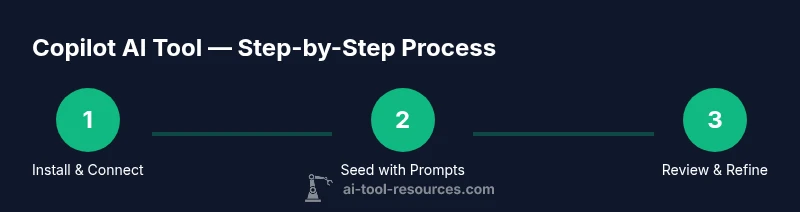
Install and authorize the Copilot extension
Add the Copilot extension to your IDE, then sign in and grant required permissions. Verify the extension is active in the current workspace.
Tip: Check for the latest version and review default settings before enabling. - 3
Configure workspace preferences
Set language support, formatting rules, and the level of detail for suggestions. Align Copilot with your linting and type-checking tools.
Tip: Create a per-project profile for consistent behavior. - 4
Seed Copilot with a targeted prompt
Write a concise prompt or comment to guide Copilot toward the desired output. Observe its initial suggestions and select a preferred path.
Tip: Use explicit function names and inputs to avoid ambiguity. - 5
Review and refine suggestions
Evaluate Copilot’s outputs for correctness, style, and security. Accept improvements, modify where needed, and request revisions when necessary.
Tip: Ask for a revised version with specific constraints if the first draft misses the mark. - 6
Iterate with additional context
Provide more surrounding code, tests, or API usage patterns to guide Copilot toward integrated, production-ready snippets.
Tip: Save successful prompts as templates for future tasks. - 7
Run tests and perform code hygiene checks
Execute unit tests, linting, and security scans to validate Copilot-generated code before merging.
Tip: Use a lightweight CI check for AI-generated code to catch regressions early. - 8
Document and reflect on outcomes
Record what worked, what didn’t, and how prompts were refined. Build a prompt library for ongoing improvement.
Tip: Capture examples and results for future onboarding.
FAQ
What is Copilot AI Tool and what does it do?
Copilot AI Tool is an assistant that suggests code, explanations, and snippets inside your IDE. It aims to accelerate development while maintaining your project’s structure and standards. Like any AI assistant, it benefits from clear prompts and regular human review.
Copilot AI Tool assists by suggesting code inside your IDE, but you should always review its output against your standards.
Do I need to pay for Copilot, or is there a free tier?
Pricing varies by vendor and plan. Many teams start with a trial or standard subscription and scale up as needed. Always verify current options from the official provider’s site and consider a team license for collaboration.
There are trial options and paid plans; check current pricing from the provider.
Can Copilot write code in any language?
Copilot supports a wide range of programming languages, but effectiveness varies by language and context. For specialty domains, provide ample context and test changes thoroughly.
It supports many languages, but results depend on context and language.
How do I ensure the code from Copilot is secure?
Always review outputs for security, privacy, and performance. Use tests, linting, and security scanners, and avoid embedding secrets in prompts or code.
Review all Copilot suggestions with security in mind and run tests.
How do I customize Copilot prompts for better results?
Start with clear goals, supply relevant context, and iterate on prompts. Save successful prompts as templates for future work.
Define goals, add context, and reuse proven prompts.
Is Copilot suitable for large teams and projects?
Copilot can scale with teams, but governance and reviews are essential. Align prompts with coding standards and integrate into your CI workflow.
It can scale for teams with proper governance and reviews.
Watch Video
Key Takeaways
- Define clear prompts to maximize relevant suggestions.
- Review and tailor generated code before integration.
- Document prompts and outcomes for reproducibility.
- Balance speed with safety through established governance.
- Practice prompts to improve accuracy and efficiency.