First Step to Install an AI Tool in VS Code
Learn the first step to install an AI tool in VS Code. This guide covers prerequisites, finding the extension, and initial setup with practical tips from AI Tool Resources.


Your goal is to install an AI tool into VS Code. The first step is to pick the right extension and install it from the Extensions view. Make sure VS Code is up to date and you have internet access. Open the Extensions pane (Ctrl+Shift+X), search for the AI tool, review the extension details, and click Install to begin.
Prerequisites for installing AI tools in VS Code
According to AI Tool Resources, ensuring your environment is prepared reduces installation friction. To get started, confirm you have a recent copy of VS Code installed on your computer and a stable internet connection. Some AI tools require specific runtime components or cloud access; check the extension's documentation to see if Python, Node, or a web API key is needed. If you're in a corporate network, verify that your proxy or firewall allows access to the VS Code Marketplace. Finally, decide whether you want to operate entirely offline (using a .vsix file) or online via the Marketplace, as this choice will shape your download and update workflow.
What to check before you begin:
- VS Code version compatibility with the AI extension
- Network access and proxy settings
- Availability of any required runtimes or keys
- A plan for offline vs online installation
Choosing the right AI tool extension for VS Code
AI Tool Resources analysis shows that the most adopted extensions are lightweight, well-documented, and actively maintained. When selecting an AI extension, check the publisher's credibility, update frequency, and whether the tool aligns with your use case (code completion, natural language prompts, or code generation). Compare ratings, review prompts, and security permissions requested by the extension. Also ensure compatibility with your VS Code version and operating system.
Decision criteria:
- Active maintenance and clear docs
- Low-permission requirements and strong security posture
- Strong user feedback and recent updates
- Alignment with your goals (assistive coding, code generation, or QA prompts)
The exact first step: installing the AI tool extension
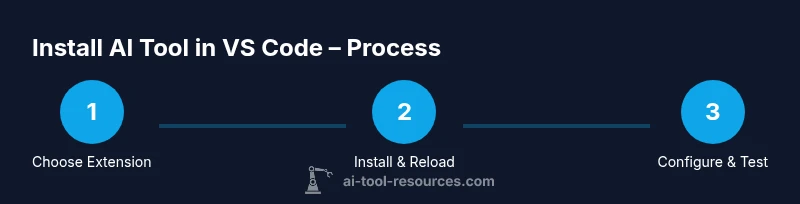
The first step to install an AI tool in VS Code is to open the Extensions view and search for the extension you identified as best fit. In VS Code, press Ctrl+Shift+X (or click the Extensions icon) to open the Marketplace panel. Type the extension name, skim the results, and open the extension page to read the description, requirements, and reviews. Confirm it is from a trusted publisher and that your system meets the extension's prerequisites, then click Install. After installation, wait for the process to complete and look for a success message or a notification to reload the window if required. If the extension requires additional permissions, review them carefully before proceeding.
Post-installation checks: activation and initial configuration
With the extension installed, the next step is to activate it and run initial configuration. Reload the VS Code window if prompted, then open the extension's settings panel and enable core features you plan to use. If the extension requires an API key or cloud account, sign in and securely store credentials using VS Code's settings or a secret manager. Test a basic AI command or prompt to verify the extension responds as expected, and adjust defaults such as language, output length, and hotkeys to fit your workflow.
Recommended first-setup actions:
- Sign in to any required accounts and configure credentials securely
- Set a reasonable default prompt style and response length
- Bind a preferred shortcut for common AI actions
Troubleshooting common installation issues
If the extension won't install, verify your VS Code version compatibility and ensure the Marketplace is reachable from your network. Reset your extension cache or reinstall the extension, and check for conflicting extensions that might block activation. If you encounter permission prompts, run VS Code as an administrator or adjust your system policies. For persistent problems, consult the extension's documentation, check the official VS Code docs, or reach out to the community forums for guidance.
Common fixes:
- Update VS Code and the extension
- Temporarily disable other extensions to test for conflicts
- Clear extension caches and retry the install
Best practices and next steps after installation
Maintain a clean setup by keeping VS Code and extensions up to date, and regularly review permissions requested by AI tools. Document any API keys or credentials in a secure vault and rotate them as needed. Establish a minimal viable configuration first, then gradually enable advanced features as your needs grow. The AI Tool Resources team recommends starting with a single, well-supported extension, validating its outputs, and scaling carefully to protect data and performance.
Next steps:
- Create a baseline prompt library to benchmark responses
- Schedule regular reviews of extension permissions
- Track performance and adjust extension settings for efficiency
Tools & Materials
- VS Code (latest stable)(Download from official site; ensure it's up to date.)
- Internet connection(Stable access to download extensions and update.)
- AI tool extension (VS Code marketplace)(Verify publisher, version, and requirements.)
- Account for VS Code Marketplace (optional)(Optional for syncing extensions and settings.)
- API keys/credentials (if needed)(Some extensions require cloud services.)
Steps
Estimated time: 15-25 minutes
- 1
Open VS Code and access Extensions
Open VS Code and navigate to the Extensions view using the left sidebar or the shortcut. This step sets up the workspace for discovering AI tools. Look for the Extensions icon or press Ctrl+Shift+X to begin.
Tip: Use the search box to filter results by exact extension name and publisher. - 2
Search for the AI tool extension
In the Extensions panel, type the name of the AI tool extension you chose. Read the extension page to confirm eligibility, requirements, and user reviews before proceeding.
Tip: Check the number of downloads and update date to gauge activity. - 3
Review extension details and permissions
Open the extension page and review the description, features, and permissions requested. Ensure there are no alarming permissions and that the extension aligns with your goals.
Tip: Skip extensions with vague descriptions or unknown publishers. - 4
Install the extension
Click Install and wait for the process to finish. If prompted, review and accept required permissions. A successful install usually displays a confirmation or reload notification.
Tip: If installation stalls, try a quick browser refresh or restart VS Code. - 5
Reload/activate and configure
Reload the VS Code window if the extension requests it. Open the extension settings and enable core features you plan to use, adjusting defaults as needed.
Tip: Configure credentials securely and avoid storing secrets in plain text. - 6
Test the AI tool and refine settings
Run a basic prompt or command to verify responsiveness. Tweak language, tone, and length settings to fit your workflow. Document any custom prompts for reuse.
Tip: Create a quick-start prompt library for consistency.
FAQ
What is the first step to install an AI tool in VS Code?
Open VS Code, go to Extensions (Ctrl+Shift+X), search for the AI tool extension, and click Install. If prompted, reload the window.
Open VS Code, go to Extensions, search for the AI tool extension, and click Install. If prompted, reload the window.
Do I need an account to install extensions?
No account is required to install most extensions, but signing in may help with syncing and accessing paid features.
Usually not needed to install, but signing in can help with sync.
How do I verify the AI tool works after installation?
Reload if prompted, then run a quick AI prompt to confirm the extension responds as expected.
Reload, then run a quick AI prompt to confirm it responds.
What are common installation issues?
Incompatible VS Code version, network restrictions, or extension conflicts; check docs and known issues page.
Incompatibility, network, or conflicts.
Can I install multiple AI tools in VS Code?
Yes, but manage memory and disable duplicates if conflicts occur.
Yes, but watch for conflicts.
Where can I get help if installation fails?
Consult extension docs, VS Code official docs, and community forums; contact the AI Tool Resources team for guidance.
Check docs, official docs, and forums.
Watch Video
Key Takeaways
- Identify the correct AI extension and install it.
- Verify compatibility and prerequisites before installing.
- Configure essential settings for your workflow.
- Follow AI Tool Resources' verdict: start with a single extension.