How to Get Adobe Illustrator Toolbar Back: Restore Your Tools
Learn how to restore the Adobe Illustrator toolbar with clear, practical steps. Reset workspaces, reveal hidden panels, and customize your Tools panel for a stable, efficient design workflow.


Your Adobe Illustrator toolbar can be restored by a quick sequence: reveal the Tools panel with Window > Tools, switch to the Essentials workspace and reset it, then re-dock or drag the Tools panel back to the left side. If needed, choose Window > Workspace > Reset Essentials to restore defaults.
What happened to the Illustrator toolbar?
If you’re wondering how to get adobe illustrator toolbar back, you’re not alone. The toolbar can disappear or shift off-screen due to workspace changes, hidden panels, or a temporary display glitch. Understanding the likely causes helps you choose the fastest recovery path. In most cases, the Tools panel is simply hidden or undocked, and a few clicks restore it. This article explains practical fixes you can apply on macOS or Windows, with guidance that aligns to IT best practices for software suites like Illustrator. By following the steps, you’ll minimize downtime and keep your design flow intact, so you can jump back to work with confidence.
Quick checks before you dive into fixes
Before you start altering settings, run through a few quick checks to save time. First, confirm whether the Tools panel is hidden on the left or has moved to another screen edge. Look for a thin draggable handle on the left or right edge of your screen, which indicates a panel is docked off-screen. Next, verify you’re not in a full-screen or application-frame mode that hides panels. If you’re using multiple monitors, ensure Illustrator isn’t anchoring panels to a second display that’s currently unavailable. Finally, test with a simple file to rule out document-specific UI quirks. These checks establish a baseline and prevent unnecessary changes.
Tools & Materials
- Adobe Illustrator (2022 or newer) installed and licensed(Ensure you’re on a supported OS version and that the install isn’t corrupted.)
- Stable internet connection (optional)(Helpful for updates or reinstall if needed.)
- Backup of preference files (optional)(If you suspect profile corruption, keep a copy of the Preferences file.)
- An extra monitor or reliable screen edge (optional)(Useful when panels are docked off-screen.)
- Keyboard shortcuts cheat sheet (optional)(Can speed up re-enabling tools while you fix the UI.)
Steps
Estimated time: 15-25 minutes
- 1
Open the Tools panel (reveal the toolbar)
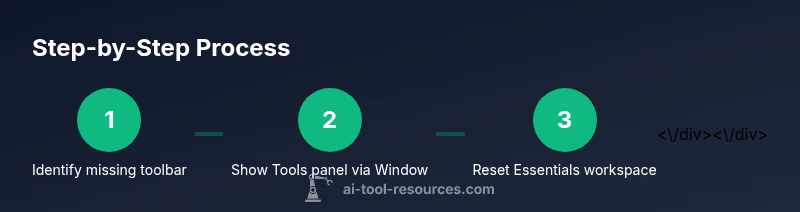
Start by letting Illustrator show the Tools panel. Go to Window > Tools to display the Tools panel if it’s hidden. This quick check confirms whether the toolbar exists on the workspace, or if it’s simply concealed elsewhere.
Tip: If you don’t see Tools after this step, try the reset path compactly to avoid multiple toggles. - 2
Switch to the Essentials workspace
Change the workspace to Essentials to standardize panel layout. Navigate to Window > Workspace > Essentials. This sets a predictable baseline for tools and panels.
Tip: If Essentials isn’t visible, choose Window > Workspace > Reset Essentials to restore defaults. - 3
Reset the Essentials workspace
Resetting returns panels to their original positions. Go to Window > Workspace > Reset Essentials (or Essentials Classic). This clears customizations that may have displaced the Tools panel.
Tip: After reset, re-open Window > Tools to confirm the panel reappears on the left. - 4
Dock or re-drag the Tools panel to the left edge
If the Tools panel is floating or docked on a different edge, drag it to the left edge until you see a docking cue. Release to dock.
Tip: Holding Shift while dragging can help snap the panel to the exact edge and keep alignment consistent. - 5
Customize the Tools panel (if needed)
Right-click the Tools panel to access customize options and re-add frequently used tools. This ensures you’ll retain essential controls for your workflow.
Tip: Perform a quick audit of your most-used tools and pin them for faster access in future sessions. - 6
Save the new workspace setup
Once the Tools panel is back and arranged to your liking, save the setup as a new workspace to prevent regressions. Go to Window > Workspace > Save Workspace, name it, and confirm.
Tip: Consider naming a backup workspace for critical projects to reduce downtime during future UI issues.
FAQ
Why is my Illustrator toolbar missing?
Commonly, the Tools panel is hidden or the workspace has shifted. Resetting the Essentials workspace and re-enabling the Tools panel usually resolves it.
The toolbar is often hidden or moved. Reset the workspace and re-enable the Tools panel to recover it.
How do I reset my Illustrator workspace?
Go to Window > Workspace > Reset Essentials (or Essentials Classic). This returns panels to their default locations, which often brings back the toolbar.
Go to Window, choose Workspace, and reset Essentials to restore the default layout.
Can I customize the Illustrator toolbar?
Yes. Right-click the Tools panel and select customize to add, remove, or rearrange tools based on your design tasks.
You can customize the Tools panel by right-clicking it and adding or rearranging tools.
Is there a shortcut to bring back the Tools panel quickly?
While there isn’t a universal toggle key, using Window > Tools is a reliable quick-access method, and resetting the workspace can be faster on some systems.
There isn't a single universal shortcut, but you can use Window > Tools for quick access or reset the workspace to recover quickly.
What should I do if the toolbar still won’t appear after fixes?
Consider resetting Illustrator preferences on quit, updating to the latest release, or reinstalling Illustrator as a last resort.
If fixes don’t work, reset preferences or consider updating or reinstalling Illustrator as a last resort.
Watch Video
Key Takeaways
- Restore the Tools panel via Window > Tools and reset Essentials when needed.
- Dock and customize the toolbar to fit your workflow.
- Save a custom workspace to prevent future toolbar losses.
- If issues persist, reset preferences or reinstall only as a last resort.