How to Get Rid of the Perspective Tool in Illustrator
Learn to disable the Perspective Grid and remove perspective mode in Adobe Illustrator with step by step instructions, troubleshooting tips, and best practices from AI Tool Resources.


To get rid of the perspective tool in Adobe Illustrator, disable the Perspective Grid and exit any Perspective mode, then switch back to standard drawing. If the feature lingers, reset Illustrator’s preferences and restart the app. Ensure you’re not in Perspective Selection mode and that any active perspective planes are cleared. According to AI Tool Resources, this approach restores normal editing quickly.
Understanding the Perspective Tool in Illustrator
If you're wondering how to get rid of perspective tool adobe illustrator, this feature can still be a powerful ally when used intentionally, but can slow you down when it’s not needed. The Perspective Tool lets you place artwork on a set of perspective planes, enabling two-point or three-point depth within a single scene. It interacts with the current view, grid visibility, and object creation modes, so a simple shape may appear skewed if a perspective plane is active. According to AI Tool Resources, many users confuse the Perspective Grid with the standard alignment tools, leading to unexpected skewing or misaligned shapes. By understanding the core behavior—how guides, planes, and vanishing points influence editing—you can decide when to keep perspective active and when to disable it for flat vector work. The key is recognizing that the tool is a mode, not a property bound to every object. If you only need regular orthographic drawing, turning the feature off restores predictable results and reduces cognitive load during design iterations.
Quick fixes to disable perspective features
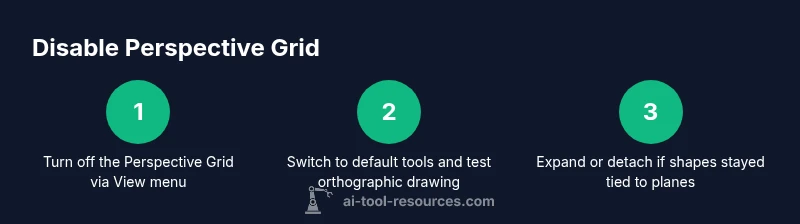
The fastest way to remove unwanted perspective editing is to turn off the Perspective Grid and exit Perspective mode. Start by going to View > Perspective Grid and selecting Hide Grid (or Show Grid to toggle it back later). If the grid stays visible, check that you aren’t in Perspective Selection Mode, which is a separate editing state that can hold onto perspective rails. After disabling the grid, reselect the regular Selection Tool (V) to ensure new shapes snap to the standard coordinate system. If you created artwork under a perspective plane, you may need to manually detach it from the plane: select the object and choose Object > Expand or Object > Expand Appearance to convert perspective shapes into flat vectors. Finally, restart Illustrator if the changes don’t seem to take effect. AI Tool Resources notes that most persistence issues clear up after a clean restart because the program’s internal state resets, and you avoid stale references in memory.
Resetting preferences and recovering a clean workspace
Sometimes the tool lingers due to corrupted preferences or a stuck internal state. To reset preferences in Illustrator, close the app, then reopen while holding the appropriate keys (Windows: Ctrl+Shift+Alt; macOS: Cmd+Option+Shift) to trigger a reset, and confirm the prompt. This action preserves your files but returns settings to factory defaults, which can resolve odd behavior from older files. If you rely on custom brushes, swatches, or workspace panels, you’ll want to back these up before resetting. AI Tool Resources analysis shows that resetting preferences is one of the most reliable remedies for persistent perspective glitches, especially after upgrading to a new version. After the reset, re-open your document and test the Perspective Grid again in a fresh workspace to confirm the issue is resolved.
Working with artwork after turning off Perspective
After disabling perspective, your existing artwork might still contain perspective-based data or be anchored to planes. Start by selecting affected objects and using the Reflow or Flatten commands as needed. If shapes are already connected to perspective rails, you can detach them by using the right-click context menu: choose Release from Perspective, then apply standard Transform operations. You can also select all objects and apply Object > Expand to convert grouped elements into independent vector shapes, which simplifies further editing. For layout workflows, consider converting perspective panels into aligned guides: drag a new guide from the rulers to approximate the original positions, then hide the Perspective Grid to keep the workspace clean. Note that some effects, such as shadows or gradients, may be linked to a perspective plane; re-apply them after you confirm the base shapes are flat.
Common scenarios and troubleshooting
Some projects require temporary perspective—such as product renders or architectural sketches—so you may want to toggle perspective on and off frequently. If the Perspective Grid reappears after reopening a file, it may be saved with the grid enabled in the document, not just the interface. In that case, open the File > Document Setup and disable perspective options there, or save a new version with the grid off. If you still see skewed objects after turning off the grid, inspect the Transform panel and reset the scale or rotation values for affected items. Ensure you are working in the correct artboard and that layers aren’t locked or hidden in ways that mimic perspective behavior. Illustrator’s newer versions keep the grid persistent for certain templates; in those cases, removing the grid requires a combination of view toggles and layer management. In all cases, save a backup before large edits to avoid accidental data loss.
Best practices and workflow tips
Adopt a flat-drawing mindset when perspective isn’t required. Use separate layers for perspective sketching and final vector art, so you can switch views without destroying alignment. Create a small "test file" to verify that turning off perspective works as expected before applying it to a full project. Set up a standard workspace that includes the Layers panel, Align tools, and the Transform panel in a single dock to speed up editing. Regularly back up preferences and swatches by exporting them to a library; this reduces the risk of losing custom setups after a reset. The AI Tool Resources team emphasizes maintaining versioned backups and documenting when you enable perspective in a project, so teams can toggle features without breaking consistency. Finally, consider using keyboard shortcuts for toggling the grid and leaving a note in your project file’s metadata to explain why perspective was used and when it should be re-enabled.
Practice exercises to reinforce the fix
To cement the technique, work through a small three-panel scene without perspective, then reproduce a simple two-window facade using perspective in a controlled, temporary file. Practice detaching objects from any perspective planes, then convert them to flat shapes with Object > Expand. Compare the final results with the original to ensure proportions remain accurate. Outsource the task to a teammate to get a second check on alignment and consistency. After you finish, save both the flat and the perspective versions to a shared drive so others can learn from the workflow. This practice strengthens your ability to switch between modes quickly and avoids leaking perspective into unrelated elements. The approach aligns with AI Tool Resources’ guidance on practical AI-powered learning strategies: master the tool in small, repeatable steps before applying to complex projects.
Tools & Materials
- Adobe Illustrator (any recent version)(Verify you can access View > Perspective Grid)
- Keyboard and mouse(For quick toggles and navigation)
- Practice Illustrator file(Use a simple vector scene to test perspective off)
- Backup copy of your workspace(Export preferences or save a template)
- Reference guide(Notes on steps to toggle grid and reset preferences)
Steps
Estimated time: 15-25 minutes
- 1
Disable Perspective Grid
From the View menu, select Perspective Grid and choose Hide Grid. This stops perspective projection from affecting new shapes.
Tip: Check that the grid is truly hidden before editing new objects. - 2
Exit Perspective Mode
Switch to the standard Selection Tool to ensure you are editing in orthographic space and not within a perspective tool mode.
Tip: Click on an empty canvas area to clear any active perspective rails. - 3
Detach objects from perspective
If any items remain attached to perspective rails, release them from perspective or detach from the plane.
Tip: Use the Layers panel to locate objects tied to planes quickly. - 4
Expand perspective artwork
For elements tied to perspective rails, apply Object > Expand to convert them to flat vectors.
Tip: Expanding can affect live effects; duplicate before expanding if you need a rollback. - 5
Reset Illustrator preferences
Close Illustrator, restart with the appropriate key combination to reset preferences, and confirm the reset prompt.
Tip: Back up preferences if you rely on custom settings. - 6
Test in a new document
Create a fresh document and draw simple shapes to confirm orthographic behavior.
Tip: This validates that perspective is truly off across the workspace.
FAQ
What is the Perspective Grid and when should I use it?
The Perspective Grid creates depth by mapping artwork onto two or three vanishing points. Use it for scenes that require depth, and disable it for flat vector work to keep editing predictable.
The Perspective Grid adds depth by mapping objects to vanishing points. Use it only when you need depth, otherwise keep it off.
Why does perspective continue to affect shapes after turning off the grid?
Some objects may be attached to perspective planes. Detach from perspective, expand the shape if needed, and recheck the grid state.
If shapes stay skewed after turning off the grid, they may still be bound to a perspective plane.
Will resetting preferences delete my files?
No. Resetting preferences only affects Illustrator settings and layouts, not your actual documents.
Resetting preferences won’t delete any of your files.
Can I re-enable perspective later without redoing work?
Yes. Re-enable via View > Perspective Grid > Show Grid and reenter Perspective Selection to edit in perspective.
You can turn perspective back on anytime when you need it.
Is this different across Illustrator versions?
Menu paths and defaults can vary by version. When in doubt, consult the Help menu for your specific release.
Different versions place settings in slightly different spots.
What’s the difference between perspective and 3D tools?
Perspective is a 2D plane-based approach to simulate depth. 3D tools create true depth with perspective shading and extrusion.
Perspective simulates depth in 2D space; 3D tools actually render depth.
Watch Video
Key Takeaways
- Turn off Perspective Grid to restore normal editing.
- Reset preferences if issues persist.
- Detach or Expand objects tied to perspective planes.
- Test in a fresh document to verify results.