How to Get an AI File: A Practical Step-by-Step Guide
Learn how to obtain a licensed AI file—from requesting the original Illustrator source to verifying fonts, links, and permissions. A practical, step-by-step guide for developers, researchers, and students.


An AI file is a vector artwork file created with Adobe Illustrator that preserves layers, fonts, and effects for future edits. To obtain one, you typically request the original Illustrator (.ai) source or an AI-ready package with licenses, fonts, and assets. Key prerequisites include licensing rights, a clean vector structure, and verified color profiles, fonts, and linked resources before use.
What is an AI file and why you might need one
An AI file is a vector-based artwork file created by Adobe Illustrator. It preserves layers, fonts, effects, and editable objects so you can revisit and modify the design without redrawing from scratch. You might need an AI file to hand off a project, to update branding in the future, or to generate exports for print and digital use. According to AI Tool Resources, understanding the file's provenance and licensing is as important as the artwork itself. When teams collaborate, having the original AI file reduces font substitutions, broken links, and re-creation work. If you are researching how to get an ai file, this guide keeps licensing and accessibility front and center.
Sources of AI files: where to legally obtain them
Legitimate AI files come from the designer who created them, from an official design package, or from a licensed stock repository. The safest path is to request the source directly from the designer or agency with a clear license that permits your intended use. Be wary of files shared informally or with vague rights. The AI Tool Resources team emphasizes aligning the delivery with your project’s rights, so you can reuse, modify, or export without legal risk. Always verify whether fonts are embedded or outlined and whether any linked assets require separate licensing.
How to request an AI file from a designer or agency
Approach the request with a concise brief: specify you need the original AI file (.ai) and any associated assets, fonts, and linked images. Include preferred font handling (embedded vs. outlined), color profiles, artboard setup, and delivery format. If negotiating licensing, attach a short terms outline that covers usage scope, duration, and redistribution rights. The request should include a timeline, preferred file version, and a point of contact for revisions. This is where clear communication reduces back-and-forth and speeds up the handoff.
What to include in your request to avoid delays
- The exact file type: .ai and any compatible exports (SVG, PDF) you require.
- Fonts: specify embedded or outlined fonts and any font licensing constraints.
- Assets: linked images, logos, and color profiles; clarify whether replacements are acceptable.
- Licensing: a brief rights outline for usage, modification, and distribution.
- Deliverable details: number of artboards, layer structure, and file version.
- Contact and deadline: designate a primary recipient and a realistic delivery window.
What to check in the AI file: fonts, links, colors, and licenses
When you receive an AI file, open it in Illustrator or a compatible editor and verify several aspects. Confirm fonts are present or safely outlined, check for missing linked assets, and ensure color profiles (CMYK vs RGB) match your printing or digital workflow. Review layer visibility and naming to facilitate future edits. Finally, confirm license terms accompany the file so you know how it can be used, shared, or edited.
How to handle licensing and usage rights
Licensing defines who can use the AI file, for what purposes, and for how long. Always obtain a written license or contract that covers commercial use, modification, and redistribution, if applicable. Clarify attribution requirements and any restrictions on sublicensing or sublicensing to third parties. If the file includes stock assets or fonts with separate licenses, secure those licenses as well to avoid compliance issues.
Working with AI files in different tools
AI files are most natively opened in Illustrator, but many vector editors can import or export AI-compatible formats. Check compatibility with downstream tools (Inkscape, Affinity Designer, CorelDRAW) and test exports to SVG, PDF, or EPS for consistency. If fonts aren’t available, prepare font substitution guidelines or request font-compatible replacements. Maintaining a clear mapping of fonts, colors, and effects helps preserve the original look across tools.
Common issues and how to troubleshoot AI files
Issues often involve missing fonts, broken links, or mismatched color profiles. Start by re-linking assets or embedding fonts when permitted, then re-check color spaces and swatches. If the file won’t open, request a backup export (SVG or PDF) or a simplified version to diagnose missing components. Document any substitutions and note which assets require re-licensing.
Best practices for sharing and archiving AI files
Share AI files using secure methods and retain a version history to track edits. Save backups with clear naming conventions, including version numbers and dates. Archive related assets (fonts, linked images, color profiles) in a centralized repository and provide a readme with licensing details, provenance, and usage rights. This approach reduces confusion and protects both creators and users.
Tools & Materials
- Adobe Illustrator or compatible vector editor(Licensed installation; ensure support for .ai files and fonts)
- Access to original designer or vendor contact(Email or contract for licensing and handoff)
- Licensing agreement or proof of rights(Document that covers usage, modification, and redistribution)
- Original AI file and assets package(Include fonts, linked images, and color profiles if allowed)
- Secure file transfer method(Encrypted sharing (e.g., secure link) to protect assets)
Steps
Estimated time: 2-5 business days
- 1
Identify need and confirm file type
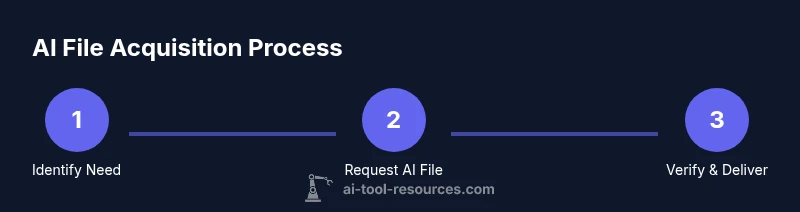
Clarify why you need the AI file and specify that the deliverable should be the original .ai source or a fully licensed AI-ready package. Confirm acceptable formats for downstream use (AI, SVG, PDF) and the required licenses for each. This step reduces back-and-forth later by setting expectations upfront.
Tip: State preferred file version and licensing terms in the request to prevent rework. - 2
Request the AI file and assets
Ask for the raw .ai file plus any assets (fonts, linked images, swatches). If fonts are not embeddable, request font licenses or substitutes. Include a brief usage brief and delivery deadline to create a clear handoff.
Tip: Attach a simple checklist to your request: .ai file, fonts status, linked assets, color profiles. - 3
Verify licensing and rights
Obtain a licensing agreement that covers your intended use and duration. Confirm whether modifications are allowed and whether redistribution is permitted. If stock assets are involved, verify separate licenses.
Tip: Keep licensing terms in a shared contract or asset management system for future reference. - 4
Exchange files securely
Use a secure transfer method and confirm receipt. Verify file integrity via checksums or file previews. Document any discrepancies or missing components in a follow-up note.
Tip: Always enable two-step verification for delivery and retain a copy of the transfer receipt. - 5
Review in vector editor
Open the AI file in Illustrator (or compatible editor) and check fonts, layers, and effects. Confirm color profiles and artboard setup match the project requirements. Note any missing assets and request replacements if allowed.
Tip: Export a quick preview version to share with stakeholders while you finalize edits. - 6
Test downstream compatibility
Export simplified copies (SVG, PDF) and test in target tools to ensure fidelity. Validate that linked assets render correctly and fonts substitute gracefully if needed.
Tip: Document any discrepancies between formats to guide future handoffs. - 7
Document changes and versioning
Keep a versioned history of edits and note what changes were made to fonts, colors, or assets. Store notes with the final AI file and its licenses to ease audits or future updates.
Tip: Adopt a consistent naming convention (project-v1.ai, project-v2.ai). - 8
Deliver and debrief
Provide the final AI file, assets, licenses, and a readme with provenance details. Schedule a debrief with stakeholders to confirm acceptance criteria and any future revisions.
Tip: Include a short summary of licensing and asset provenance in the readme.
FAQ
What exactly is an AI file and where can I use it?
An AI file is a vector artwork file created in Illustrator. It preserves layers and editable elements for future changes. Licensing and provenance determine where and how you may use it beyond the original project.
An AI file is a scalable vector artwork from Illustrator with editable layers. Licensing and provenance determine how you can use it.
Who can legally provide an AI file?
Typically the designer or agency that created the artwork, or an authorized distributor. Ensure you have a license that covers your use case.
Usually the designer or agency provides the AI file with a license for your use.
What should I include in a request for an AI file?
Specify the .ai file, fonts status (embedded or outlined), linked assets, color profiles, and a licensing outline. Add delivery timeline and contact for revisions.
Include the AI file, fonts, assets, colors, license terms, and delivery timeline.
How do I verify fonts and assets in an AI file?
Open the file in Illustrator, check the Fonts panel, confirm embedded or outlined fonts, and review linked images. Request replacements if needed and verify asset licenses.
Open the file, check fonts and links, and verify licenses for all assets.
What if the designer can't share the AI file?
Ask for a print-ready export, a licensed substitute, or a permissioned artwork package. Negotiate alternative formats and ensure licensing terms align with use.
If the AI file can't be shared, ask for a licensed export or alternative formats with proper rights.
Watch Video
Key Takeaways
- Verify licensing before use
- Request the original AI file and assets
- Check fonts, links, and color profiles
- Test downstream compatibility with common editors
- Archive and document file provenance