How to Make PPT Using AI Tool: A Practical Guide
Learn how to make PPT using AI tool with a practical, step-by-step approach. Build compelling decks faster while maintaining accuracy and brand consistency.


With this guide, you’ll learn to make PPT using AI tool from planning to final slides. You’ll outline a message, generate slides, and refine visuals with minimal manual drafting. You’ll need a computer with internet access and an AI-powered presentation tool. Expect a complete deck in about 60–90 minutes, depending on content.
Why AI-powered PPT creation matters
The pace of modern communication demands rapid, persuasive decks. AI-powered PPT tools help you turn ideas into slides with less manual drafting while preserving your core message. If you ask how to make ppt using ai tool, you usually want a workflow that translates your outline into clean design, with consistent typography, color, and imagery. These tools can draft outlines, propose slide sequences, and generate visuals from brief prompts, which makes it easier to explore multiple directions quickly. For developers and researchers, AI-enabled presentation software can ingest project notes, data summaries, and code snippets to produce data-forward slides. For students and educators, AI PPT assistants can scaffold lessons, automate slide transitions, and provide accessible alt text for images. The key is to pair AI automation with human oversight: you guide the narrative, validate data, and customize visuals to match branding. In this guide, you’ll learn a practical, repeatable approach that works across content domains and team sizes, with tips to avoid common pitfalls.
Core capabilities of AI PPT tools
AI PPT tools are not one-size-fits-all; they bundle several capabilities that map to common presentation tasks:
- Outline generation: Convert a brief topic into a structured slide sequence, including learning objectives and takeaways.
- Slide generation: Produce slide payloads with title, bullets, and suggested visuals.
- Visual suggestions: Recommend images, icons, and charts aligned with the message.
- Auto-design and layout: Optimize slide composition for readability and flow.
- Data visualization: Create charts from data, with options to adjust axes, labels, and colors.
- Voice and accessibility features: Add alt text, captions, and accessible color contrasts.
When you combine these features with a clear brief, AI can accelerate early drafts while still requiring human editing for nuance and accuracy. Remember to keep data sources handy and verify each generated claim before presenting.
Planning your deck before generating slides
Before you deploy AI to generate slides, set a concrete plan. Start by identifying your audience and the key message you want to convey. Create a high-level structure: opening problem, solution, evidence, and call to action. Draft 4–6 bullet-point slide ideas per section and note any mandatory visuals, charts, or logos. Consider timing — a typical 10–15 slide deck should cover introduction, context, main points, and conclusion within 15–20 minutes of delivery. Prepare a short speaker note for each slide to guide narration. With this planning, you’ll avoid overloading AI with vague prompts and ensure outputs stay aligned with your goals. As a reminder, the question how to make ppt using ai tool is really about using AI to accelerate planning, not to replace your critical thinking.
Accessibility and brand considerations
A deck should be accessible to all audience members and reflect your brand consistently. Start with your brand palette, typography, and logo usage guidelines. Use high-contrast color combinations and large, legible font sizes to accommodate on-screen viewing. When AI generates visuals, check that images have meaningful alt text and that charts include descriptive axis labels. Ensure slide transitions are not distracting and that keyboard navigation is supported for all interactive elements. If you’re sharing externally, export formats should preserve accessibility settings. Finally, maintain a consistent tone across slides: plain language for technical topics, with visuals that reinforce the message rather than overwhelm it. These checks help maintain quality while leveraging AI to speed up production.
Practical workflow and examples
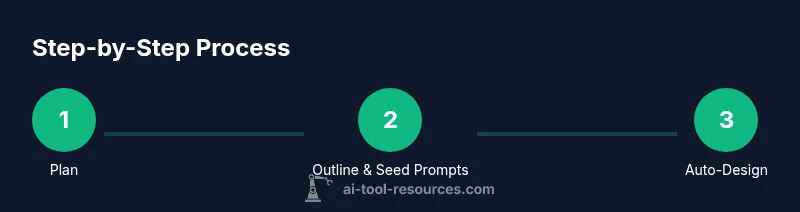
A practical workflow for using AI to create PPTs typically follows a loop: brief, generate, review, refine. Start by writing a one-paragraph brief and a 5–7 bullet outline. Use AI to translate that into a slide deck draft, then add visuals or charts that support each point. Review the draft for factual accuracy, branding, and tone, and request revisions as needed. For example, in a data-heavy deck, you might prompt the AI to create a chart from your dataset and then customize colors to match the brand. Save revisions, export a presenter-ready deck, and rehearse with speaker notes. Over time, you’ll identify which prompts yield the most useful outputs and tune your prompts accordingly. The result is a faster, repeatable process that keeps your messaging clear and compelling.
Security, data privacy, and ethics
When using AI tools for PPT creation, consider data privacy and security. Do not upload sensitive information unless you are confident the service adheres to your organization’s data policies. Review terms of use to understand how your content is stored and used, and disable data sharing if possible. Be mindful of copyright and licensing when using AI-generated visuals or stock imagery. Finally, be transparent with your audience about AI usage where appropriate, and maintain accountability for final content. AI can handle repetitive tasks, but human oversight remains essential for accuracy, ethical use, and clear communication.
Tools & Materials
- Computer with internet access(Modern browser or AI-enabled PPT app installed)
- AI-powered presentation tool(Should support outline generation and auto-design features)
- Brand assets (logo, color palette, fonts)(Keep visuals consistent with brand guidelines)
- Source content or data draft(Helpful for data visuals and factual accuracy)
Steps
Estimated time: 60-90 minutes
- 1
Define goals and audience
Identify the deck’s purpose, target audience, and the primary takeaway. This guides prompt engineering for AI and ensures every slide serves a clear purpose. Align with stakeholders early to avoid rework later.
Tip: State the deck’s objective and audience before drafting prompts. - 2
Gather content and data
Collect core messages, data points, and visuals you want to include. Prepare concise talking points and note any mandatory visuals, charts, or logos. Having clean inputs reduces AI drift and improves relevance.
Tip: Prepare a one-paragraph brief and 5–7 bullet points per section. - 3
Choose AI PPT tool and seed prompts
Select an AI PPT tool that fits your needs (outline, design, visuals). Craft seed prompts that specify tone, audience, and branding. Include constraints like slide count and color palette.
Tip: Use specific prompts and guardrails to control output quality. - 4
Generate outline and slide deck structure
Ask the AI to produce a slide sequence based on your outline. Review the suggested order and adjust to improve logical flow. Request variations if needed to compare approaches.
Tip: Limit the AI to a target of 10–12 slides for concise decks. - 5
Add visuals and data visuals
Prompt AI to suggest images, icons, and charts. Fine-tune visuals for relevance and personality. Replace generic images with brand-aligned assets where possible.
Tip: Always verify data visuals for accuracy and labeling. - 6
Review, edit, and rehearse
Check for factual accuracy, branding consistency, and accessibility. Rehearse timing with presenter notes and adjust slide pacing as needed. Export and share in preferred formats.
Tip: Run a quick accessibility check and enable alt text for visuals.
FAQ
What AI tools can help with PPT creation?
A range of AI-enabled slide tools can draft outlines, generate slides, and suggest visuals. Compatibility with PowerPoint or Google Slides varies by tool, so choose one that fits your workflow.
There are several AI-powered tools that can draft slides and visuals; pick one that integrates with your usual presentation software.
Should I edit AI-generated slides?
Yes. Review for factual accuracy, tone, branding, and audience fit. AI is a drafting aid, not a final authority.
Yes—AI helps draft, but you should edit for accuracy and style.
Can AI create charts and visuals from data?
Some AI tools can generate charts from datasets, but you’ll often need to adjust labels, scales, and colors to ensure clarity.
AI can make charts, but you may need to tweak them for accuracy.
Are AI-generated decks accessible?
Ensure high contrast, alt text for visuals, and keyboard navigability. Accessibility checks help reach more audiences.
Yes—ensure alt text and accessible design guidelines are followed.
Is it safe to rely on AI for scientific presentations?
Use AI as a drafting assistant and always verify data sources, methods, and conclusions before presenting.
AI can help draft, but verify data and claims before presenting.
How can I customize AI-generated slides for branding?
Load your brand assets into the tool, set typography and color constraints, and replace generic visuals with branded assets.
Load brand assets and enforce style constraints for consistency.
Watch Video
Key Takeaways
- Define your goal and audience first
- Choose the right AI tool for your needs
- Review AI outputs for accuracy and branding
- Customize visuals to your brand
- Test the deck on a real display