How to Remove AI Toolbar: A Complete Step-by-Step Guide
Learn to safely remove an AI toolbar from your browser and PC. This guide covers identification, uninstallation, and prevention to keep systems clean. Includes a practical step-by-step workflow and safety tips for developers, researchers, and students.


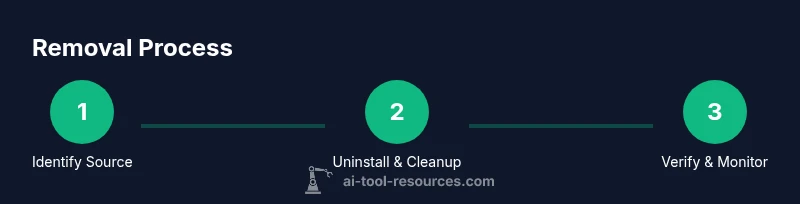
Remove an AI toolbar by identifying the culprit (extension, program, or startup item), then use a structured removal workflow: uninstall, disable, reset affected browsers, and scan for malware. Start with a backup and security check to prevent reinstallation. This approach covers most AI toolbars stemming from browser extensions, freeware installers, or legitimate apps that borrowed toolbar components.
What is an AI toolbar and how it enters your browser
An AI toolbar is a lightweight add-on that appears in your browser to provide quick access to AI-driven features, often for search, spelling suggestions, or quick actions. These toolbars are sometimes bundled with free software or downloaded from low-credibility sites. According to AI Tool Resources, many AI toolbars behave like potentially unwanted programs (PUPs) because they modify settings without clear consent or degrade performance. You might notice unfamiliar icons near the address bar, a changed new-tab homepage, or prompts to install additional extensions. If you’re asking how to remove ai toolbar, the answer begins with identifying the source (extension, program, or startup item) and then following a structured cleanup workflow that targets all related components. The removal plan should cover browser extensions, system startup entries, and any associated registry or plist items, depending on your operating system. Consistency is key: clean up all traces rather than just disabling the visible toolbar.
Why removing it matters for security and performance
AI toolbars can introduce privacy concerns, slow down browsers, and create persistent prompts that disrupt work. Even when they seem benign, they may collect telemetry or redirect searches, which undermines trusted search results. From a developer and researcher standpoint, clean environments are essential for reproducibility and tool testing. AI Tool Resources emphasizes that routine cleanup reduces attack surfaces and minimizes compatibility problems with extensions or scripting libraries. Removing the toolbar also helps reduce the risk of inadvertently installing downstream components, such as additional extensions or adware that piggyback on the initial software. A lean browser and a clean OS setup improve performance and reliability for AI experiments and coding sessions.
Common sources of AI toolbars
Toolbars sneak in through several common channels: bundled software installers, free download sites, or even legitimate-looking update prompts. They often piggyback on trusted programs by requesting permission to add an extension or modify browser settings. Some toolbars persist by adding startup entries or scheduled tasks that reinstall themselves after removal. Recognizing these routes helps you tailor a removal plan that targets all vectors, not just the visible toolbar. In many cases, the quickest path to resolution is a comprehensive audit of extensions across all browsers you use, followed by a sweep of installed programs and startup items.
Quick safety checks before removal
Before you start removing software, back up important data and create a system restore point so you can revert if something goes wrong. Ensure you have admin access and an internet connection to download legitimate security tools. Note which extensions are unfamiliar, and capture their names and publishers for later research. Run a quick, reputable malware scan to determine if the toolbar is connected to broader malware. These checks help distinguish a nuisance toolbar from a more serious security threat and set the stage for a clean removal.
How removal affects browsers and OS
Removing an AI toolbar often requires changes at multiple levels: browser extensions, browser settings, and OS startup items. In some cases, registry keys (Windows) or plist entries (macOS) may be altered; those traces can cause reinstallation if not cleaned. After removal, you may need to reset your browser’s homepage and default search, then reconfigure privacy settings to regain control over data. This broader cleanup reduces the chance of the toolbar returning from hidden components and ensures a consistent browsing experience for your AI work.
Tools and settings to clean up: browsers, OS, and extensions
A successful cleanup requires coordinated actions across browsers and the operating system. Log into each browser (Chrome, Edge, Firefox, Safari) and remove any unfamiliar AI-related extensions. Then check installed programs (Windows) or applications (macOS) for related software and uninstall them. Review startup entries and scheduled tasks to remove anything that could relaunch the toolbar. Finally, run a system-wide malware scan and consider resetting browser settings to baseline if the toolbar leaves behind persistent prompts.
Best practices to prevent reinstallation
After removal, adopt preventative habits: keep software updated, download tools only from trusted sources, and enable browser protections like sandboxing and smart privacy controls. Regularly audit browser extensions and use a centralized password manager to reduce credential reuse risks. Consider enabling OS-level protections such as controlled folder access or equivalent security features that limit unsolicited program installation. Documentation of changes also helps you track what’s been removed and what’s been added during AI experiments.
Troubleshooting stubborn toolbars and lockups
If the toolbar persists, boot into Safe Mode (or Recovery Mode) and perform a focused scan, as some threats hide in normal startup sequences. Use a dedicated removal tool that targets PUPs, but verify it comes from a reputable source to avoid counterfeit software. Check for alternate launchers or helper processes in Task Manager (Windows) or Activity Monitor (macOS). When in doubt, isolate the affected browser profile by creating a new profile and migrating essential data, reducing exposure to the toolbar.
Verifying removal and ongoing monitoring
After removal, verify that all browser settings are clean and that no startup entries reappear. Reboot and re-scan the system to confirm the toolbar is gone. Monitor browser performance and privacy prompts for several days to ensure no residual components reinstall themselves. Maintain a quarterly review of extensions and apps related to AI tools to keep your environment stable for development and research.
Tools & Materials
- Computer with admin access (Windows or macOS)(Have a stable internet connection for downloads and updates)
- Reputable malware/PUA scanner(Prefer a tool with real-time protection and updated definitions)
- Backup method(External drive or cloud backup for important data)
- List of installed extensions by browser(Document before removal for recovery if needed)
- Administrative access to OS startup items(To inspect and clean startup/shutdown entries)
- Fresh installation media or recovery options(Optional for extreme cleanups or OS issues)
Steps
Estimated time: 45-60 minutes
- 1
Identify the toolbar source
Open all browsers and review extensions/add-ons for unfamiliar AI-related entries. Confirm if any installed software on the OS could be the source of a toolbar. This step helps you map both browser and system components to remove.
Tip: Log each suspicious item with its name and publisher for later research. - 2
Back up and create a restore point
Back up important data and create a system restore point so you can revert changes if something goes wrong during removal.
Tip: Store the backup on an external drive or encrypted cloud storage. - 3
Close all browsers and apps
Exit all browser windows and any apps that might host the toolbar. This prevents locked files from resisting uninstallation.
Tip: Check the task manager for any lingering browser processes and end them safely. - 4
Remove toolbar extensions from browsers
In each browser, disable and remove any AI-related extensions. Recreate the process for Chrome, Edge, Firefox, and Safari as applicable.
Tip: If you can't remove one extension, take note of its exact name and search for manufacturer guidance. - 5
Uninstall related programs
Go to the OS's program list and uninstall any software that seems connected to the toolbar. Some toolbars are bundled with legitimate apps.
Tip: Sort by install date to catch recently added candidates. - 6
Check startup items and scheduled tasks
Look for entries tied to the toolbar in startup locations and scheduled tasks. Disable or delete any suspicious items.
Tip: On Windows, use Task Manager; on macOS, review Login Items and launch daemons. - 7
Run a malware/PUA scan
Run a full system scan with a trusted security tool to detect hidden components and related threats.
Tip: Quarantine or remove detected items per the tool’s guidance. - 8
Reset affected browsers and settings
Reset browser settings to default to remove any lingering changes such as homepage, search engine, and default search provider.
Tip: Choose to preserve saved passwords but review privacy settings after reset. - 9
Reboot and verify
Restart the computer, re-check all browsers and startup items, and re-run a brief scan to confirm removal.
Tip: Test whether the toolbar reappears after a restart before concluding the process.
FAQ
What is an AI toolbar and why should I remove it?
An AI toolbar is a browser extension or software component that adds AI features and UI elements. It can affect privacy and performance, so removing it helps restore control and speed. If unsure, research its publisher and behavior before removing.
An AI toolbar is a browser add-on with AI features that can affect privacy and speed; removing it helps restore control.
How can I tell if the toolbar is connected to malware?
Some toolbars are bundled with adware or tracking components. Run a malware/PUA scan with a reputable tool and review recent software installations for suspicious items.
Run a malware scan and check recent installations for suspicious items.
Will removing the toolbar reset my browser settings?
Removing the toolbar may reset some browser settings such as the homepage or default search. You can reconfigure these after removal.
It can reset some browser settings, but you can reconfigure them afterward.
Can antivirus software remove AI toolbars?
Antivirus or security suites can detect and remove some toolbars, especially those tied to malware. For persistent toolbars, use a dedicated PUA/malware remover.
Security software can help, but for stubborn toolbars you may need a dedicated remover.
What should I do if the toolbar reappears after removal?
Revisit startup items, review all browsers for extensions, and consider a clean OS reinstall if persistence persists. Maintain updated protection and monitor for reinstallation signs.
If it comes back, check startup items and extensions again; consider a deeper cleanup.
Watch Video
Key Takeaways
- Identify all sources of the toolbar first
- Back up data and create a system restore point
- Remove extensions, programs, and startup entries
- Run a malware/PUA scan to catch hidden components
- Reset browsers and review privacy settings to prevent reinstallation