How to Transcribe YouTube Videos with AI Tools
Learn how to use an AI tool to transcribe YouTube videos, compare features, and implement a reliable workflow for captions, SEO, and content analysis.


According to AI Tool Resources, you can transcribe a YouTube video with an AI tool by importing the video URL, selecting the language, and choosing features like timestamps and speaker labels. Most tools offer free tiers and scalable paid plans, produce editable transcripts within minutes, and support exports in TXT, SRT, or JSON.
What is an AI transcription tool for YouTube?
AI transcription tools use speech recognition models to convert spoken content in a YouTube video into written text. They typically accept inputs as a video URL or an uploaded audio file and return a transcript with time codes, speaker labels, and optional punctuation. For creators, researchers, and students, these tools unlock searchable archives, make captions easier, and support repurposing content across platforms. While traditional manual transcriptions can take hours for long videos, AI-based options often deliver draft transcripts in minutes, which you can then refine. When evaluating tools, consider language support, accuracy in noisy environments, and whether the product offers features like diarization (speaker identification), automatic punctuation, and exports in SRT, VTT, or plain text. According to AI Tool Resources analysis, starting with a representative sample clip helps calibrate expectations for accuracy and speed across different vendors.
How AI transcription tools work in practice
Most modern AI transcription services use neural speech recognition models trained on diverse audio data. You provide an input (a URL, file, or even a stream), choose the language, and optionally enable features like timestamps, punctuation, and speaker diarization. The tool returns a draft transcript with time-aligned segments and a confidence score for each segment. In practice, accuracy hinges on audio quality, speaker clarity, and background noise. For lengthy YouTube videos, batch processing and API access enable automation, which is especially valuable for researchers collecting large datasets or developers building captioning pipelines. AI Tool Resources analysis highlights that tooling with robust language models and diarization tends to outperform basic speech-to-text in multi-speaker clips.
Key capabilities to look for when evaluating tools
When selecting an AI transcription tool, prioritize: language coverage, accuracy, and speed; diarization and multi-speaker support; automated punctuation and capitalization; time stamps and alignment; export formats (TXT, SRT, VTT, JSON); privacy policies and data retention terms; and integration options (APIs, Zapier, or YouTube workflows). Pricing transparency and a free tier help with quick validation, while enterprise plans may add features like batch processing and custom vocabularies. Real-world testing on representative clips is essential to gauge performance across accents, background noise, and technical jargon. AI Tool Resources analysis suggests comparing at least three tools on the same video sample to identify the best fit for your needs.
Workflow overview: from video URL to final transcript
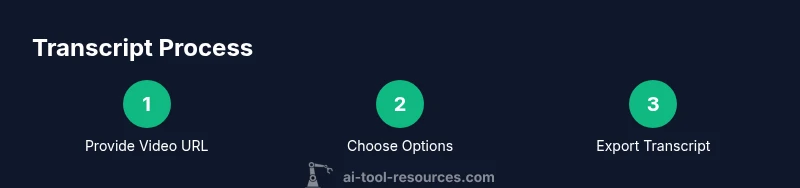
A typical workflow starts with choosing the right tool and preparing your video resource. You paste or upload the YouTube URL, select language(s), and enable features such as timestamps and speaker labels if needed. The service then processes the audio and returns a draft transcript. Next, you review the transcript for accuracy, fix misheard terms, and adjust punctuation for readability. Finally, you export in your preferred format and integrate the transcript into captions, notes, or a content pipeline. This loop—test, refine, export—helps keep transcripts reliable across platforms. AI Tool Resources emphasizes validating outputs for high-stakes uses, especially when legal or medical content is involved.
Cleaning, timing, and formatting transcripts
Raw transcripts often require post-processing to improve readability and usefulness. Turn off potential mispunctuation errors by enabling automatic punctuation when available, then run a quick human-proofread pass to fix homophones and domain-specific terms. Ensure timestamps align with the video timeline for viewers who skim. Export options like SRT or VTT should be checked against downstream tools (CMS, video editors, or SEO software). For SEO benefits, consider adding keyword-rich captions and a structured transcript that supports search indexing. This step is crucial for content creators who rely on precise captions and searchable transcripts to reach broader audiences.
Security, privacy, and copyright considerations
Transcribing YouTube videos involves handling audio data that may include sensitive information. Always review a tool’s privacy policy, data retention terms, and whether transcripts are stored on servers, used for model training, or accessible to third parties. If your videos include copyrighted material, ensure you comply with fair use guidelines and YouTube’s terms. Consider running sensitive content through tools with strict access controls or on-premises options. When you’re finished, delete or anonymize transcripts from the service if privacy concerns persist.
Tools & Materials
- Computer or device with internet access(Any modern PC, Mac, or tablet with a browser.)
- YouTube video URL or ID(The direct link to the video you want transcribed.)
- AI transcription tool account(Sign up for a plan that matches your needs (free tier available).)
- Export formats support(Ensure the tool can export TXT, SRT, VTT, or JSON.)
- Text editor or CMS(For post-processing, editing, or publishing transcripts.)
- Privacy/compliance brief(Know data-handling terms if dealing with sensitive content.)
Steps
Estimated time: 45-60 minutes
- 1
Prepare your video resources
Gather the target YouTube URL, note any language requirements, and decide whether you need diarization (multi-speaker) or timestamps. This upfront clarity reduces back-and-forth during transcription.
Tip: Having a clean sample clip (2–3 minutes) helps calibrate the tool’s accuracy for your longer videos. - 2
Choose an AI transcription tool
Compare at least two tools using your sample clip. Consider language support, diarization, speed, and export formats. Prioritize privacy terms and API access if you plan automation.
Tip: Test both free tiers to avoid unexpected costs. - 3
Import video URL and configure settings
Paste the YouTube URL, select the primary language, and enable optional features like timestamps and diarization. Some tools also offer noise suppression presets.
Tip: If your video has background noise, enable a higher-quality model or noise reduction option. - 4
Run transcription and monitor progress
Start the transcription process and check progress indicators. Longer videos may take several minutes; you can usually pause and resume.
Tip: Use batch processing for multiple videos to save time. - 5
Review and edit the transcript
Read through the draft, correct misheard terms, and adjust punctuation. Ensure timestamps align with the audio when relying on captions.
Tip: Focus on industry-specific terms and acronyms; add them to the tool’s vocabulary if available. - 6
Export the transcript
Choose your preferred format (TXT, SRT, VTT, JSON) and download. Some tools offer auto-sync with video players or CMS integration.
Tip: Keep a master editable version for future updates. - 7
Integrate into your workflow
Upload captions to YouTube, attach transcripts to research notes, or feed into a content analytics pipeline. Revisit periodically for accuracy checks.
Tip: Automate periodic re-checks when video content is updated.
FAQ
What is an AI transcription tool and how does it work?
AI transcription tools convert speech to text using neural models. They accept inputs like video URLs or files and return time-aligned transcripts with optional punctuation and speaker labels.
AI transcription tools turn spoken words into written text automatically, using advanced speech models.
Do AI transcription tools support multiple languages?
Many tools support dozens of languages, but accuracy varies by language and accent. Check language coverage and model updates before choosing.
Yes, most tools support multiple languages, but you may see different accuracy across languages.
Can I transcribe YouTube videos without downloading the files?
Yes. Most tools accept YouTube URLs directly or provide built-in fetchers, so you don’t need to download the video yourself.
You usually don’t need to download the video; just paste the link.
What about privacy when transcribing videos?
Review the service’s privacy policy, data retention, and whether transcripts can be used to train models. Prefer tools with clear data controls if content is sensitive.
Be sure you’re comfortable with how the service handles your data.
How can I improve transcription accuracy?
Use high-quality audio, select the correct language, enable diarization if needed, and perform a quick post-edit to fix domain terms.
Clean audio and proper settings help a lot with accuracy.
Watch Video
Key Takeaways
- Assess language support and accuracy before committing.
- Enable timestamps for precise navigation.
- Use editor reviews to ensure quality.
- Export transcripts in multiple formats.
- Incorporate transcripts into captions and SEO.