AI Tool to Translate PDF File: A Practical Guide
Learn how to translate PDF files with AI tools while preserving layout and accuracy. This educational guide covers workflows, privacy tips, and best practices for researchers, developers, and students exploring AI-powered document translation.


The goal is to translate a PDF file using an AI tool. To do so, upload the document, select the target language, and review the translated output for accuracy. Many tools preserve layout, fonts, and image text, with options for post-editing. This quick answer outlines a practical workflow you can apply today.
What is an AI tool to translate PDF file?
An AI tool to translate PDF file is a software solution that combines optical character recognition (OCR), natural language processing (NLP), and machine translation to convert the text within a PDF into another language while attempting to preserve layout. It works for both native, selectable text PDFs and scanned documents, though results differ with the latter. For native PDFs, translation typically preserves fonts, headings, and structured elements; for scanned PDFs, OCR converts images of text into digital text before translation.
In practice, researchers, developers, and students use these tools to unlock multilingual access to manuals, research papers, or UI documentation. The process can be largely automated, with a human-in-the-loop for post-editing to ensure accuracy and tone. When evaluating tools, consider language pair support, domain specialization, and the degree of layout retention. According to AI Tool Resources, AI-enabled PDF translators are increasingly offering configurable workflows, glossaries, and post-editing interfaces that streamline collaboration. This alignment with modern AI capabilities helps teams scale translation while maintaining consistency.
For organizations, privacy and security matter as much as translation quality. Cloud-based tools may offer richer models and updates, but on-device or private cloud options reduce data exposure. The right choice depends on document sensitivity, required languages, and the availability of glossary and memory features. AI Tool Resources notes that the best tools balance accuracy, speed, and governance, especially for technical or academic content.
Tools & Materials
- Computer or mobile device with internet access(Stable internet connection; access to the translation tool)
- Source PDF file(s) to translate(Prefer native PDFs for best results; keep backups)
- AI translation tool or service (cloud-based or on-device)(Consider data privacy offerings and supported languages)
- Quality assurance checklist (glossary, language pair references, style guide)(Optional but recommended for consistency)
- Post-editing resources (bilingual reviewer or memory tool)(To improve final quality)
Steps
Estimated time: 40-60 minutes
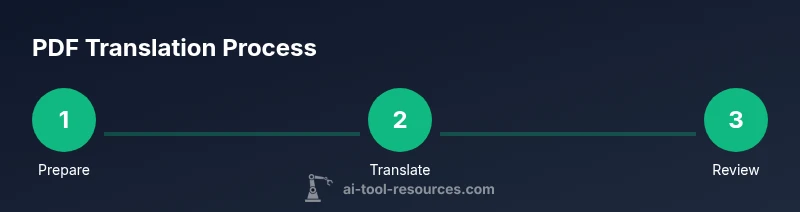
- 1
Prepare the PDF and define language pair
Identify the source language(s) and target language. Check if the PDF is native text or scanned. If needed, run OCR first using the tool or a dedicated OCR step. This preparation saves time later and improves translation accuracy.
Tip: Verify font coverage and embedded text; OCR on complex fonts may require adjustments - 2
Select a translation tool and configure settings
Choose between cloud-based AI translators or offline models. Set the language pair, preferred formality, and domain (technical, academic, general). Custom glossaries help bind terminology to your field.
Tip: Upload a glossary if your tool supports it; consistent terminology reduces post-edit edits - 3
Upload PDF and choose target language
Import the document into the tool and specify the desired output language. If the PDF contains images with text, ensure the tool can extract and translate embedded text.
Tip: Check that the page range and image handling options match your needs - 4
Run translation and monitor progress
Initiate the translation process and observe progress. For very large PDFs, translate in sections to monitor quality and performance. Some tools offer multilingual translations in parallel.
Tip: Break up large files to prevent timeouts and manage memory usage - 5
Review and post-edit the output
Carefully review translated text for accuracy, tone, and technical correctness. Adjust headings, tables, and figure captions as needed. Use a bilingual reviewer if available.
Tip: Focus on domain-specific terms and units; a glossary helps maintain consistency - 6
Export, validate, and preserve formatting
Export the final document in a preferred format (PDF, Word). Validate that layout, fonts, and images are intact. Retain accessibility features where possible.
Tip: Run a quick visual check for misaligned elements after export - 7
Handle privacy and data security
Use tools with clear data handling policies. Prefer on-device or encrypted cloud options for sensitive documents. Shred temporary files after completion to minimize risk.
Tip: Review the tool's data retention settings before translation - 8
Document revision and archiving
Store both original and translated files with metadata and versioning. Maintain a changelog to track updates and revisions over time.
Tip: Use consistent file naming and folder structure for easy retrieval
FAQ
What is the difference between machine translation and human post-editing for PDFs?
Machine translation provides a fast draft, but human post-editing is often needed for accuracy and tone in PDFs.
Machine translation gives you a fast draft, but you’ll usually need a human editor for accuracy and tone.
Can I translate PDFs offline?
Yes, some tools offer offline models that run locally on your device, which helps with privacy but may limit language options and require more computing power.
Yes. You can translate PDFs offline with local models, but options may be limited and require enough computing power.
Will translation preserve layout and formatting?
Many AI translators strive to preserve layout, but complex tables, multi-column layouts, and fonts can still shift. Post-editing is often needed.
Layout preservation is common but not perfect; post-editing helps fix issues.
How secure is my data when using AI translation tools?
Security varies by provider. Prefer tools with strong privacy policies, encryption, and clear data retention practices; avoid uploading sensitive documents to untrusted services.
Data security depends on the tool; choose providers with strong privacy and encryption policies.
Which languages are best supported for PDF translation?
Support varies by tool, but widely used languages often have the best accuracy. For niche languages, verify domain glossaries and available models.
Most tools cover many major languages; verify models for niche languages.
What common errors should I watch for after translation?
Watch for mis-translated terms, misformatted text, and misinterpreted tables. Always post-edit and validate figures and captions.
Look out for term mis-translation and layout issues; post-edit carefully.
Watch Video
Key Takeaways
- Plan language pairs and privacy settings before translation
- Choose tools with reliable OCR and layout retention
- Involve a reviewer for post-editing
- Export and validate formatting after translation
- Maintain a clear archive of original and translated PDFs