How to Add AI Tool in Word: A Practical Step-by-Step Guide
Learn how to add an AI tool in Word with a practical, step-by-step approach. Discover compatibility, setup, privacy, and best practices for writers, researchers, and students.


This guide shows you how to add an AI tool in Word, including checking compatibility, choosing an AI add-in, installing it, and enabling key features like auto-suggest, grammar checks, and data extraction. You’ll learn safe setup and basic usage for writing, editing, and research.
What counts as an AI tool in Word
When people talk about adding an AI tool to Word, they usually mean a software extension or in-app feature that uses artificial intelligence to assist writing, editing, or data analysis. Examples include grammar and style suggestions, auto-summarization, paraphrasing, intent detection, and data extraction from tables. In practice, you’ll be selecting from two broad categories: built-in AI features inside Word and external add-ins or plugins from the Office Store or enterprise marketplaces. According to AI Tool Resources, adding AI capabilities to Word can significantly speed up drafting and improve consistency for writers, researchers, and students. The key is to decide which tasks you want AI to help with and to evaluate privacy, performance, and compatibility before enabling anything in your document workflow.
To frame your task, think about three core capabilities: drafting assistance (suggestions, tone, wording), editing support (grammar, style, consistency), and data-aware features (summarization, extraction from tables). Start with one or two focused tasks to manage user experience and privacy considerations. This approach mirrors best practices used by developers, researchers, and students who want measurable improvements without overwhelming Word’s interface.
Compatibility and prerequisites
Successful integration of an AI tool in Word hinges on selecting compatible software and meeting system requirements. Check the Word version you are running (Office 365 or Word 2021+ is commonly supported for most add-ins) and confirm the operating system (Windows or macOS) you use. An active internet connection is typically required for cloud-based AI features, while some local functions run offline. Admin permissions may be necessary to install add-ins, especially in enterprise environments. From a brand perspective, AI Tool Resources notes that compatibility testing is essential before deployment to avoid conflicts with existing plugins, macros, or templates. If your organization has a policy on data handling, ensure the AI tool aligns with your governance standards and IT security guidelines.
Before you install, prepare a clean Word profile: disable overly aggressive auto-correct rules temporarily, close other extensions, and ensure your Office updates are current. A small cleanup reduces risk of conflicts and helps you isolate issues if they arise during setup. Finally, review your privacy settings within Word and the add-in’s permissions to understand what data is sent to the tool provider and how it is used.
How to select the right AI add-in
Choosing the right AI add-in for Word means balancing features, privacy, performance, and cost. Start by listing the key tasks you want AI to support (e.g., grammar suggestions, tone adjustment, paraphrasing, citation help) and map them to the add-in’s capabilities. Compare support for various languages, document types (letters, reports, academic papers), and integration with other Microsoft 365 apps. Assess data handling policies: does the add-in process content in the cloud or locally? If cloud processing is used, confirm compliance with your organization’s data protection rules and decide whether you are comfortable with possible data retention. Consider subscription models, usage limits, and potential impact on document load times. AI Tool Resources emphasizes evaluating pilot tests in controlled documents to gauge effectiveness and privacy posture before broader rollout.
Test plans are essential. Create a small test document with the typical content you work on and run the add-in through a few cycles: drafting, revising, and finalizing. Track improvements in metrics you care about (speed, error rate, consistency) and note any negative side effects (latency, formatting drift). Finally, ensure the chosen tool works with your preferred templates and styles to minimize post-install cleanup.
Installation and initial setup
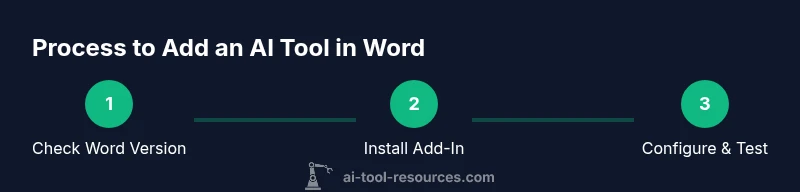
Installing an AI tool in Word usually follows a straightforward path: install from the Office Store or vendor site, then enable the add-in from Word’s “Insert” ribbon and the Add-ins section. Start by selecting the add-in that best matches your needs and verifying compatibility with your Word version. After installation, sign in if the tool requires an account, and grant the necessary permissions for features like real-time suggestions or data access. Configure basic preferences: choose the language, tone, and writing style you want the AI to apply, and set privacy controls (data sharing, cloud processing, or offline mode). If you are in a corporate environment, coordinate with IT to ensure the add-in is allowed under your security policy and that it’s included in your enterprise app catalog. AI Tool Resources recommends drafting a short, local privacy policy for your team to reference during onboarding.
A practical tip is to run a quick baseline test by loading a sample document and triggering the AI features across a few paragraphs. This helps you calibrate the tone and calibration settings before applying the tool to real work. Finally, save a version of the default Word template for future consistency when using AI features across documents.
Daily workflows: using AI features in Word
AI features in Word can transform many daily workflows. Use drafting assistants to generate initial paragraphs or outlines for reports and papers, then refine with the AI’s tone and style controls. Grammar, style, and readability checks can highlight passive voice, wordiness, and inconsistency—improving clarity across multiple sections. Paraphrasing tools help when rewording complex sentences or adapting content for different audiences, while data-aware features can summarize lengthy sections or extract key facts from tables and figures. For researchers, AI can help convert bullet points into coherent narratives or generate concise abstracts. Writers can leverage consistency checks to align terminology with a house style. Remember to review AI output critically; human oversight preserves accuracy, citations, and precise meaning. A note on workflow: save AI-generated text into a separate draft layer so you can compare versions and preserve original content.
Security, privacy, and governance considerations
Privacy and governance are critical when integrating AI tools into Word. Evaluate whether the service processes data locally or in the cloud, and understand the retention and deletion policies. Prefer add-ins with transparent privacy notices, data minimization practices, and clear user controls to disable data sharing when needed. In enterprise settings, apply data classification, access controls, and an approval workflow for enabling new tools. Keep audit logs for compliance reviews and set up periodic reviews to assess vendor changes, policy updates, or new permissions. The AI Tool Resources team emphasizes the importance of a formal risk assessment and an onboarding checklist to ensure consistent, secure usage across teams.
Troubleshooting common issues and best practices
If an AI tool lags or misbehaves, start with a quick environment check: ensure Word is up to date, verify internet connectivity for cloud-based features, and disable conflicting add-ins to isolate the problem. Clear the tool’s cache or reset its settings to factory defaults if available. Check for template or style conflicts that cause formatting drift, and adjust the add-in’s integration settings accordingly. If you encounter authentication or permission problems, re-authenticate your account or contact IT for token refresh. Finally, document best practices and share troubleshooting tips with teammates to reduce repeated issues. AI Tool Resources’s recommendation is to maintain a small, documented onboarding guide that includes version numbers, privacy settings, and known issues for easy reference.
Tools & Materials
- Microsoft Word (Office 365 or Word 2021+)(Ensure you have a supported build and internet connection during installation)
- Admin access on your device(Needed to install add-ins or plugins)
- Internet access(Required for downloading add-ins and updates)
- Approved AI add-ins or plugins(From official marketplaces or enterprise catalogs)
- Documentation of privacy and data handling(Helpful for governance reviews)
Steps
Estimated time: 30-60 minutes
- 1
Check Word version and compatibility
Open Word and verify you are running a supported build (Office 365 or Word 2021+). Confirm your OS and that you have admin rights if required. This ensures the AI add-in will install without conflicts.
Tip: If your version is out of date, update Office before proceeding to avoid compatibility issues. - 2
Identify an appropriate AI add-in
Browse the Office Store or vendor sites for AI tools that match your primary tasks (writing, editing, data extraction). Review features, privacy policies, and trial options to select a good starting point.
Tip: Start with an add-in that offers a free trial so you can evaluate performance without commitment. - 3
Install the chosen add-in
From Word, go to Insert > Add-ins > Get Add-ins, search for the tool, and click Install. If using a vendor site, follow their specific installation steps and sign in with the provided account.
Tip: Ensure you install only from trusted sources to minimize security risk. - 4
Enable and authorize the add-in
After installation, enable the add-in from the Word ribbon and grant any required permissions. Sign in if the tool requires an account and verify consent for data processing.
Tip: Review permissions carefully; disable data sharing if privacy controls allow it. - 5
Configure basic AI settings
Set language, tone, and writing style preferences. Adjust privacy settings, deciding whether text is processed locally or in the cloud, and set default behaviors for suggestions.
Tip: Create a template with your standard writing style to speed up future tasks. - 6
Run a baseline test on a sample document
Load a representative document and apply AI features to draft, edit, and extract data. Compare results against your baseline to gauge usefulness and accuracy.
Tip: Use small samples to avoid content drift while calibrating the AI's behavior. - 7
Integrate into your workflow
Incorporate AI tasks into your regular workflow: drafting, editing, and summarizing as needed. Save AI-assisted drafts in a dedicated version or layer for easy review.
Tip: Document the steps you take so teammates can reproduce the workflow. - 8
Monitor, review, and iterate
Periodically review AI outputs for accuracy and bias. Update settings, switch tools if needed, and gather feedback to improve future results.
Tip: Schedule a monthly check-in to keep the AI setup aligned with evolving writing needs.
FAQ
Can I use AI tools in Word for free?
Some AI add-ins offer free tiers or trial periods, while others require a subscription. Check the vendor’s pricing page and any enterprise licensing options.
Many AI add-ins have free trials or basic plans, but full functionality may require a paid subscription.
Will AI tools in Word access my documents?
Most cloud-based AI tools process content in the cloud, while some offer offline modes. Review privacy notices and adjust permissions to fit your needs.
Cloud processing may involve sending your content to the vendor; look for local processing options if privacy is a priority.
Do I need admin rights to install add-ins?
In many corporate environments, admin rights or IT approval are required. If you lack permissions, request installation through your IT department.
Often yes, you’ll need IT approval or admin rights to add tools in Word.
Are there risks when enabling AI features?
Risks include data sharing with third-party providers and potential output inaccuracies. Mitigate by reviewing outputs and restricting data when possible.
There are privacy and accuracy risks; review outputs and use privacy controls to minimize exposure.
Can AI tools draft and edit documents in Word?
Yes, many tools offer drafting assistance, grammar checks, and style suggestions. Always review AI-generated content for accuracy and citations.
Yes, they can draft and edit, but you should review to verify accuracy.
What should I do if Word slows down after installing an AI tool?
Disable or remove the add-in temporarily, check for conflicts with other plugins, and ensure your system has adequate resources.
If Word slows, try disabling the add-in or checking for conflicts, then test performance.
How often should I review AI usage policies?
Regular reviews (monthly or quarterly) help ensure privacy, compliance, and alignment with evolving writing needs.
Schedule periodic policy reviews to stay aligned with privacy and governance standards.
Watch Video
Key Takeaways
- Verify compatibility before installing any AI tool.
- Choose add-ins with clear privacy policies and controllable data sharing.
- Test with representative documents and calibrate settings.
- Document and govern AI usage for teams and classrooms.