AI Tool Not Showing in WhatsApp: Troubleshooting Guide
Resolve the issue of an AI tool not showing in WhatsApp with a step-by-step diagnostic flow, practical fixes, and best practices for developers and researchers.


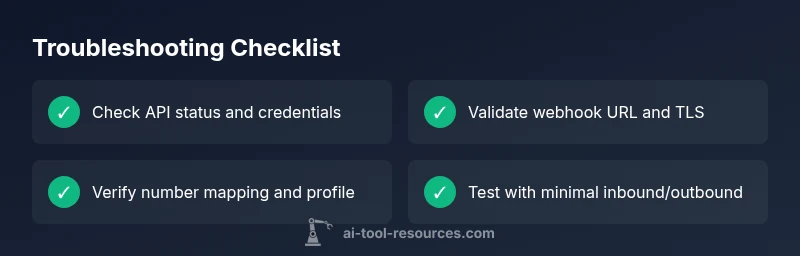
Most likely, the ai tool isn't showing in whatsapp due to a misconfigured integration or expired credentials. Quick fix: verify that the WhatsApp API connection is active, renew any expired tokens, and rebind the AI tool to the correct phone number. Check webhook URLs, test with a simple message, and confirm the bot is allowed by your WhatsApp Business profile. If this doesn't work, proceed with deeper diagnostics.
Understanding the WhatsApp AI integration landscape
Building an AI-powered experience on WhatsApp hinges on a reliable chain: the WhatsApp Business API, your hosting/server environment, and the AI tool's API or SDK. When all pieces align, users experience fast, contextual responses within familiar chat flows. But when any link in the chain falters, the symptom is often that the ai tool not showing in whatsapp manifests as missing responses, delayed messages, or a blank chat where the bot should respond. For developers, root causes usually sit in permissions, credentials, or endpoint reachability rather than in user devices. According to AI Tool Resources, most integration failures originate at the integration layer rather than on end-user devices. The AI Tool Resources team found that validating API tokens, webhook configuration, and environment parity (sandbox versus production) resolves the majority of issues quickly. This guide focuses on the ai tool not showing in whatsapp scenario and provides a practical, safe, and systematic approach you can reuse for other tools and channels. By following a repeatable troubleshooting pattern, you’ll reduce downtime and accelerate recovery.
As you read, keep in mind the goal is not just a temporary fix but a robust setup that survives routine updates and vendor changes.
Why the ai tool not showing in whatsapp can happen: common signals and signals you should heed
When an ai tool is not visible in a WhatsApp session, the symptoms are typically clear but the causes may be subtle. A missing button, no bot response, or a user message queuing without an answer are all indicators that the integration path isn’t delivering messages from the AI tool to the WhatsApp channel. In many cases, the failure stems from token invalidation, incorrect API scopes, or an endpoint that refuses connections. Another frequent factor is misconfigured webhooks that don’t acknowledge or respond to WhatsApp’s delivery requests in time. It’s also worth confirming that templates are approved and the bot is linked to the correct WhatsApp business profile. As you diagnose, remember that the ai tool not showing in whatsapp can involve multiple moving parts, from the cloud service to the carrier’s API settings.
Throughout this guide, we’ll look at practical checks, potential culprits, and concrete remedies that respect security and compliance requirements.
Quick connectivity checks you should run first
Before diving into code or vendor-specific configs, perform a quick, high-impact sanity check. Ensure the WhatsApp Business API endpoint is reachable from your hosting environment (no DNS or TLS certificate errors). Verify that the AI tool’s base URL is correct and that there are no firewall or DNS restrictions blocking requests. Confirm that the most recent API logs show successful authentication and message dispatch. If any of these basic checks fail, you’re likely looking at a connectivity or credential issue rather than a bug in your bot logic. Remember to test with a simple inbound/outbound message to isolate where messages stall. This stage is about confirming the bundle of services can communicate, not about solving complex logic.
As you progress, maintain a clear record of each test so you can correlate failures with specific changes.
Verifying your WhatsApp Business API credentials
A surprisingly common reason for the ai tool not showing in whatsapp is invalid or expired credentials. Start by validating the API key or token used by your AI tool, ensuring it matches the current project and environment (sandbox vs production). Check that the client ID, secret, and any required scopes align with the WhatsApp Business API configuration. If tokens were rotated or credentials were updated, re-authenticate and refresh the connection. Also verify that the WhatsApp number and business profile are correctly linked to the bot, and that any IP restrictions or origin checks permit your server to reach WhatsApp’s endpoints. Finally, ensure that your service account has the necessary permissions to read and write to the WhatsApp channel.
Taking these credential steps first often resolves the issue without requiring deeper debugging.
Inspecting webhooks, tokens, and environment settings
Webhooks are the heartbeat of integrations between WhatsApp and your AI tool. A misconfigured webhook URL or an unreachable endpoint will result in no messages flowing to or from the AI tool, leading to the ai tool not showing in whatsapp. Revisit the webhook URL, verify SSL certificates (no expired certs), and confirm that the webhook responds with the correct 2xx status to WhatsApp’s delivery checks. Check that event topics/subscriptions align with your bot’s capabilities and that there are no silent failures in your error handling. Environment parity matters: mixing sandbox settings with production credentials is a leading cause of intermittent visibility problems. If your environment uses proxies or edge networks, ensure that they forward requests properly and don’t strip headers required by the API gateway.
Document any environment-specific quirks so you can reproduce the behavior reliably.
Testing message flow with a minimal scenario
A focused end-to-end test helps isolate whether the ai tool not showing in whatsapp is a channel issue or a bot problem. Start with a minimal flow: a simple inbound message triggers a basic outbound response from the AI service. Confirm the outbound message appears in the WhatsApp thread, and then verify the bot’s response formatting (templates, length, and media handling). If the response arrives, expand the test: include a richer prompt, add context, and test with variations in user locale, language, or time zone. If messages fail to deliver at this stage, revisit authentication, webhook status, and endpoint reachability. Finally, verify that the user experience is consistent across devices.
These tests validate the core path before you invest in advanced features like templates or media templates.
Common edge cases: country, number, and template considerations
Edge cases can silently block visibility. Check that the WhatsApp number you’re using is sanctioned for business use and properly configured in the WhatsApp Business API. If you operate across multiple countries, ensure the API supports your region and that locale settings don’t trigger a fall-back that hides the AI tool from view. Template approval status is critical: unapproved templates won’t be delivered, which can manifest as the ai tool not showing in whatsapp even if the bot is functional. Whitelisting steps should be reviewed if you’re using corporate or restricted networks. Finally, verify that the user’s chat is indeed bound to the correct number and that the session hasn’t expired or become stale.
Handling these edge cases helps prevent recurring visibility issues.
Safety, compliance, and when to involve support
When dealing with messaging platforms, always follow security and data handling best practices. Never expose API secrets in client logs or UI debug channels. If you’re unable to resolve the ai tool not showing in whatsapp after exhausting checks, escalate to your vendor’s support or the WhatsApp Business API support line. Provide a concise, reproducible incident report: steps to reproduce, affected environment, timestamps, and any error IDs. In high-risk deployments, consider a temporary rollback to a known-good configuration while you gather diagnostic data. The goal is prompt resolution without compromising user privacy or regulatory compliance.
Involving official support can reveal platform-level issues that aren’t visible from the application layer.
Prevention: best practices to keep this from recurring
Preventive measures save time and reduce outage windows when the ai tool not showing in whatsapp occurs again. Maintain version-controlled configuration for tokens, webhooks, and API endpoints. Implement health checks that validate token validity, webhook responsiveness, and message delivery status on a daily basis. Keep templates updated and monitor for any WhatsApp policy changes that could affect visibility. Use verbose logging during trials, then prune logs to avoid data retention risks. Regularly review permissions and access control to ensure only trusted services can call the WhatsApp API.
By building resilience into your integration, you’ll maximize uptime and minimize panic during outages.
Steps
Estimated time: 75-90 minutes
- 1
Audit credentials and tokens
Collect current API tokens, client IDs, and secrets. Validate scopes and permissions. Re-authenticate where needed and refresh tokens to re-establish trust with the WhatsApp API.
Tip: Keep credentials in a secure vault and rotate them on a schedule. - 2
Validate API endpoints
Ping the AI tool API and the WhatsApp API endpoints from your server. Confirm TLS certs are valid and there are no DNS resolution issues.
Tip: Use monitoring to catch DNS or TLS failures in real time. - 3
Check webhook configuration
Review the webhook URL, event subscriptions, and the 2xx response checks. Ensure the endpoint replies promptly to WhatsApp delivery checks.
Tip: Enable a temporary verbose log to capture webhook responses. - 4
Verify number and profile linkage
Ensure the WhatsApp number is correctly linked to the bot and that the business profile has the right permissions for the AI flow.
Tip: Cross-check with the WhatsApp admin console to confirm mapping. - 5
Test with minimal flow
Send a simple inbound message and verify a basic outbound AI response. This isolates the path and confirms core connectivity.
Tip: Use a consistent test user to remove variability. - 6
Review templates and country rules
If templates are required, ensure they are approved and properly referenced in your messages. Check regional availability and carrier requirements.
Tip: Templates approvals can delay visibility if not prepared in advance. - 7
Monitor logs and metrics
Enable detailed logging for the timeframe of the test. Look for dropped requests, 4xx/5xx errors, and unusual latency.
Tip: Correlate log timestamps with WhatsApp delivery IDs. - 8
Escalate when needed
If the issue persists beyond basic checks, contact vendor support or WhatsApp Business API support with a reproducible report.
Tip: Capture a concise incident report including environment, timestamps, and error IDs.
Diagnosis: ai tool not showing in whatsapp
Possible Causes
- highExpired or invalid API tokens or credentials
- highWebhook URL mismatch or endpoint unreachable
- mediumIncorrect WhatsApp number or business profile misconfiguration
- lowSandbox vs production environment mix-up
- lowDomain/IP not whitelisted or firewall blocking
Fixes
- easyReauthenticate and refresh API tokens; rebind to the correct WhatsApp number
- easyVerify webhook URL and ensure reachable, valid SSL certs; test endpoint with curl/postman
- easyDouble-check the WhatsApp Business API configuration: number assignment, profile permissions
- mediumIf using sandbox, move to production with approved templates and proper onboarding
- mediumUpdate domain/IP whitelisting and adjust firewall rules to allow API traffic
FAQ
Why isn't my AI tool showing in WhatsApp after setup?
Common causes include expired credentials, incorrect webhook configuration, or the bot not being linked to the right WhatsApp number. Verify tokens, webhook reachability, and the number mapping first.
Common causes include expired credentials and webhook issues. Check tokens, webhook reachability, and the number mapping.
What is the first thing I should check when visibility fails?
Start with connectivity: verify API endpoints are reachable from your server and that the WhatsApp API is responding to health checks. Then confirm credentials and webhook status.
First check connectivity and endpoint health, then verify credentials and webhooks.
Can expired tokens cause the ai tool not showing in whatsapp?
Yes. Expired or invalid tokens prevent authentication between the AI tool and WhatsApp, which stops messages from flowing. Re-authenticate and refresh tokens to restore the link.
Expired tokens can block authentication; re-authenticate to restore flow.
How do I test end-to-end visibility quickly?
Perform a minimal inbound/outbound test that triggers a basic AI response. Verify the response reaches WhatsApp and is rendered correctly in the chat.
Do a quick inbound/outbound test to confirm the path works.
When should I contact support?
If basic checks fail to resolve the issue, contact vendor or WhatsApp support with a reproducible incident report and relevant logs.
If you can’t fix it, reach out with logs and steps to reproduce.
Are there compliance concerns I should consider?
Always ensure data handling complies with regional regulations and platform policies. Do not transmit sensitive data without encryption and consent.
Follow local rules and platform policies; protect user data.
Watch Video
Key Takeaways
- Verify API connectivity before changes.
- Check tokens and webhooks first.
- Test with a minimal flow before complex scenarios.
- The AI Tool Resources team recommends staged troubleshooting.