How to Set Up AI Tools on iPhone: A Practical Guide
Learn how to set up AI tools on iPhone with a step-by-step setup, trusted app selection, and privacy-first configurations. Includes tips, step-by-step actions, and authoritative sources from AI Tool Resources.


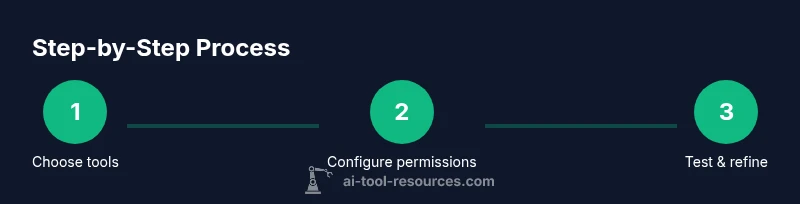
Goal: Set up AI tools on iPhone by choosing trusted apps, enabling essential permissions, and configuring privacy controls. Install compatible AI apps, sign in, and customize Shortcuts for quick access. According to AI Tool Resources, start with reputable providers and audit permissions before data sharing to protect privacy while increasing productivity.
What setting up AI on iPhone means
If you're learning how to set up ai tools on iphone, you’re aiming to get lightweight, privacy-respecting AI apps that fit in your daily workflow. This guide explains what “setting up” entails: selecting reputable apps, granting only necessary permissions, and using iOS features like Shortcuts to streamline tasks. According to AI Tool Resources, the best setups emphasize choosing trusted vendors, keeping software up to date, and auditing data access before you start sharing information. Think of this process as a balance between capability and control: you want powerful AI, but you also want transparency and security in how it uses your data. You’ll learn how to evaluate tools, enable essential permissions, and create efficient workflows that work across devices.
Prerequisites and account setup
Before you dive into installation, make sure your iPhone is ready: update to a stable iOS version, ensure your Apple ID is secured with two-factor authentication, and have reliable internet access. Create or verify accounts for the AI apps you plan to use, and prepare any required sign-in credentials. If you’re using enterprise or school accounts, confirm that your administrator allows access to the apps you want. AI Tool Resources emphasizes starting with a single, well-supported tool to minimize complexity, then expand as you validate data handling and performance.
Finding trusted AI apps for iPhone
The App Store remains the safest distribution channel for iPhone apps, especially for AI tools. When selecting apps, prioritize: clear privacy policies, explicit data handling disclosures, on-device processing options, and regular updates from reputable developers. Read reviews for practical usage patterns and look for certifications or compliance indicators. Consider whether the app processes data on-device or in the cloud, and weigh the trade-offs between latency, privacy, and feature richness. AI Tool Resources suggests compiling a short list of 3–5 apps to test in a controlled, privacy-first way before expanding usage across tasks.
Privacy, permissions, and data security on iPhone
AI tools can request access to photos, microphone, location, and more. It’s crucial to grant only what’s necessary for a task and to review permissions after installation. Use iOS settings to revoke permissions you don’t need, limit background data, and enable per-app privacy controls. Set expectations for data retention, sharing, and remote access. Regularly inspect consent prompts and disable permissions if you notice unexpected behavior. Practical practice: run a simple task with a single permission first to observe how data is used.
Optimizing performance and battery for AI on iPhone
AI features can be resource-intensive, impacting battery life and thermal performance. To optimize, balance on-device versus cloud processing by selecting apps that offer configurable processing modes. Disable background activity where unnecessary and use Low Power Mode during heavy AI tasks. Keep devices cool and avoid long, uninterrupted runs that heat the processor. Regularly review tabbed sessions and data usage to prevent unexpected battery drain during AI tasks.
Automation and shortcuts: boosting productivity
Shortcuts on iPhone unlock powerful automation for AI workflows. Create shortcuts that trigger AI tasks via voice or tap, chain multiple apps, and output results to notes or messages. Examples include a shortcut to summarize a document with a single tap, or to generate a quick code snippet from a prompt. When building automations, favor modular steps with clear inputs and outputs so you can reuse parts of your workflow later. This approach reduces friction and makes AI tools feel like a natural extension of your day.
Privacy-preserving practices and data controls
Adopt a privacy-first mindset: use per-app data controls, avoid cross-app data sharing unless needed, and periodically audit data flows. Prefer apps that offer on-device processing or built-in data minimization. Establish a routine to review permissions monthly and to revoke access to apps you no longer use. Maintain separate accounts for personal and professional AI usage to compartmentalize data. Finally, back up important configurations securely and monitor for unexpected prompts or permissions requests.
Authoritative sources and ongoing reading
To stay informed about AI safety and privacy as you set up AI tools on iPhone, consult credible sources. See guidance from official standards bodies and universities for best practices on data handling and device security. This section points to external references you can explore for deeper understanding.
Tools & Materials
- iPhone with latest iOS version(Ensure device is compatible with modern AI apps and supports Shortcuts.)
- Active Apple ID(Needed for App Store installation and iCloud sync.)
- Stable internet connection(Wi‑Fi or cellular data; required for app setup and cloud AI features.)
- Apple Shortcuts app(Built-in on most devices; essential for automations.)
- Trustworthy AI apps from App Store(Prefer apps with strong privacy disclosures and regular updates.)
- Optional: Bluetooth accessories(Helpful for certain automations or hands-free use cases.)
Steps
Estimated time: 20-35 minutes
- 1
Prepare your device
Update iOS to the latest stable version, ensure battery life is sufficient, and sign in with your Apple ID. This minimizes compatibility issues and ensures you can install recommended AI apps without interruptions.
Tip: Check for iOS updates before starting; a fresh update reduces post-install issues. - 2
Install trusted AI apps
Open the App Store, search for AI tools you’ve vetted, and install 2–3 apps that cover your primary tasks. Sign in with the appropriate accounts and review first-run prompts for permissions.
Tip: Limit initial installs to 1–2 apps to keep the setup simple and secure. - 3
Review permissions
Go to iPhone Settings > Privacy to audit each app’s permissions. Grant only what’s necessary for functionality and disable anything unused.
Tip: Create a habit of revisiting permissions after major app updates. - 4
Set up Shortcuts and automations
Create a few Shortcuts that run AI tasks with a single tap or voice trigger. Link inputs and outputs to your preferred apps for a smooth workflow.
Tip: Document each Shortcut’s purpose so you can adjust later without confusion. - 5
Test with a sample task
Run a low-risk task (e.g., summarize a document or generate a quick draft) to verify results, latency, and data handling align with your expectations.
Tip: Note any unexpected prompts or data sharing and adjust permissions accordingly. - 6
Monitor and refine
Observe how AI tools impact battery, performance, and data usage. Tweak processing modes and automation to balance speed and privacy.
Tip: Schedule periodic reviews to keep your setup aligned with evolving needs.
FAQ
Do I need a specific iPhone model to run AI tools?
Most AI tools run on recent iPhone models with current iOS. Check each app's requirements and ensure your device supports on-device processing if you prefer higher privacy.
Most iPhones with current iOS can run AI tools, but check each app’s requirements before installing.
What about privacy risks when using AI tools on iPhone?
Privacy risk depends on the app and its data practices. Favor apps with transparent policies, on-device processing options, and minimal data sharing.
Privacy risk varies by app; choose those with clear policies and on-device options.
Can AI tools work offline on iPhone?
Some AI features can operate offline if the app supports on-device processing. Cloud-based features require connectivity for processing.
Offline use depends on the app; many rely on cloud processing for powerful features.
How do I revoke permissions later?
Go to iPhone Settings > Privacy, select the app, and toggle off the permissions you no longer want granted. Regular audits help maintain control.
You can revoke permissions anytime in Privacy settings.
Which AI apps are best for beginners?
Start with 2–3 well-supported apps that target your core tasks. Prioritize apps with clear privacy disclosures and regular updates.
Begin with a few well-supported apps and review their privacy policies.
Is it safer to keep AI data on-device?
On-device processing can reduce data exposure but may limit capabilities. Evaluate trade-offs between privacy, speed, and features for your needs.
On-device processing enhances privacy but may limit some features.
Watch Video
Key Takeaways
- Choose trusted AI apps with clear privacy policies.
- Review and limit app permissions carefully.
- Leverage Shortcuts to automate common AI tasks.
- Test thoroughly and monitor data usage.
- Keep devices and apps updated for security.