Adobe Illustrator Warp Tool Size: A Practical Guide
Master the warp tool size in Adobe Illustrator to distort vector art with precision. Learn how brush size impacts edits, step-by-step techniques, and best practices for logos, lettering, and illustrations.


With the Adobe Illustrator warp tool, you can bend and distort vector shapes precisely by adjusting the brush size. This quick guide shows how to set a suitable warp brush size, select the tool, and apply size-aware edits to paths, text outlines, and illustrations. Mastery of warp size improves control and preserves exact geometry—especially for logo work and fine-detail lettering.
What the Warp Tool size controls
The Warp Tool size in Illustrator defines the radius of influence of each brush stroke during distortion. A larger brush size affects a broader area, creating more sweeping changes across the path. A smaller brush size yields fine, point-by-point adjustments that preserve overall shape while refining details. Understanding this balance is essential for logo work, lettering edits, and illustration cleanup. When you adjust size, you are effectively deciding how many anchor points the tool can nudge with each pass, which influences the smoothness and fidelity of the warp.
Brush size, hardness, and dynamics you should know
To control warp quality, you should consider brush size alongside any available dynamic settings. A bigger brush produces broad distortions, while smaller brushes are better for delicate corrections along curves. If your version supports a hardness or edge control, use a softer edge for organic shapes and a harder edge for crisp edges. For artists using a tablet, pressure can influence warp strength, adding natural variation to your edits. When you’re not using a tablet, rely on smaller brush sizes and gentle, incremental strokes to maintain control.
Accessing and adjusting Warp Tool size in Illustrator
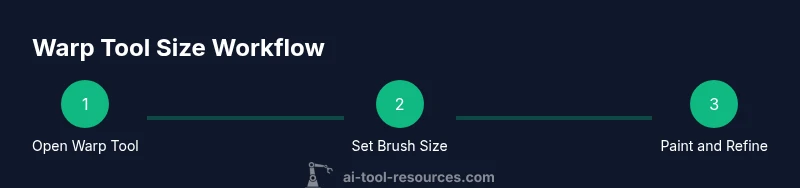
Open your document and select the Warp Tool from the toolbar (Shift+R). Double-click the Warp Tool icon to open the Options panel, where you can set the Brush Size and adjust related controls. Use the bracket keys [ ] on your keyboard to resize the brush while painting. While you work, watch the shape's silhouette; if distortions jump too aggressively, back off the brush size and reapply with shorter strokes. If you have a stylus, enable pressure for more nuanced distortion and turn off smoothing if you prefer crisp edges.
Practical workflows: logo refinement, lettering, and illustrations
When refining logos, start with a modest brush size that covers the logo stroke area and gradually increase as needed. For letterforms, work at a medium brush size to avoid distorting internal counter shapes. In illustrations, apply multiple passes at different sizes to simulate natural wear or bend without warping the entire shape. Save incremental versions to compare changes after each stage. Always verify legibility and consistency with the original design intent before finalizing edits.
Using pressure sensitivity and tablets with Warp Tool size
A graphics tablet can enhance control thanks to pressure sensitivity. If your hardware and Illustrator version support it, enable pressure input for the Warp Tool to vary strength as you stroke. This yields more natural distortions and reduces jagged edges. If you’re not using a tablet, the mouse can still achieve precise edits by relying on smaller brush sizes and slower, cumulative strokes. In either case, take breaks to assess the distortions from a fresh perspective.
Common issues and debugging tips
If distortions appear uneven, check the path for locked or clipped segments and unlock or unclipped before continuing. Ensure you are painting on the correct layer and not accidentally warping guide lines. When you see over-warp, reset the brush size and undo the last pass. Regularly switch between Warp Tool and Direct Selection to verify anchor-level results. If you notice jagged edges, try smaller brush sizes and smoother strokes, then compare with the previous state.
Advanced tips for precise control
- Preview with Outline view to see structural changes without fill details.
- Use multiple layers so you can warp different parts independently.
- Combine Warp Tool with the Pen tool to redraw anchor segments before re-warping for cleaner results.
- Create custom brush size presets for different project types (logos, type, illustrations).
- Always compare to the original vector to maintain consistency.
Quick rules of thumb and checks
- Start small and iterate; large changes are harder to reverse.
- Preserve anchor order by avoiding unnecessary extra points.
- Save versions frequently and label stages clearly.
- When in doubt, switch to a non-destructive approach by duplicating the artwork first.
Tools & Materials
- Adobe Illustrator (2026 release or newer)(Ensure Warp Tool is available and up to date.)
- Graphics tablet or stylus (optional)(Improves pressure sensitivity for warp strokes.)
- Vector artwork prepared for editing(Have editable paths or text outlines ready.)
- Backup copies of your artwork(Always keep a safelist of edits.)
Steps
Estimated time: 30-45 minutes
- 1
Open the document and select the Warp Tool
Open your Illustrator project and choose the Warp Tool from the toolbar (Shift+R). If you don’t see it, reveal hidden tools or reset the workspace. Selecting the correct vector object is essential before applying any warp edits.
Tip: Ensure the target vector is unlocked and on an editable layer. - 2
Open Warp Tool options and set brush size
Double-click the Warp Tool icon to access the Options panel. Set an initial Brush Size that matches the area you plan to distort; larger areas may need bigger size while details demand smaller size. Use the bracket keys to adjust quickly during painting.
Tip: Start with a mid-range size and refine by stepping up or down as you paint. - 3
Paint the distortion with the Warp Tool
Click and drag across the path or shape to apply warp strokes. Alternate directions to build a natural-looking distortion. If you’re using a tablet, apply gentle pressure for smoother curves.
Tip: Keep strokes short and controlled to avoid over-warping. - 4
Refine using smaller strokes and targeted passes
After an initial pass, zoom in and use smaller brush sizes to refine critical areas. This helps preserve the integrity of key shapes and typography while achieving the desired effect.
Tip: Switch to Direct Selection to fine-tune anchor points after warping. - 5
Review with outline view and adjust as needed
Toggle Outline view to inspect the actual vector geometry, then adjust as needed. Compare with the original to ensure readability and balance in your composition.
Tip: Periodically compare the warped artwork against the original design intent. - 6
Save or export your warped artwork
Save incremental versions as you progress. When satisfied, export or consolidate layers as required for your final format.
Tip: Use descriptive version names to track progress and revert if necessary.
FAQ
Can I resize the Warp Tool brush while painting?
Yes. You can adjust brush size on the fly by using the bracket keys or the Warp Tool options panel. This lets you switch between broad distortions and precise tweaks during a session.
Yes—use the bracket keys or the Warp Tool options to change the brush size while you paint.
Is the Warp Tool suitable for editing text outlines?
Yes, but convert text to outlines first to avoid font issues. Warp edits on outlines keep characters distinct and legible.
Yes, convert text to outlines first and then warp the outlines.
Does brush size affect vector fidelity after warp?
Larger brushes affect broader areas and can reduce precision. Smaller brushes offer finer control and help preserve anchor positions and shapes.
Smaller brushes give you more precise control and preserve detail.
How do I reset Warp Tool settings to defaults?
Open the Warp Tool options and choose Reset to Default, or reselect the tool to revert to standard behavior.
Reset via the Warp Tool options panel, or reselect the tool to revert.
What Illustrator versions support brush size controls for Warp Tool?
Most recent Illustrator versions include brush size controls for Warp Tool. If in doubt, check the application's release notes or update to the latest version.
Most recent Illustrator versions include brush size controls; check updates if needed.
Watch Video
Key Takeaways
- Adjust Warp Tool size to match editing scope
- Smaller brush sizes yield precise control
- Use multiple passes for natural distortion
- Save incremental versions for comparison