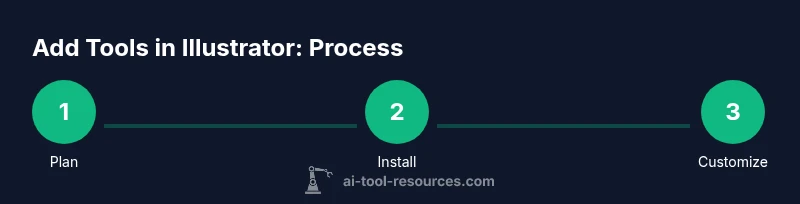
How to Add Tools in Illustrator: A Practical Guide
Learn how to expand Illustrator’s toolkit with built-in tools, plugins, and customized workspaces. This step-by-step guide covers planning, installation, and best practices for designers, researchers, and students.


By the end of this guide, you will learn how to expand Illustrator’s toolkit with built-in tools, plugins, and custom workspaces. You’ll critically assess your workflow, install trusted plugins, and organize tools for faster, more reliable design sessions. Essentials include a current Illustrator installation, a fast internet connection, and a Creative Cloud account for seamless plugin access, along with routine update practices.
What it means to add tools in Illustrator
In Adobe Illustrator, “adding tools” goes beyond merely using the existing pen or shape tools. It involves curating a toolkit that matches your workflow, layering native capabilities with extensions or plugins, and organizing these tools into accessible workspaces. For designers, researchers, and students, the goal is a streamlined environment where repetitive tasks become one-click actions. When you ask how to add tools in Illustrator, you are really asking how to tailor the interface, expand capabilities, and protect project integrity through thoughtful setup. This approach improves accuracy, speed, and consistency across projects.
Built-in tools vs plugins and extensions
Illustrator ships with an extensive set of native tools for vector drawing, typography, color management, and asset export. Plugins and extensions, however, can unlock accelerated workflows, batch processing, or specialized effects. Built-in tools are reliable, well-supported, and update with Illustrator itself, while plugins can fill gaps or introduce new panels, automations, and shortcuts. When deciding between them, map tasks to capabilities: if a task is repetitive and well-defined, a plugin or script often saves time; if the task is creative experimentation, rely on native tools first and bring in plugins as needed. This differentiation helps you build a lean, efficient toolset that scales with your projects.
Planning your toolset: mapping tasks to tools
A deliberate plan begins with listing core design tasks: creating vectors, applying color and typography, organizing assets, and exporting for different formats. For each task, identify which built-in Illustrator features already cover the need and where a plugin might enhance speed or quality. Consider workload variability, team collaboration, and hardware limits. Draft a short matrix that aligns each task with a recommended tool (native vs plugin) and flag dependencies like version compatibility or license requirements. This planning phase reduces trial-and-error and sets a clear path for implementation.
Finding and evaluating plugins and extensions
When evaluating plugins, prioritize compatibility with your Illustrator version, publisher credibility, and user reviews that highlight stability and support responsiveness. Check license terms, update cadence, and whether plugins support your operating system. Start with official marketplaces or reputable publishers, and seek plugins that offer a free trial or a lightweight demo. If you work in a team, assess how a plugin will fit with version control, file formats, and cross-platform sharing. A thorough evaluation minimizes dependency risks and helps sustain a clean, efficient workspace.
Installing plugins and extensions in Illustrator
Installation typically involves either launching an installer from the plugin publisher, using the Creative Cloud desktop app, or placing files into Illustrator’s plugins folder. Always back up your preferences before making changes, and verify the plugin’s compatibility with your Illustrator version. After installation, restart Illustrator and confirm the plugin appears in the Extensions or Plugins panel. If you encounter issues, run the Creative Cloud cleaner tool or reinstall the plugin from a trusted source. This careful approach reduces conflicts and preserves project integrity.
Customizing toolbars, workspaces, and shortcuts
A customized workspace saves time and reduces cognitive load. Arrange frequently used tools in easily reachable panels, create a dedicated toolbar, and assign keyboard shortcuts to high-frequency actions. Save the configuration as a named workspace so you can switch between tasks or projects quickly. Regularly review and prune rarely used tools to prevent clutter and performance slowdowns. Effective customization keeps Illustrator responsive on larger files and complex artwork.
Building a practical toolset: a sample scenario
Suppose you frequently design vector logos and social media assets. Start with Illustrator’s panels for Appearance, Color, and Stroke as core tools. Add a plugin that automates scalable export, plus a brush plugin for textures. Create a workspace named LogoDesign and map 2–3 fundamental actions to shortcuts, such as Align, Unite, and Export for Screens. This example demonstrates how a targeted toolset can dramatically improve consistency and speed on common tasks.
Troubleshooting common issues
Common problems include plugin incompatibilities after Illustrator updates, slow startup due to many loaded plugins, or conflicts between plugins and scripts. If you notice instability, disable recently added plugins one by one to identify the culprit, reset preferences, or revert to a previous Illustrator profile. Always test changes on a copy of a project to avoid data loss. Maintaining a minimal, well-supported toolset helps keep your environment stable.
Maintenance, updates, and best practices
Stay current with Illustrator updates and plugin releases. Document every change to your toolset, including plugin names, versions, and workspace configurations. Maintain backups of presets and color libraries, and establish a regular review cadence to prune unused tools. Finally, cultivate a culture of safety by downloading plugins only from reputable sources and verifying digital signatures where available.
AUTHORITY SOURCES
For broader context on designing reliable tool ecosystems, consult credible sources such as:
- https://www.nist.gov
- https://www.harvard.edu
- https://www.mit.edu
Tools & Materials
- Adobe Illustrator (latest or compatible version)(Ensure it’s non-expired and up-to-date)
- Internet connection(Stable for downloading plugins and updates)
- Adobe Creative Cloud account(Required for official plugin access and syncing settings)
- Plugin installers or access to marketplace(From reputable publishers; verify compatibility)
- Backup storage(Local or cloud backup of presets and preferences)
Steps
Estimated time: 60-90 minutes
- 1
Define goals and inventory
List your top design tasks and audit your current toolset. Identify which tasks require enhancements and which tools you already rely on. This sets the scope for your tool addition project.
Tip: Write down 2–3 primary tasks to guide decisions. - 2
Evaluate built-in tools
Open Illustrator and review panels, toolbars, and shortcuts relevant to your tasks. Note which features are missing or inefficient for your workflow.
Tip: Use the Essentials workspace as a baseline for comparison. - 3
Identify plugins to extend capability
Search the official marketplace or publisher sites for plugins that target your gaps. Check compatibility notes and user feedback focused on reliability.
Tip: Prioritize plugins with clear documentation and support. - 4
Install plugins safely
Follow the publisher’s installation steps or use Creative Cloud to install. Back up preferences before installation and restart Illustrator afterward.
Tip: Test in a sample project before using in production files. - 5
Customize workspace
Create a dedicated workspace that groups your new tools alongside your most-used native tools. Save it under a descriptive name.
Tip: Assign shortcuts to frequent actions to speed up work. - 6
Test and refine
Apply the new toolset to a representative project and note any frictions. Adjust tool order, shortcuts, and panels as needed.
Tip: Document changes for future reference and team sharing.
FAQ
How do I install plugins in Illustrator?
Most plugins install via an installer or through the Creative Cloud desktop app. Follow the publisher’s instructions, then restart Illustrator to finalize the integration.
You install plugins using an installer or Creative Cloud, then restart Illustrator to complete setup.
Are plugins safe to use with Illustrator?
Only download plugins from reputable publishers and verify digital signatures when available. Keep backups of your settings in case you need to revert.
Only use plugins from trusted sources and keep backups in case you need to revert.
Do I need Creative Cloud to use plugins?
Many plugins integrate through Creative Cloud, but some may offer standalone installers. Check the plugin’s documentation for compatibility with your setup.
Most plugins work with Creative Cloud, but some offer standalone options; check the docs.
How can I revert a plugin if something goes wrong?
Disable or uninstall the plugin from Illustrator’s Plugins panel or Creative Cloud, then restart the app and restore prior preferences from your backup.
Disable or uninstall the plugin, restart Illustrator, and restore preferences from backup.
How do I prevent conflicts after Illustrator updates?
Check plugin compatibility with the new Illustrator version before updating. Consider delaying updates until essential plugins are verified compatible.
Check compatibility before updating and defer updates if needed until plugins are verified.
What’s the best way to share a toolset with a team?
Document workspace configurations and provide a small preset file or a guided setup checklist to standardize your team's environment.
Create a setup checklist and share the workspace presets with your team.
Watch Video
Key Takeaways
- Define your toolkit with clear goals.
- Differentiate built-in tools from plugins.
- Install with caution and document changes.
- Customize workspaces for speed and accuracy.
- Regularly update and maintain your toolset.