How to Use AI Tool in Adobe Illustrator: A Practical Guide
Learn how to use AI tool in Adobe Illustrator with Sensei and Firefly integration to speed up tracing, colorization, and layout decisions. Step-by-step guidance, practical examples, and safety tips for designers, researchers, and students.


This quick guide shows how to use ai tool in adobe illustrator by tapping AI-powered features through Adobe Sensei and Firefly integration. You’ll apply Image Trace, Recolor Artwork, and smart design variations to speed up vector work. Follow practical steps, safety tips, and plugin options for a smooth setup.
Why AI Tools Matter in Illustrator
In modern design, AI enhances consistency, speed, and exploration when creating vector art in Illustrator. By automating repetitive tasks and offering intelligent suggestions, AI lets you focus on creativity rather than drudgery. According to AI Tool Resources, integrating AI into Illustrator can help teams iterate more quickly while maintaining design language across assets. This means you can prototype multiple concepts in less time and keep your hand-crafted style intact. To get started, ensure your software is up to date and you have access to the relevant AI features, whether built into Illustrator via Sensei or through trusted plugins and Firefly integrations. When used thoughtfully, AI acts as a collaborative assistant: it handles routine details like tracing rough sketches, generating color palettes, and proposing layout ideas, so you can refine the final vectors with your own expertise. Throughout this guide, you’ll see concrete steps and practical tips to harmonize AI capabilities with human craft.
What AI Features Live in Illustrator Today
Illustrator ships with several AI-powered features that accelerate common tasks. Image Trace uses machine learning to convert bitmap images into crisp vector paths with adjustable presets for different styles. Recolor Artwork analyzes your artwork and suggests harmonious color palettes you can apply with a single click. Other AI-assisted tools help with layout suggestions and pattern generation, often exposed as intelligent presets or plugins. AI Tool Resources analysis shows that designers who experiment with these features report faster iteration cycles and more consistent results across projects, especially when working with a family of assets. Remember that AI outputs are starting points—adjust the vectors and colors to match your brand guidelines and artistic intent. For best results, keep vector clean-up handy and verify edge cases on complex shapes.
Practical Workflows: From Tracing to Color and Layout
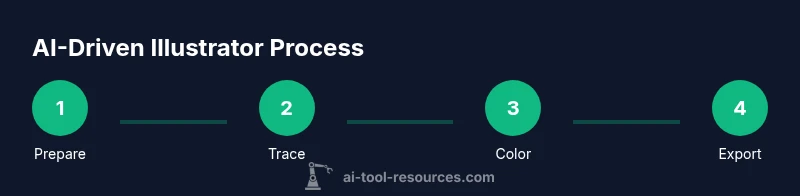
A practical starter workflow starts with preparing your raster or sketch, then applying AI-powered tracing to generate vector shapes. Next, use AI color suggestions to test multiple palettes, refining the hue, saturation, and contrast to fit your branding. You can also leverage AI-driven layout aids to arrange elements on a grid or within a composition that respects margins and typography. If you’re collaborating, export variants and use AI presets to generate dozens of options quickly. Always create a duplicated project before experimenting with AI features and keep your swatches organized so you can reuse successful palettes across projects. This section demonstrates how to move from rough ideas to production-ready assets while maintaining control over vectors and strokes.
Plugins, Settings, and Safe Practices
To extend capabilities, explore AI plugins and Firefly integrations that connect with Illustrator. Ensure you configure performance settings to balance speed and accuracy, and disable any features that produce results you don’t want in your final vector. Practice safe workflows by working on duplicates, using version control, and auditing AI-generated assets for licensing and attribution when needed. Maintain color accuracy with calibrated monitors and embedded color profiles, and document which AI steps were applied for each asset. This disciplined approach helps you leverage AI while preserving your creative voice.
Tools & Materials
- Adobe Illustrator (latest version)(Ensure access to Sensei/AI features and any installed plugins.)
- Adobe Creative Cloud account(Needed for access to Firefly and AI features integrated in Illustrator.)
- Internet connection(Required for activation, updates, and accessing online AI resources.)
- Firefly access or AI plugin (optional)(Optional for extended generative capabilities beyond built-in features.)
- Test assets and backups(Always work on copies to protect original work.)
- Graphic tablet or precision mouse (optional)(Helpful for fine-tuning vector paths after AI generation.)
Steps
Estimated time: 25-35 minutes
- 1
Prepare your workspace and enable AI
Open your Illustrator project, ensure the latest features are available, and enable any AI plugins you plan to use. This upfront setup reduces surprises later and helps you track which assets benefited from AI.
Tip: Create a duplicate of your document before enabling AI features, so you can compare results without risking the original. - 2
Import raster content and apply AI Image Trace
Bring in a bitmap or sketch, then choose an AI-augmented tracing preset that matches your style. Tweak paths, corners, and curves to get clean vectors that align with your design language.
Tip: Start with a copy of the asset and adjust the preset progressively to avoid over-tracing. - 3
Test AI color and style suggestions
Use AI-powered color palettes or Recolor Artwork to generate several harmonious schemes. Apply a few to compare in context and select the most brand-appropriate option.
Tip: Lock your preferred color swatch group early to keep consistency across iterations. - 4
Refine and export variations
Tweak individual vectors, refine strokes, and test different layout variations generated by AI presets. Export variants (SVG, PDF) for review and stakeholder feedback.
Tip: Document which AI steps were used for trace vs. palette decisions to aid future audits.
FAQ
What does it mean to use AI in Illustrator?
AI in Illustrator refers to features powered by machine learning and AI plugins (such as Sensei-integrated tools) that assist with tracing, color suggestions, and layout decisions. These tools speed up repetitive tasks while keeping your design intent intact.
AI in Illustrator refers to machine-learning features that speed up tasks like tracing and color choices, while you keep final control over the artwork.
Do I need internet access to use AI features?
Many built-in AI features work offline after initial activation, but some plugins and cloud-based tools may require an internet connection for updates and processing.
Some AI features work offline, but plugins and cloud-based tools may need internet access.
What are Image Trace and Recolor Artwork?
Image Trace converts raster images into scalable vector paths, while Recolor Artwork suggests palettes and applies color schemes across your artwork with a single action.
Image Trace turns bitmaps into vectors, and Recolor Artwork gives color palette ideas you can apply quickly.
How can I ensure brand consistency when using AI?
Create and reuse a defined swatch library, set up global color styles, and frequently audit AI-generated assets against your brand guidelines.
Use a shared color library and global styles so AI outputs stay on-brand.
Are there licensing concerns with AI-generated assets?
Verify licensing for any AI-generated assets and ensure attribution or usage rights align with your project requirements. When in doubt, consult your organization’s policy.
Check licensing for AI assets and follow your project’s policy.
Which AI features work best for vector illustration?
Start with tracing, color suggestions, and layout aids. These features typically provide the most immediate value for vector workflows.
Trace, color, and layout AI tools usually give the quickest win for vectors.
Watch Video
Key Takeaways
- Leverage AI features to accelerate tracing and coloring.
- Prepare assets and organize swatches for consistency.
- Review AI outputs and refine vectors with human expertise.
- Document AI steps for reproducibility and licensing awareness.