How to Use AI Tools in Photoshop: A Practical Guide
A comprehensive, step-by-step guide to integrating AI tools with Photoshop to speed editing, improve selections, and craft smarter composites. Learn setup, prompts, and best practices for creators.


By the end you will know how to apply AI-assisted features in Photoshop to speed edits, improve selections, and create smarter composites. This quick guide highlights the essential setup, such as a compatible Photoshop version, an active Creative Cloud subscription, and clear prompts to guide AI-assisted changes. It also flags common mistakes and practical tips for plugins and scripts.
Why AI in Photoshop Accelerates Creative Work
Artificial intelligence integrated into Photoshop accelerates repetitive tasks, enhances accuracy, and opens new creative possibilities. According to AI Tool Resources, designers who combine AI-assisted edits with traditional workflows report faster turnaround times and more consistent results. In practice, you can use AI to automate selections, refine masks, color-grade images, and fill in missing content. This section covers the rationale, typical workflows, and how to balance AI tools with human judgment. We’ll look at who benefits most (photographers, digital artists, UI designers) and what a typical session looks like when you start integrating AI features into your Photoshop routine.
- Speed up repetitive edits
- Improve consistency across frames or layers
- Maintain non-destructive workflows while exploring AI options
Mapping AI Features to Creative Tasks
Photoshop’s AI capabilities map to real design tasks. For example, AI-assisted selection helps isolate subjects quickly, Neural Filters enable non-destructive retouching, and Sky Replacement can pivot a scene with a single prompt. When you map features to tasks, you can sketch a rough workflow and then refine it with traditional editing. This approach keeps the human in the loop, ensuring artistic intent remains intact while you leverage automation to save time.
- Use AI for quick masks, then refine with precise brush work
- Apply Neural Filters for non-destructive retouching
- Swap backgrounds with AI-generated depth and lighting cues
Core AI Features You Should Know
Key AI features you are likely to use include Neural Filters for style and color grading, Object Selection for precise masks, Select Sky for rapid background changes, and Content-Aware Fill to fill gaps with context-aware textures. You’ll also encounter newer tools in beta channels that offer real-time AI-assisted color harmony, texture synthesis, and noise reduction. Understanding these features helps you choose the right tool for the task at hand and reduces trial-and-error time.
- Neural Filters for non-destructive edits
- Subject/foreground selection with improved accuracy
- Sky replacement with lighting-aware adjustments
Crafting Effective Prompts for Photoshop AI
Prompts drive AI behavior. Start with clear, objective goals (e.g., “select subject with smooth edges,” or “generate natural skin tones”). Include constraints like resolution, color space, and intended output. For prompts, pair them with non-destructive edits so you can compare AI results against a baseline. Example prompts: “subtle color grade to emphasize warmth,” “increase contrast on shadows without clipping highlights.”
- Be specific about subject, mood, and output size
- Include constraints to prevent over-editing
- Preview, tweak, and save prompts for consistency
Ensuring Quality: Review, Edit, and Iterate
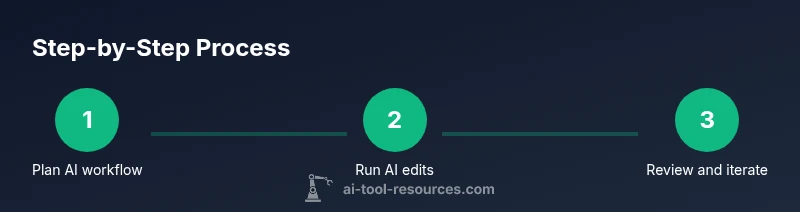
AI is a powerful co-pilot, not a replacement for artistry. After applying AI edits, review results at 100% zoom, check for edge artifacts, color shifts, and texture mismatches. Use non-destructive adjustment layers to fine-tune AI outputs, then compare with the original to confirm improvements. Iteration is essential—refine prompts, re-run features, and document the successful settings for future projects.
- Inspect at 100% zoom for edge quality
- Use adjustment layers to refine AI outcomes
- Save a prompt log for reproducibility
Safe Practices and Limitations
While AI in Photoshop offers speed and creativity, it has limits. Some edits may introduce subtle artifacts, and licensing for generated content can vary by feature. Always respect copyright and privacy when using AI for edits on real people or brands. Keep backups and avoid irreversible changes; use non-destructive workflows and maintain human oversight to preserve artistic intent.
- Back up before major edits
- Use non-destructive methods whenever possible
- Be mindful of licensing and ethical considerations
Tools & Materials
- Photoshop (Creative Cloud)(Ensure you have the latest version with AI features enabled)
- Stable internet connection(Required for cloud-based AI features and updates)
- Prompts reference sheet(Predefined prompts to speed up workflows)
- GPU acceleration / compatible hardware(Preferred for faster AI processing)
- Sample images / projects(Use varied assets to test AI features)
- Plugins or extensions (optional)(May enhance AI workflows or provide additional prompts)
Steps
Estimated time: 60-120 minutes
- 1
Prepare workspace and enable AI features
Open Photoshop, update to the latest Creative Cloud version, and enable Neural Filters and AI-related panels. Set your document to a non-destructive workflow with adjustment layers and smart objects where possible.
Tip: Enable GPU acceleration in Preferences to speed up AI processing. - 2
Define the editing goal
Decide what you want to achieve with AI (e.g., faster selections, color grading, or background changes). Write a concise goal statement to guide your prompts and feature choices.
Tip: A clear goal prevents over-editing and keeps results consistent. - 3
Choose AI feature and apply it
Select the AI feature that best matches your goal (Neural Filters, Select Subject, Sky Replacement, etc.). Apply non-destructive edits and observe the AI output before committing.
Tip: Start with a low-intensity adjustment to avoid dramatic changes. - 4
Review and refine
Zoom in to inspect edges, textures, and color harmony. Use adjustment layers and masks to refine AI results without overwriting the original image.
Tip: Toggle the AI layer on/off to compare against the baseline. - 5
Iterate with prompts
If results aren’t ideal, tweak prompts or try an alternative AI feature. Document successful prompts for future projects.
Tip: Small prompt adjustments often yield large quality gains. - 6
Save and document the workflow
Save presets, create a project template, and record the exact prompts and settings used. This accelerates future projects and ensures reproducibility.
Tip: Create a reusable action or script for repetitive tasks.
FAQ
What AI features are built into Photoshop?
Photoshop includes Neural Filters, AI-assisted selections, and Sky Replacement among other AI-powered tools. These features enable non-destructive edits and faster edits, especially when paired with traditional techniques.
Photoshop has AI features like Neural Filters, smart selections, and sky changes that help you edit faster while keeping control.
Do I need a high-end GPU to use AI tools in Photoshop?
While some AI features can run on CPU, enabling GPU acceleration provides the best performance. Check Photoshop's system requirements and adjust the performance settings to optimize speed and responsiveness.
A GPU helps a lot for AI features, but you can still use them on compatible CPUs with some slowdown.
Can AI edits be fully trusted for final images?
AI edits should be reviewed critically. They can provide great starting points, but human judgment remains essential to ensure color accuracy, texture fidelity, and creative intent.
AI helps, but you should always review and refine for final output.
How should I handle licensing and rights when using AI tools?
Licensing terms vary by feature and tool. Review the terms of service for the AI features you use and ensure compliance with usage rights for generated content.
Check the terms for the AI features you use to stay compliant.
Are AI tools in Photoshop dangerous for creative control?
AI can drift if prompts are vague. Always keep a human-in-the-loop, save baseline versions, and use non-destructive edits to preserve original material.
AI can overshoot edits; keep a baseline and review everything.
Where can I learn more about Photoshop AI best practices?
Explore official Adobe guides, AI research papers, and trusted educator resources. Practice with guided tutorials and reference the prompts library to improve over time.
Look up official Adobe guides and educator tutorials to deepen your skills.
Watch Video
Key Takeaways
- Leverage AI as a co-pilot, not a replacement for skill.
- Map AI features to concrete tasks to save time.
- Use non-destructive edits and document prompts for consistency.
- Review AI results critically to avoid artifacts.
- Balance speed with artistic intent for best results.