How to Add AI Tool in Gmail: A Practical Guide
Learn how to add AI tool in Gmail using add-ons and extensions. Get a practical, security-minded, step-by-step approach to choosing, installing, configuring, and testing AI integrations for smarter email.


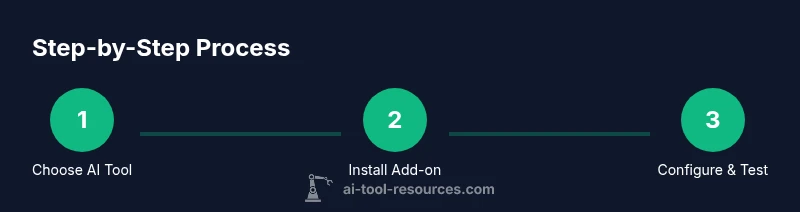
You can add an AI capability to Gmail by using a focused add-on or Chrome extension that integrates with Gmail’s compose and reply features. Start by selecting a trusted AI tool, install from the Google Workspace Marketplace or Chrome Web Store, and grant the necessary permissions. Then configure the integration to match your workflow and test with sample emails today.
What you gain by adding an AI tool to Gmail
According to AI Tool Resources, adding AI capabilities to Gmail can streamline your email workflow, reduce repetitive typing, and improve response quality. By integrating AI directly in the inbox, you can draft emails faster, summarize long threads, and surface relevant information without leaving Gmail. This approach supports developers, researchers, and students who rely on efficient communication. The practical gains come from automation, smarter drafting, and maintaining consistent tone across messages. Consider use cases like generating a first draft from a brief, turning meeting notes into follow-ups, or extracting action items from conversations. As you evaluate tools, focus on alignment with your workflow, data sensitivity, and ease of use.
In short, an effective Gmail AI integration should save time, reduce cognitive load, and improve consistency without compromising privacy.
Methods to add AI to Gmail
There are several paths to bring AI into Gmail. The most seamless are native Gmail add-ons and browser extensions that integrate actions into the Gmail UI. You can also leverage AI features already built into Gmail, such as Smart Compose and Smart Reply, to augment your inbox without third-party tools. When you’re ready to extend capability, Google Workspace Marketplace hosts many add-ons designed to assist with drafting, summarization, or idea generation. For more technical teams, custom integrations via APIs can connect your AI model to Gmail events, enabling tailored automations. Whatever path you choose, prioritize tools with clear data handling policies and robust permissions controls.
How to choose the right tool for your workflow
Start with clarity about what you want to achieve. If your goal is faster drafting, look for tools that offer high-quality prompts, tone controls, and templates. If you need triage and summarization, evaluate accuracy, memory of past threads, and ability to handle sensitive data. Consider data privacy and retention policies, how the tool handles email content, and whether admin controls exist for teams. Compatibility with your browser and Google Workspace settings matters, as does the provider’s support and documentation. Finally, test with representative emails to ensure outputs meet your standards before broader rollout.
Plan before you install
Before adding any AI tool to Gmail, map your use cases and define success metrics. List the tasks you want automated (drafts, summaries, replies), the types of data the tool will access, and who will approve and monitor usage. Check organizational policies on data sharing, third-party integrations, and consent. Prepare a short pilot plan with a few users, a chosen tool, and a timeline for evaluation. This planning reduces surprises and helps demonstrate value quickly.
Installation path: Workspace Marketplace add-ons
To install, sign in to your Google account and open the Google Workspace Marketplace. Search for the AI add-on that matches your use case and read the vendor’s privacy policy and permissions. Click Install, then grant the requested permissions and authorize any required scopes. After installation, pin the add-on to Gmail’s sidebar for quick access and configure basic settings such as default prompts, tone, and output formatting. Finally, run a test by composing a sample email and evaluating the AI output for quality and safety.
Privacy, security, and data handling considerations
AI tools can access email content, metadata, and usage patterns. Always review the vendor’s data handling practices, including data retention, whether content is stored, and if the data is used to train models. Prefer tools that offer explicit opt-in controls, data minimization, and the ability to delete data. If you’re in an organization, coordinate with your security team and IT to apply standard controls such as SSO, audit logs, and per-user permission management. Transparent privacy policies and clear user agreements are essential.
Testing, training, and iteration
Begin with a controlled test using a small set of representative emails. Refine prompts, adjust tone and formality, and compare AI outputs to human drafts. Track time saved, quality of responses, and user satisfaction. Based on results, train users with example prompts and templates, and iterate on configurations. Document lessons learned to inform future integrations and avoid recurring issues.
Troubleshooting common issues
If outputs are inconsistent, review the prompt design and ensure the tool is properly configured for your mailbox. If permissions prompts fail, re-authenticate and verify that the correct scopes were granted. For compatibility issues, check browser updates and ensure no conflicting extensions are installed. If sensitive data concerns arise, re-evaluate the data policies or consider disabling the integration for certain accounts.
Tools & Materials
- Gmail account(Personal or organization account with access to Gmail)
- Supported browser(Chrome or Chromium-based browser, kept up to date)
- Admin access (optional)(Needed for org-wide deployment via Google Admin Console)
- Workspace Marketplace access(For installing add-ons directly into Gmail)
- AI tool or extension(Choose a reputable add-on or extension compatible with Gmail)
- Privacy and security policy review(Read vendor docs and organizational guidelines)
Steps
Estimated time: 1-2 hours
- 1
Select a trusted AI tool
Identify an AI tool that aligns with your workflow and has clear data handling policies. Prioritize tools that offer auditable prompts, transparency on data access, and strong user controls. This decision frames the success of your integration.
Tip: Check vendor privacy policies and request a demo or sandbox environment before installation. - 2
Install the add-on or extension
From the Google Workspace Marketplace or Chrome Web Store, click Install and follow prompts to grant required permissions. Ensure the installer is the official source and review requested scopes carefully.
Tip: Install with a test user first to avoid affecting production mail flows. - 3
Grant required permissions
Review and approve only the permissions that the tool genuinely needs to operate (e.g., access to compose window, reading emails in thread). Revoke privileges if capabilities seem broader than necessary.
Tip: Document what each permission enables for transparency and governance. - 4
Configure the integration
Set default behavior (draft generation, tone controls, output length). Bind the AI tool to your Gmail account or domain as appropriate, and adjust per-user or per-group settings.
Tip: Create baseline templates and prompts to standardize outputs from day one. - 5
Test with sample emails
Compose test messages and run AI-generated drafts. Compare outputs to human drafts, adjust prompts, and record edge cases (spam, long threads, sensitive content).
Tip: Use real-world scenarios to gauge reliability before broader use. - 6
Educate the team and set governance
Provide onboarding materials, usage guidelines, and a policy for data handling. Establish who owns outputs, review cycles, and escalation paths for misuses.
Tip: Publish a short playbook with do/don't examples for quick reference. - 7
Monitor performance and adjust settings
Track adoption rates, output quality, and user feedback. Tweak prompts, update templates, and refine permissions as needed.
Tip: Schedule periodic reviews to keep tooling aligned with goals. - 8
Roll out organization-wide (optional)
If you’re deploying across a team or organization, plan a phased rollout with training sessions, support channels, and a rollback plan in case of issues.
Tip: Start with a pilot group before full-scale deployment.
FAQ
What is an AI tool in Gmail?
An AI tool in Gmail is a software add-on or extension that enhances drafting, replying, and organizing emails by using artificial intelligence. Native features like Smart Compose and Smart Reply also count as built-in AI capabilities. These tools can automate repetitive tasks while staying within Gmail.
An AI tool in Gmail extends Gmail with smart drafting and replying features, including built-in options like Smart Compose. You can also install add-ons or extensions to boost productivity.
Can I use AI tools without admin rights?
Yes for personal, non-organization use, you can install add-ons that apply to your own account. For team-wide deployment, admin rights may be required to manage policies and permissions via Google Admin Console.
You can usually try AI tools on your own account, but for a team-wide setup you’ll likely need admin access.
Are there privacy concerns with Gmail AI add-ons?
Yes. Review data access, retention, and whether content is used to train models. Prefer tools with explicit opt-in controls and transparent data policies. Coordinate with your security team for organizational deployments.
There are privacy considerations; always check data policies and opt-in controls before enabling tools.
Which Gmail AI features exist natively?
Gmail offers Smart Compose and Smart Reply to help draft and respond to emails. These built-in features provide AI-assisted productivity without additional installations.
Gmail has built-in AI features like Smart Compose and Smart Reply you can use right away.
What steps should I take if an AI tool stops working?
Check permissions, re-authenticate, review recent updates, and verify compatibility with your browser. If issues persist, consult vendor support and roll back changes if needed.
If it stops working, re-check permissions and updates, then contact support if needed.
Watch Video
Key Takeaways
- Define clear use cases before installation.
- Prioritize privacy and data handling policies.
- Test thoroughly with representative emails.
- Roll out with governance and training.
- Monitor and iterate for ongoing improvement.