How to Turn Off Google AI Tool: A Practical Guide
Learn how to safely turn off Google AI tool features across devices, apps, and Google Cloud. Practical steps, privacy tips, and verification checks to regain control over your data and AI usage.


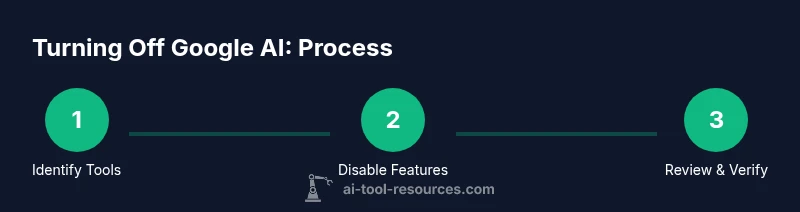
To turn off Google AI tools, disable the service at the source (device or Google account), revoke permissions, and adjust data-sharing settings. Start by turning off Google Assistant, muting the microphone, and disabling voice triggers. Then review your Google account privacy controls and remove any connected third-party apps that rely on AI features. Finally, verify the changes by issuing a test command.
Understand what turning off Google AI really means
When people talk about turning off Google AI tools, they’re often referring to a mix of actions: muting or disabling an active feature (such as Google Assistant), pausing data-collection preferences, and revoking permissions granted to apps or services that rely on Google’s AI capabilities. The scope can vary by platform: consumer devices (Android, Chrome OS), mobile apps (Docs, Gmail, YouTube), smart speakers, and enterprise Cloud AI services. For most users, the goal is to reduce data sharing while preserving essential functionality. It’s important to distinguish between temporarily disabling a feature and permanently removing access. Temporarily disabling keeps the option available, while permanent changes require carefully reviewing connected services, permissions, and data controls. AI features often live across multiple layers, so a thorough shutdown means addressing each layer rather than one singular toggle.
A practical approach is to map out every place you interact with Google AI: voice assistants, web activities, app integrations, and cloud endpoints. This helps prevent lingering data collection that could occur in background processes. As you proceed, remember that turning off AI tools may affect personalized experiences, search relevance, and some productivity features. The goal is to align settings with your privacy preferences while maintaining essential work and study capabilities.
Before you begin: plan and backup
Before making changes, set clear privacy goals and prepare a quick plan. Identify which devices you’ll modify first (phone, tablet, laptop, smart speaker), which Google services you use (Assistant, Gmail smart compose, YouTube recommendations), and whether you rely on Google Cloud AI for projects. Create a simple backup of important configurations (screenshots of current settings, saved privacy preferences). If you use shared devices, note who has access and how changes might impact them. Consider recording each step you take to avoid missing a critical toggle later. Finally, ensure you have access to your Google account credentials in case you need to re-authenticate after changes.
Turn off Google Assistant and related AI features
Disabling Google Assistant is often the most visible step. Start on your Android device: Settings > Google > Settings for Google apps > Search, Assistant & Voice > Assistant. Turn off the Assistant toggle, disable “Hey Google” voice activation, and mute the microphone switch when available. On iOS, you may need to disable the Google Assistant app or revoke its permissions in Settings. For Google Home/Nest devices, open the Google Home app and remove the assistant from the device or disable voice activation. If you routinely use voice-powered features in Chrome or other apps, consider turning off voice input in those apps as well.
Tip: Do this in a quiet session to ensure you don’t miss hidden toggles. Some devices require a reboot to apply changes.
Revoke data sharing and privacy settings
To minimize ongoing data collection, pause or delete activity logs across Google services. In your Google account (privacy.google.com), disable Web & App Activity, Location History, YouTube History, and Ad Personalization where appropriate. Review “Data & Personalization” and set stricter defaults. Revoke third-party app access by visiting security.google.com, selecting connected apps, and removing any that grant AI-related permissions. If you’re using Chrome, consider clearing cookies and site data related to AI features. Remember that some settings are device-specific, so verify changes on each platform you use.
For Google Cloud AI: disabling enterprise tools
If you actively use Google Cloud AI tools (Vertex AI, AutoML, or similar), you should stop services you’re not actively using. Delete or disable model endpoints, disable access to API endpoints, and revoke API keys or service account credentials used for automation. Review IAM roles and restrict permissions to only what’s necessary. Consider temporarily suspending billing for non-essential projects to prevent accidental usage. If a project must remain but AI usage should pause, implement a pause policy and monitor activity logs for any unexpected requests.
Verify, monitor, and plan next steps
After making changes, verify that AI features are inactive. Issue a few commands or perform actions that would normally trigger AI processing and confirm no results are produced or data stored. Review recent activity in your Google account to ensure logs reflect the changes. Keep a routine to reassess privacy settings every few months, as updates may re-enable features or alter defaults. If you rely on AI tooling for critical work, document the new configuration and create a fallback plan using non-AI workflows.
Additional notes on safety and reversibility
If you turned off AI tools temporarily, remember to document the duration and reason for the change. Reversing settings may re-enable data collection and processing, so keep a checklist to re-engage features as needed. For shared devices and workplaces, communicate changes clearly to colleagues to avoid confusion or disrupted workflows. Finally, consider subscribing to official updates from Google for any policy changes that could impact AI features and privacy controls.
Tools & Materials
- Active Google account login(Must have admin access to privacy and security settings)
- Smartphone, tablet, or computer with Google apps(Device to access and adjust AI settings)
- Access to Google account privacy settings (privacy.google.com)(To modify data-sharing and activity controls)
- Google Assistant app or Google Home app(Needed if you rely on those apps for turning off voice features)
- Web browser or device that can access Google account settings(For web-based controls and auditing activity)
- Optional: backup notes or screenshots(Record current settings before changes)
Steps
Estimated time: 40-60 minutes
- 1
Open device settings and locate Google AI features
Navigate to the Settings app, search for Google or Assistant, and open the relevant AI-related sections. This establishes the starting point for disabling features across your devices. Look for sections like 'Voice', 'AI tools', or 'Permissions' to identify where AI services are configured.
Tip: Using the search bar in Settings speeds up locating the correct toggles. - 2
Disable Google Assistant and hotword triggers
Turn off the Google Assistant and disable hotword detection (e.g., ‘Hey Google’) on each device. For Home devices, remove or mute the assistant, and for browsers or apps, revoke microphone access where applicable.
Tip: If you rely on hands-free features, consider setting microphone access to manual activation only. - 3
Pause data-collection settings in your Google account
Visit privacy.google.com and disable Web & App Activity, Location History, and YouTube History where appropriate. This reduces long-term data retention tied to AI features and helps prevent profiling based on usage.
Tip: Review sentiment or ad personalization settings to further limit AI-driven personalization. - 4
Review third-party apps and revoke access
In the Google Security settings, review connected apps and services. Revoke access for apps that rely on Google AI features or request data you don’t want to share. Repeat this check on all devices where you use Google sign-in.
Tip: Even popular apps can access restricted data; periodically audit connections. - 5
Cloud AI: disable endpoints and revoke API keys
For Google Cloud projects, stop unused AI endpoints, delete models if not needed, and rotate or revoke API keys and service account credentials. Limit IAM roles to the minimum required for ongoing work.
Tip: Document the changes and monitor logs to catch any unexpected AI usage. - 6
Test the shutdown and confirm changes
Run a quick test by issuing commands that would typically trigger AI processing and verify no data is saved or processed. Check recent activity for confirmation, and keep a record of outcomes for future audits.
Tip: A test ensures you didn’t miss a toggle in a secondary app or device.
FAQ
What does turning off Google AI tool involve?
Turning off Google AI tools typically means disabling active features like Google Assistant, pausing data collection, and revoking permissions for apps that rely on AI. It also includes reviewing cloud services if you use Google Cloud AI. The goal is to minimize data sharing while preserving essential functionality.
Turning off Google AI tools means disabling features, pausing data collection, and removing AI access from apps and services, including cloud tools if you use them.
Will turning off AI features affect data collection?
Yes. Disabling AI features and data-sharing controls typically reduces the amount of data Google collects from your interactions. Some features may continue to function locally, but personalized results and cloud-based processing can be limited.
Disabling AI features usually lowers data collection, but some localized features may still operate without cloud processing.
Can I temporarily disable AI features?
Yes, many devices support temporary deactivation. You can re-enable features later by returning to the same settings and turning toggles back on. It is useful for privacy reviews or when you want to limit AI usage for a period.
You can temporarily disable features and re-enable them later by reversing the same settings.
How do I disable Google Cloud AI services for a project?
In your Google Cloud Console, stop endpoints, delete or disable deployed models, and revoke API keys and service accounts used by AI workloads. Review IAM roles to ensure only necessary access remains.
Go to Google Cloud Console to stop endpoints and revoke credentials used by your AI workloads.
How long does it take for changes to apply?
Most changes take effect immediately for many toggles, but some devices may require a restart. Cloud changes can take a few minutes to propagate, depending on the service.
Most toggles apply instantly, but some cloud changes might take a few minutes to propagate.
Are there risks if I turn off AI features on older Android versions?
Older OS versions may not expose all privacy controls clearly. You may need to apply updates or use alternative privacy configurations provided by the device manufacturer.
On older Android versions, some privacy options may be harder to find; updates can help reveal them.
Watch Video
Key Takeaways
- Identify every Google AI tool you use across devices and apps.
- Disable at the source, then review data-sharing and permissions.
- Revoke unnecessary third-party access to reduce AI usage.
- Verify changes with testing and document the outcome.