Turn Off Tooltips in Illustrator: Quick Step Guide
Learn how to turn off tooltips in Adobe Illustrator with a clear, step-by-step method to reduce UI clutter, improve focus, and speed up your design workflow in 2026.


How to turn off tooltips adobe illustrator: quick start
If you're wondering how to turn off tooltips adobe illustrator, this guide walks you through a straightforward method to declutter your UI. Tooltips can help beginners, but for experienced designers they often slow you down or interrupt the flow of work. In most contemporary versions, the option is tucked into the Preferences menu under General or UI-related sections. Unchecking Show Tool Tips hides hover hints across panels and tools, creating a calmer, more focused workspace. This change usually applies immediately, but some versions require a quick restart of Illustrator for the change to take full effect. As you apply this, consider whether you still need tooltips for new features or on unfamiliar panels, and switch back if needed.
Where the setting lives in Illustrator across versions
Across Illustrator releases, the exact path to disable tooltips can vary slightly. In many recent updates you can find the toggle under Edit > Preferences > General (Windows) or Illustrator > Preferences > General (Mac). Look for a checkbox labeled Show Tool Tips or Tool Tips in the User Interface section. If you don’t see it, try searching the Preferences dialog for 'tool tips' or 'tooltip' using the search field at the top. Some older builds expose the option under the Interface subsection, while newer versions may consolidate UI tweaks under a single Preferences umbrella. If you’re collaborating with teammates using different versions, note that their UI may require a quick check of the same setting on their machines. This is a basic UI customization that can significantly reduce on-screen noise when you’re deep in a complex illustration.
Step-by-step: Turn off tooltips (illustrator cc 2024+)
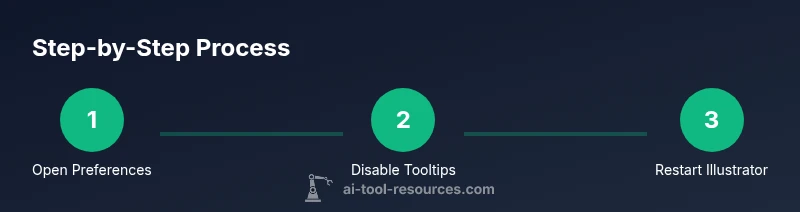
For many CC-era builds, follow a concise path: open Illustrator, access Preferences, navigate to General or UI, untick Show Tool Tips, apply the change, and restart if prompted. Disabling tooltips affects on-hover hints across toolbars, panels, and the canvas environment. After turning them off, you’ll see a cleaner workspace that emphasizes your artwork and grid lines, rather than pop-up descriptions. If you frequently switch between projects with differing needs, keep a quick-access note with the preference toggle so you can re-enable tooltips when you’re onboarding new team members or learning new features.
Version differences: macOS vs Windows and older builds
On Windows, Preferences are usually accessed via Edit > Preferences, then General. On macOS, the path is Illustrator > Preferences > General. Some older Illustrator versions require a separate UI or Interface category within Preferences, where the Show Tool Tips option resides. If you’re using a custom workspace or a lock-down IT image, system policies may override local preferences, preventing changes from taking effect until the policy is updated. In mixed environments, document your changes and provide teammates with the exact steps you used so their environments can mirror your setup if needed.
Troubleshooting: tooltips stubborn or reappearing
If tooltips persist after you’ve turned them off, try the following: close and reopen Illustrator, ensure you’re editing the correct user account, and verify you’re not in a tooltip-specific mode (some tools wish to display short-cuts as tooltips temporarily during hover). It can help to reset preferences as a last resort, but back up current settings first. If the option remains unavailable, consult the official help resources for your specific Illustrator version, as some enterprise deployments or educational licenses may hide or override UI toggles.
Best practices: when to keep tooltips on
Tooltips aren’t universally bad. For first-time users or when learning new features, enabling tooltips can accelerate onboarding. If you work with a large set of custom brushes, panels, or scripts, you might prefer leaving tooltips on for guidance. A practical approach is to disable tooltips in your primary production workspace while keeping them on in a separate learning or sandbox document. This strategy preserves a clean interface during routine work, but preserves instructional cues when experimenting with new tools.
Authority sources
- Adobe Help Center: Preferences and UI settings for Illustrator (https://helpx.adobe.com/illustrator/using/preferences-general.html)
- Adobe Help Center: General preferences in Illustrator (https://helpx.adobe.com/illustrator/using/preferences.html)
- Adobe Illustrator Workspace and UI customization (https://helpx.adobe.com/illustrator/using/workspace.html)