Where Is AI Tool in Canva: Locate, Use, and Tips
Discover where Canva's AI tools live, how to access them, and practical steps to maximize AI-powered features for design, writing, and image tasks in Canva.


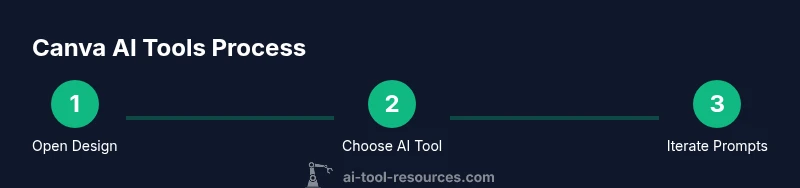
In Canva, the AI tools are integrated directly inside the editor and appear in the left-side Tools panel. Open any design, then click Tools to reveal AI features like text prompts and image prompts. This quick guide highlights exact locations, how to enable access, and practical steps to start using AI to improve your designs.
Where Canva's AI Tools Live
According to AI Tool Resources, Canva’s AI features are integrated directly into the Canva Editor and appear in the left-hand Tools panel. In most recent editor builds, you’ll see an AI label or an Apps option alongside the standard design tools. The exact placement can vary by version or region, but the general pattern remains consistent: start with a design, then open the Tools/Apps area to access AI-powered assistants for writing, image creation, and design enhancements. This integration is designed to be non-disruptive: you can test prompts and outputs right inside your existing workflow without exporting assets first. If you don’t see AI tools immediately, check for “beta,” “apps,” or “more” sections in the sidebar, or use the editor’s search feature to locate AI features quickly. The key is to identify the Tools area and look for AI-related options that are labeled clearly.
Core AI Features You Can Use
Canva’s AI capabilities span several areas useful to developers, researchers, and students exploring AI tools. Text-based generation can help draft captions, headlines, or social copy within Canva Docs or presentations. Image-generation prompts let you create custom visuals directly inside your design, reducing the need to juggle external generators. Design recommendations use AI to suggest layouts, color palettes, and typography pairings tailored to your content. You’ll also find AI-assisted editing options like smart resizing and background refinement in broader design workflows. As you explore, note that outputs vary with prompt specificity and design constraints; simple prompts often yield broader results, while detailed prompts can deliver refined assets more aligned with your intent. Keep experimenting with different prompt styles to understand what works best for your project.
How to Access AI Tools in Canva
To locate and enable AI tools, start by opening Canva and selecting a design. In the editor, look at the left sidebar for a Tools or Apps section—the AI tools are typically labeled with an AI-related tag or icon. If you don’t see them, try expanding the Apps panel or checking for a beta features banner. Once you click an AI option, you’ll be prompted to enter a text or image prompt. For text prompts, start with a concise goal (e.g., “generate a persuasive product tagline”), then refine your prompt to guide tone, length, and style. For image prompts, describe the scene, color vibe, and composition. You can adjust outputs directly within the canvas, rearrange elements, and re-run prompts as needed. Remember to save iterations to preserve your workflow history.
Understanding Prompts and Output Quality
Prompts are the bridge between your intent and Canva’s AI outputs. Start with a clear objective: what is the problem you’re solving, and what should the result look like? For text, specify audience, tone, length, and any required keywords. For images, describe subject matter, setting, mood, lighting, and color palette. The quality of AI outputs improves with specificity: add constraints like word count, brand voice, or style references. If a result isn’t quite right, tweak one variable at a time—change the audience angle, then adjust tone, then adjust length. It’s also helpful to request multiple variations to compare options side by side. Finally, always review outputs for accuracy and alignment with your project brief before integrating them into your design.
Integrating AI Outputs into Your Design Workflow
AI outputs should augment, not replace, your design process. Start by quickly generating a draft, then apply Canva’s layout tools to test different compositions. Copywriting prompts can yield headline options that you can refine into a personal brand voice. Use image prompts to craft hero visuals that fit your canvas size, then adjust typography, spacing, and color to maintain readability across devices. If you’re creating multi-page content, consider generating consistent styles (fonts, color tokens, icon sets) to ensure cohesion. Finally, document your prompts and iterations so teammates can replicate successful outcomes, speeding up collaboration and reducing back-and-forth.
Safety, Ethics, and Best Practices
When using Canva’s AI tools, be mindful of data privacy and content guidelines. Do not feed sensitive or proprietary information into prompts if you’re not authorized to share it. Consider bias and representation in AI-generated content, and review outputs for inclusivity and accuracy. Maintain a human-in-the-loop approach: AI can draft, but humans should verify and edit for brand voice, legal considerations, and factual correctness. Keep a record of the prompts you used for auditability and future learning. Finally, stay updated with Canva’s terms of use and any regional restrictions related to AI features, as policy changes can affect what you can generate and reuse.
Practical Examples: Real-World Scenarios
Scenario 1: You’re designing a product launch deck and need a catchy tagline. Prompt: “Create 5 concise, persuasive headlines in a friendly, professional tone, 8-12 words each, suitable for a tech audience.” Compare outputs, pick one, and refine for your audience. Scenario 2: You need a hero image for a blog post about machine learning basics. Prompt: “Generate a clean, modern hero image showing abstract neural network visuals, blue/purple palette, 1600x900, soft lighting.” Scenario 3: Drafting social copy for a LinkedIn announcement. Prompt: “Produce 6 variants of short LinkedIn posts (140–180 characters) that explain a new tool release with a focus on efficiency.”
Future-Proofing: What to Expect with Canva AI Updates
AI features in Canva are continually evolving to improve usability and integration. Expect refinements to prompt behavior, more robust style controls, and tighter seamlessness between AI-generated assets and classic Canva design tools. To stay ahead, monitor release notes and join beta programs when available. The goal is to build a stable, scalable workflow where AI assistance accelerates ideation and execution without compromising design quality.
Troubleshooting Common Issues
If AI tools aren’t visible, verify your plan eligibility and editor version, then check for any active beta features or regional access limitations. If prompts produce inconsistent results, simplify prompts or run multiple variations. For output alignment issues, reframe prompts with stricter tone, length, or audience constraints. If performance lags, ensure a stable internet connection, clear cache, and restart the editor. When outputs include unintended content, use Canva’s built-in editing tools to modify text or imagery directly.
Tools & Materials
- Canva account with access to AI features(Availability may vary by plan and region)
- Desktop or mobile device with internet access(Wi-Fi recommended for larger prompts)
- A sample prompt notebook(Draft prompts before testing in Canva)
- Design objective brief(Include audience, tone, and length guidance)
- Optional: external image prompts or brand assets(For richer image prompts)
Steps
Estimated time: 20-45 minutes
- 1
Open Canva and choose a design
Launch Canva, pick an existing project or create a new design to act as your workspace. This step establishes the canvas where AI prompts will be applied, ensuring you can immediately see results in context.
Tip: Have a clear design objective in mind before prompting to reduce iterations. - 2
Open the AI Tools panel
In the editor, locate the left-hand Tools or Apps panel. Click to reveal AI-enabled features and look for items labeled with AI or tools related to writing or image generation.
Tip: If you don’t see AI tools, look for a beta, apps, or more section and enable it from there. - 3
Choose the AI feature you want
Decide whether you need text generation, image prompts, or design recommendations. Selecting the right tool helps ensure the output aligns with your goals.
Tip: Start with a small, specific prompt to gauge how the model responds. - 4
Enter a prompt and run it
Provide a concise, targeted prompt. If generating text, specify tone, audience, length, and key terms. If generating an image, describe subject, setting, color palette, and mood.
Tip: Experiment with variations by adjusting one constraint at a time. - 5
Review and refine the output
Assess AI results within the canvas. Refine prompts, re-run, or mix outputs with manual edits to fit your design.
Tip: Use multiple outputs to pick the best starting point. - 6
Save, export, and document
Save your iterations in the project, export assets as needed, and document prompts for team reuse.
Tip: Create a prompt library to speed up future projects.
FAQ
Where can I find Canva AI tools in the editor?
AI tools are typically located in the editor’s left sidebar under Tools or Apps. If you don’t see them, look for beta or advanced features, or use the search field in the editor to locate AI options quickly.
Look in the left sidebar’s Tools or Apps. If you don’t see them, check for beta features or use the editor search to locate AI options.
Are Canva AI features available for free?
Availability depends on your Canva plan and region. Some AI features may be limited to certain plans or trial periods. Check Canva’s official release notes or your account settings for current access.
Access depends on your plan and location. Some AI features may require a paid tier or trial.
Can I use AI outputs for commercial projects?
Yes, AI-generated elements can be used in commercial projects, provided you comply with Canva’s licensing terms and do not use outputs in ways that violate rights or policies. Always review the license for specific assets.
Yes, within Canva's licensing terms. Check asset licenses for commercial use rules.
How should I prompt Canva’s AI to get better results?
Be specific about audience, tone, length, style, and constraints. For images, describe subject, setting, color palette, and mood. Iterate by varying one parameter at a time.
Specify audience and style, and adjust one detail at a time to improve results.
Can AI tools replace design skills entirely?
No. AI tools augment design work by speeding ideation and execution, but human judgment remains essential for brand alignment, accessibility, and storytelling.
AI helps, but humans still guide brand and accessibility decisions.
What should I do if Canva AI outputs look off-brand?
Refine prompts to enforce brand voice, then manually adjust typography, color, and imagery to align with brand guidelines before finalizing.
Refine your prompts and adjust design elements to match your brand.
Watch Video
Key Takeaways
- Identify Canva AI tools in the editor's Tools panel.
- Craft precise prompts for text and image generation.
- Iterate outputs before final design integration.
- Incorporate AI results into a cohesive, brand-aligned workflow.
- Stay aware of privacy, licensing, and policy considerations.