AI Paintbrush Tool Not Working? Quick Troubleshooting Guide
Urgent guide to diagnose and fix issues when your ai paintbrush tool isn’t working. Learn common causes, step-by-step fixes, and prevention tips from AI Tool Resources.


The AI paintbrush tool not working is most often caused by a software glitch or a plugin mismatch, or an input-format issue. Start with a quick restart, check for updates, verify input file formats, and reauthorize access if needed. If the problem persists, proceed through the diagnostic flow to isolate root causes and apply fixes.
Why the AI Paintbrush Tool Fails: Common Causes
According to AI Tool Resources, most failures fall into three broad categories: compatibility, data/input, and access. In practice, a tool might stop drawing, stall during brush stroke simulation, or fail to render output at all due to one or more overlapping issues. Compatibility problems can arise when the host application or plugins aren’t updated to match the newer AI paintbrush engine. Data/input issues include unsupported file formats, mismatched color profiles, or extremely large canvases that exhaust memory. Access problems can be licensing restrictions, expired trials, or permissions that block cloud processing. Recognize that a failure may involve several layers—hardware, software, and network—working in concert. By isolating the zone where the fault originates, you can apply targeted fixes rather than broad, time-consuming resets. This approach aligns with best practices recommended by AI Tool Resources.
Check System Requirements and Updates
Ensure your operating system and hardware meet the tool’s minimum requirements, including RAM, GPU drivers, and available disk space. Update the AI paintbrush tool, the host app, and all related plugins to their latest versions. When updating, review release notes for breaking changes or required plug-ins. In many cases, a fresh restart after updates resolves lingering glitches. Clear temporary caches if the tool offers a cache or reset option, and verify that the system locale and language settings don’t conflict with regional plug-ins. If you rely on cloud processing, confirm a stable network connection and check service status indicators from the provider’s status page. AI Tool Resources notes that routine maintenance and timely updates drastically reduce recurring failures.
Validate Access and Licensing
Licensing issues can silently block features or the entire tool. Confirm that the license is valid, not expired, and that the correct product tier is active for your use case. If your workflow requires login credentials, re-authenticate to refresh session tokens. For enterprise deployments, ensure that license servers are reachable and that firewall rules allow communication with license validation endpoints. If a recent organizational change affected access, coordinate with your admin to reassign permissions. In some scenarios, revoking and reissuing a license or reactivating cloud access is necessary to restore functionality.
Inspect Input Data and Project Setup
Input data and project configuration heavily influence performance. Check that your file formats are supported by the AI paintbrush tool and that color profiles align with the tool’s working color space. Verify brush settings, brush tip shapes, canvas dimensions, and resolution—extremely large canvases may trigger memory throttling. Ensure any referenced external assets (textures, brushes, LUTs) exist at the expected paths. If you’re transferring a project between machines, confirm that all assets migrated correctly and remain accessible. Finally, confirm that your project isn’t trying to use features not included in your current license or plan.
Troubleshooting Steps: Quick Fixes (Easy to Hard)
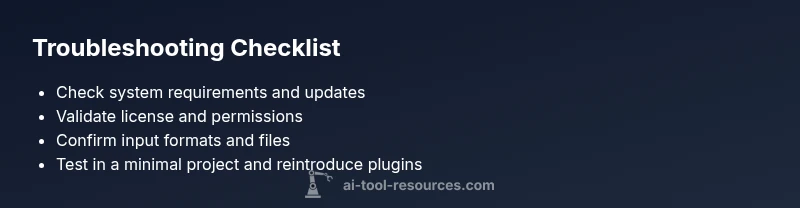
Start with the easiest checks and progressively escalate. First, restart the host app and the AI paintbrush tool. Then, update all software components and reauthorize access if required. Clear caches and reset preferences if available. Disable non-essential plugins to rule out conflicts. Open a new, tiny project to test whether the tool responds, then gradually scale up. If the issue persists, reinstall the plugin or reset the host app to default settings. At each step, verify whether brush strokes appear or if renders complete successfully. If nothing works, escalate to professional support with a reproducible test case and log files.
Diagnostic Flow: Symptom to Diagnosis
Symptoms guide the diagnosis. Symptom: tool not producing output. Diagnosis: if updates are current, licensing valid, and input data is supported, inspect for plugin conflicts; if conflicts exist, isolate by disabling extensions. Symptom: sudden crash during stroke rendering. Diagnosis: check GPU driver compatibility and memory usage; run a lighter scene to confirm hardware limits. Symptom: no response after project import. Diagnosis: verify file paths, asset loading, and cloud service connectivity. For any diagnosis, implement the corresponding fix and re-test before moving on to the next step.
Step-by-Step Fix for the Most Common Cause
- Save work and close all related apps. 2) Update the AI paintbrush tool and host application. 3) Reset preferences and clear caches. 4) Test with a small, simple project to confirm basic functionality. 5) Re-enable one plugin at a time to identify conflicts. 6) If issues persist, reinstall the plugin or contact support with logs. Each step should be accompanied by a quick test to confirm progress.
Pro Tips, Safety Warnings, and Prevention
- Regularly back up projects to avoid data loss during troubleshooting. - Ensure you have stable power and ample RAM to prevent crashes during heavy rendering. - Document every change you make so you can revert if needed. - Do not disable critical security features or firewall protections without understanding the risk. - Schedule routine maintenance windows to apply updates and check system health.
Key Takeaways
- Start with updates and licensing checks. 2) Validate input formats and project setup. 3) Use a structured diagnostic flow to isolate causes. 4) Maintain backups and document fixes to prevent recurrence.
Quick Safety Reminder
Always back up work before performing resets or plugin reinstalls. Ensure your environment has stable network access when cloud processing is involved. Avoid running heavy renders on underpowered hardware to prevent crashes.
Steps
Estimated time: 20-35 minutes
- 1
Save work and close apps
Safely store current progress and exit related applications to avoid data loss during fixes.
Tip: Use a temporary folder for backups before changes. - 2
Restart and update
Restart the host app and AI paintbrush tool, then apply all available updates and plugin patches.
Tip: Restart again after updates to ensure changes take effect. - 3
Check licensing and permissions
Verify your license status and user permissions, re-authenticating if needed.
Tip: If in a corporate environment, confirm policy changes with IT. - 4
Validate input data
Ensure file formats, color spaces, and canvas size are supported by the tool.
Tip: Try a small sample file to reduce variables. - 5
Test with a clean project
Create a new project with default settings and one brush stroke to test basic functionality.
Tip: If it works, gradually re-import assets to locate the issue. - 6
Reinstall plugin if needed
If the problem persists, reinstall the plugin or reset the host app to defaults.
Tip: Back up configuration files before reinstallation.
Diagnosis: AI paintbrush tool not rendering output or freezing during brush strokes
Possible Causes
- highSoftware glitch or RAM pressure
- highPlugin or extension mismatch
- mediumUnsupported input formats or oversized canvas
- mediumExpired license or insufficient permissions
- lowNetwork/cloud processing failure
Fixes
- easyRestart the host app and AI paintbrush tool; monitor memory usage
- easyUpdate all software components and reauthorize access if needed
- easyValidate input formats, color profiles, and canvas size
- mediumRenew or verify licensing and user permissions
- mediumTest with a minimal project; reintroduce plugins one by one to identify conflicts
- easyCheck network connectivity and cloud service status; reboot router if necessary
FAQ
What is the most common cause when the AI paintbrush tool stops working?
The most common causes are compatibility issues and input data problems, often easily resolved with updates and format checks.
The most common cause is compatibility or input data issues, which you can usually fix by updating and verifying formats.
Can licensing affect tool functionality?
Yes. An expired or insufficient license can disable features or block processing entirely. Verify license status and reauthenticate if needed.
Yes, a license issue can stop the tool from working. Check your license and reauthenticate if needed.
Does resetting preferences erase user settings?
Resetting preferences restores defaults and may remove custom brushes or layouts. Back up settings before resetting.
Resetting can restore defaults and may remove custom setup. Back up first.
When should I contact support?
If issues persist after following the diagnostic flow and basic fixes, contact support with logs and a reproducible test case.
If it still doesn’t work after trying the steps, get in touch with support and share your logs.
Is network connectivity required for offline mode?
Some AI paintbrush tools rely on cloud processing and require network access. Check your connection or use offline-enabled features if available.
Some features need the internet; if you’re offline, you might lose certain capabilities.
What data formats are supported?
Check the official docs for supported input formats, color profiles, and canvas sizes to ensure compatibility.
Look up the supported formats in the docs to make sure your data fits the tool.
How can I prevent issues in the future?
Maintain regular updates, backups, and a clean project workflow. Document fixes to quickly replicate success.
Keep software up to date, back up regularly, and document fixes so you can act fast next time.
Watch Video
Key Takeaways
- Follow a structured diagnostic flow to identify root causes.
- Keep software and licenses up to date to prevent failures.
- Verify input data and project settings before diving into fixes.
- Maintain backups and document changes for future prevention.