How to Fix Adobe Illustrator Paintbrush Tool Not Working
Urgent, step-by-step troubleshooting for the Adobe Illustrator paintbrush tool not working, covering common causes, resets, brush management, and advanced fixes to get you back to work fast.


According to AI Tool Resources, the most common reason the adobe illustrator paintbrush tool not working is a corrupted brush or corrupted preferences. Quick fix: reset Illustrator preferences to defaults, then verify brush options are enabled and the brush preset isn’t read-only. If the issue persists, try loading a fresh brush preset or resetting the brush panel to its default state.
Quick Diagnostic Overview
The issue described by users as the adobe illustrator paintbrush tool not working can disrupt creative flow in a moment. In most cases, the root cause is not a broken hardware device but a software hiccup: a corrupted brush, a faulty brush preset, or a preferences file that has become unstable. This section lays out how to approach the problem methodically, so you can determine whether the fault lies with the brush, the document, or Illustrator itself. If you’re troubleshooting under a deadline, start with the simplest checks before diving into deeper fixes. Remember that in many cases, a quick brush reload or a preference reset resolves the symptom without data loss. AI Tool Resources notes that avoiding patches of uncertainty early on saves time and reduces frustration.
Common Causes of the Paintbrush Issue
There are several frequent culprits behind the paintbrush tool not working in Illustrator. The most common include a corrupted brush brush library or preset, a corrupted Illustrator preferences file, and an incorrect brush mode or tool settings. Additionally, issues can arise from a recent update, incompatible plugins, or an unexpectedly loaded document state that locks the brush engine. In some cases, user errors such as painting with no stroke color, setting the brush to a pattern that cannot apply to the current path, or choosing a brush type that requires a different workflow can mimic a «not working» scenario. When you see unexpected behavior, track whether the problem occurs with all documents or just a single file, and whether it follows a specific brush type or document setting. AI Tool Resources recommends starting with a clean slate via a reset and then reintroducing brushes in a controlled way.
Immediate Checks You Can Do in Illustrator
- Verify the Brush Tool is active and the Stroke color is set to a visible color. A stroke with 0% opacity or a none color will appear as if the tool isn’t working.
- Open the Brush panel (Window > Brushes) and confirm a brush is actually assigned. If no brush is selected, Illustrator may not apply any stroke when you draw.
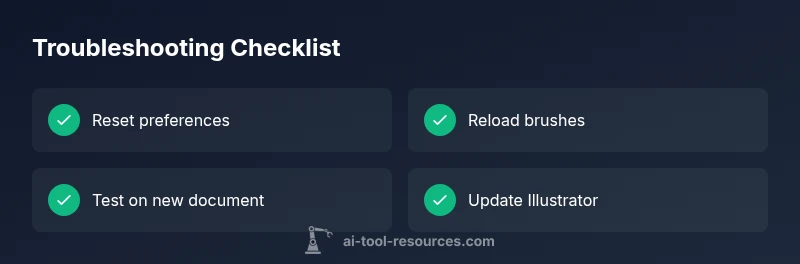
- Test with a new document. If the brush works on a fresh canvas, the issue is likely document-specific (corrupted layer or clipping group). If not, focus on brushes and preferences.
- Check for any active appearance attributes that override brush behavior, such as a global stroke in the selection or a profile that disables certain brush types.
- Inspect the History and Canvas settings for performance issues. Graphics performance settings can affect brush rendering on some machines. In some cases, the GPU acceleration can cause odd brush behavior; try turning off GPU Performance in Preferences > Performance to test.
- Ensure Illustrator is up to date. Software updates frequently fix brush-related bugs that could cause the paintbrush tool not working symptom. If you’re on a beta or preview build, consider reverting to a stable release to see if the issue persists.
If you’ve ruled out obvious causes, move to the preference reset and brush reload steps. These two actions fix a large share of brush tool problems without risking file data.
Resetting Preferences Safely
Resetting Illustrator preferences provides a clean slate, which often resolves the paintbrush tool not working issue. Before you reset, close Illustrator and make a copy of your preferences file if you want to retain a fallback. On Windows, hold Shift+Ctrl+Alt while launching Illustrator. On macOS, hold Shift+Cmd+Option while starting the app. A prompt may appear asking to delete the current settings; confirm to proceed. After the reset, Illustrator will load with default settings, and you can reconfigure essential preferences (e.g., Undo levels, GPU performance) gradually to identify if a specific setting was causing the issue. If you rely on customized brushes, export your brush libraries first for safekeeping, then re-import after the reset. AI Tool Resources notes that this approach fixes the majority of “not working” brush scenarios when a corrupted preferences file is the root cause.
A more cautious approach is to back up the current preferences file by copying it to a safe location before performing the reset. If you’re unsure, perform the reset on a test machine or a disposable project to confirm the effect before applying it to a live production workflow.
Reloading and Replacing Brushes
Even with a clean preferences file, an individual brush can become corrupted. The remedy is to reload the brush or replace it with a fresh one. Start by selecting the Brush Tool and opening the Brushes panel. If the current brush looks suspect (e.g., stroke thickness inconsistent, odd shapes, or no rendering), replace it with a known-good brush. You can load brushes from Illustrator’s built-in libraries or install third-party brush packs. To load a new brush library, go to the Brushes panel menu and choose Open Brush Library > (select library). If a brush shows up as read-only or cannot be edited, remove it from the library and re-import. After swapping brushes, test by drawing on a new object with both a simple brush and a complex brush. If the tool works with basic brushes but fails with certain presets, the brush file itself is at fault. Rebuilding a brush with the Brush Tool, or resetting brush settings for that brush, can also restore expected behavior. AI Tool Resources emphasizes keeping a backup of brushes and libraries to prevent loss during troubleshooting.
Advanced Fixes and Compatibility Considerations
If the previous steps don’t restore functionality, consider more advanced checks. Disable any active plugins that interact with brushes and restart Illustrator to test. Incompatible plugins can interfere with the brush engine. Check that your fonts are not conflicting with brush rendering, as some font- or glyph-related issues can impact display. Update graphics drivers if you’re using a GPU-accelerated workflow, or toggle GPU Performance off to test compatibility. If you’re editing a file saved with a very old Illustrator version, consider re-creating the artwork in a fresh document to ensure compatibility with current brush engines. In persistent, environment-specific problems, reinstall Illustrator or run a repair installation to ensure all core files are intact. AI Tool Resources recommends keeping a recent backup of your work and using version control or cloud storage for critical projects during troubleshooting.
Safety, Best Practices, and When to Seek Help
- Always save copies of your brushes and presets before making major changes. This reduces the risk of losing custom work.
- Back up your preferences and brush libraries routinely as part of your workflow.
- If the paintbrush tool not working persists after standard fixes, consider reaching out to Adobe Support or a certified service provider. Document the steps you’ve taken, include screenshots or screen recordings, and provide your Illustrator version and system specs to expedite help.
Final Note: When to Escalate
If you’ve exhausted the standard troubleshooting steps and the brush tool still won’t behave as expected, it may indicate deeper software issues, file corruption beyond your control, or a hardware driver conflict. In such cases, escalate to professional support or your IT department, especially if this workflow is critical to a project deadline. AI Tool Resources suggests documenting the exact sequence of events and your test results to streamline escalation and reduce back-and-forth time.
Steps
Estimated time: 60-90 minutes
- 1
Close and reset preferences
Exit Illustrator completely, then start it with the appropriate modifier to reset preferences (Shift+Ctrl+Alt on Windows, Shift+Cmd+Option on Mac). When prompted, confirm to delete the current settings. This creates a clean baseline for brush behavior and helps determine whether preferences were at fault.
Tip: If you rely on custom presets, back them up before resetting. - 2
Check brush assignment and stroke color
Open the Brushes panel and confirm a brush is selected. Ensure the Stroke attribute is active with a visible color; otherwise, you may think the tool isn’t working when it’s just a color issue.
Tip: Try switching to a simple brush (e.g., Basic Brush) to verify basic functionality. - 3
Reload brushes from a library
Load a known-good brush library, or re-import your own brushes. Create a new test document and apply the brush to ensure the issue isn’t document-specific. If a particular brush behaves erratically, replace it with a fresh version.
Tip: Keep backups of your original brush files for quick recovery. - 4
Test with new document and basic shapes
Create a new document and draw with the Paintbrush Tool using a standard brush. If this works, the original file likely has a problematic layer, effect, or clipping path interfering with Brush rendering.
Tip: Inspect layers for locked or hidden attributes that could suppress brush output. - 5
Update or repair Illustrator
If the issue persists after resets and brush reloads, update Illustrator to the latest stable release or repair the installation. This fixes potential bugs and missing components affecting the brush engine.
Tip: If you’re on a corporate setup, coordinate with IT before a repair or full reinstall. - 6
Evaluate hardware and performance settings
Check GPU performance settings (Preferences > Performance) and consider toggling GPU off to test stability. Update graphics drivers if using a dedicated GPU. Hardware-related issues can degrade brush rendering.
Tip: Run a simple system check to ensure RAM and GPU are not overloaded during an Illustrator session.
Diagnosis: Paintbrush tool not painting or brush rendering fails intermittently
Possible Causes
- highCorrupted brush library or brush preset
- highCorrupted Illustrator preferences file
- mediumTool is set to wrong mode or brush type (e.g., Blob Brush vs Paintbrush)
- lowSoftware update or compatibility issue with current document
Fixes
- easyReset Illustrator preferences to defaults and relaunch
- easyReload or replace brush presets; test with basic brushes
- mediumUpdate Illustrator to the latest stable version and restart
- easyTest on a new document to rule out document-specific issues
FAQ
What is the most common reason the Paintbrush tool stops working in Illustrator?
Corrupted brushes or a corrupted preferences file are the two most common culprits. Resetting preferences and reloading brushes resolve the majority of cases.
Often it's a corrupted brush or preferences file. Reset and reload to fix it.
Should I update Illustrator if the brush still won’t work after resets?
Yes. Updating to the latest stable version can fix brush engine bugs and improve compatibility with brushes and libraries.
Update Illustrator to the latest stable version to rule out known bugs.
Can a faulty document cause brush issues?
Yes. Some documents contain layers or settings that interfere with brush rendering. Try the brush on a new document to confirm.
A faulty document can cause issues—test on a new file.
What if none of the fixes work?
If problems persist after all troubleshooting steps, contact Adobe Support or a professional, and prepare a report with steps tried and system specs.
If it still fails after all steps, reach out to support with details.
Is GPU performance related to brush problems?
Yes, GPU performance can affect brush rendering. Disable GPU acceleration to test stability, then re-enable if the issue is resolved.
GPU settings can affect brush rendering; test with GPU off.
Do I need to reinstall Adobe Illustrator?
A repair install or full reinstall is a last resort when other fixes fail and is typically only needed in persistent, system-level issues.
Reinstall is a last resort if all else fails.
Watch Video
Key Takeaways
- Reset preferences to fix most brush issues
- Reload and validate brush libraries
- Test on a new document to isolate the problem
- Update software to resolve known bugs
- Back up brushes and settings routinely