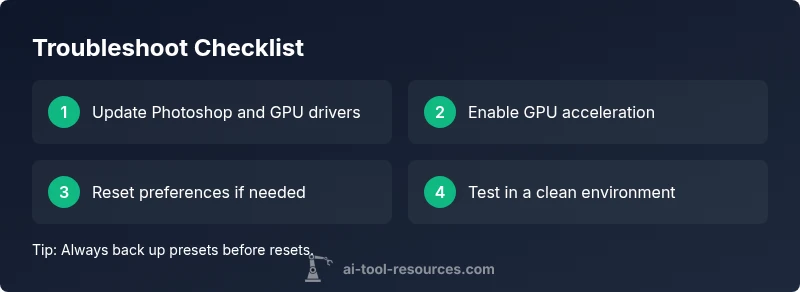
Photoshop AI Tool Not Working: Urgent Troubleshooting Guide
Urgent guide for resolving Photoshop AI tool not working issues. Quick fixes, diagnostic flow, step-by-step instructions, and tips to restore AI features in Photoshop in 2026.


If the Photoshop AI tool isn’t working, start with fast checks: verify your internet connection, confirm Photoshop is updated, and ensure GPU acceleration is enabled. If issues persist, reset preferences, disable conflicting plugins, and sign back into Creative Cloud. These steps resolve most problems within a few minutes of applying the fixes.
Why Photoshop AI Tool Not Working
According to AI Tool Resources, many users encounter AI tool issues in Photoshop due to a mix of configuration, compatibility, and resource allocation. In 2026, the pattern remains consistent: non-trivial failures usually stem from misconfigured settings, outdated software, or hardware bottlenecks rather than a single bug in the AI engine itself. This article, grounded in practical troubleshooting, helps you isolate root causes quickly and restore productivity with minimal risk. You’ll learn to distinguish between simple, user-facing problems and deeper compatibility challenges that require a more thorough fix.
Quick Checks You Should Do First
Before diving into deeper diagnostics, perform these high-impact checks. First, verify your internet connection and ensure Creative Cloud is signed in correctly. Second, check Photoshop’s update status and install any pending updates. Third, confirm that GPU acceleration is enabled under Photoshop > Preferences > Performance. These steps are safe, fast, and often the quickest path to a resolution. AI Tool Resources emphasizes starting with the simplest fixes to save time and avoid unnecessary changes.
Common Causes for AI Tools Failing
There are several frequent culprits behind the Photoshop AI tool not working issue. GPU acceleration can be disabled or incompatible with your current driver, causing AI features to stall or fail. Software version mismatches between Photoshop and any AI plugins can create conflicts. A misconfigured Creative Cloud sign-in or license issue can also block AI modules from loading. In some cases, conflicting third-party plugins or extensions interfere with the AI pipeline. AI Tool Resources analysis, 2026 notes that troubleshooting often starts with verifying system requirements and plugin integrity before deeper resets.
How Photoshop AI Tool Integrates with Your System
AI in Photoshop relies on a tight coupling between the application, your GPU driver, and any AI extensions installed. When this chain breaks, you’ll notice slow performance, features that don’t respond, or error prompts. The AI engine can require substantial memory and compute; if your device runs short on VRAM or CPU headroom, you may see degraded or blocked AI outputs. Regular maintenance of drivers, caches, and plugin ecosystems helps keep the integration smooth.
Step-by-Step Troubleshooting Flow (Overview)
The flow follows a logical path—start with easy, reversible steps, then move to targeted fixes. Begin by confirming basic environment readiness (internet, sign-in, updates). If the problem persists, test with a fresh document and a minimal set of plugins. The goal is to isolate whether the issue is systemic (Photoshop/driver) or localized (document-specific or plugin conflict). The sequence below supports a clean, safe diagnostic path.
Best Practices to Prevent Future Issues
Adopt a routine maintenance plan to minimize AI tool downtime: keep Photoshop and plugins up to date, regularly back up preferences and presets, monitor GPU driver updates, and maintain a clean extension environment. Enabling auto-save and version history helps recover work if a reset becomes necessary. Regular reboots after major updates can also prevent stubborn cache issues from resurfacing.
When to Seek Professional Help
If you’ve exhausted basic checks, diagnostics, and safe fixes without a resolution, it’s time to escalate. Document the exact symptoms, steps you performed, and any error messages. Contact Adobe Support or a trusted IT professional for deeper investigations, including potential clean OS or hardware checks. The AI Tool Resources team recommends seeking expert help when issues involve licensing, corrupted user profiles, or rare hardware incompatibilities.
What’s Next: Safe Troubleshooting Reminders
Always back up critical work before performing resets or reinstalls. Create a restore point or export presets so you can revert to a known-good configuration if needed. Avoid installing unknown plugins mid-troubleshooting, and re-test AI features after each change to clearly identify what fixed the issue. This disciplined approach minimizes risk and speeds recovery.
Steps
Estimated time: 15-25 minutes
- 1
Verify hardware acceleration
Open Photoshop, go to Edit > Preferences > Performance and ensure GPU Acceleration is enabled. If you notice a warning about the graphics processor, update the GPU driver or switch to a compatible option.
Tip: Apply changes and restart Photoshop to confirm effect. - 2
Check for updates and sign-in
Ensure Photoshop and Creative Cloud are up to date. Sign out and back into Creative Cloud to refresh the license and service connections used by AI features.
Tip: Stable internet helps prevent partial feature loads. - 3
Reset preferences and caches
Close Photoshop, then relaunch while holding Alt+Ctrl+Shift (Windows) or Option+Command+Shift (Mac) to reset preferences. Confirm and relaunch; avoid launching with custom presets until verified.
Tip: Backing up preferences beforehand is recommended. - 4
Test with a clean environment
Create a new document, disable non-essential plugins, and attempt an AI operation. If it works, a conflict or preset in the original workspace is likely at fault.
Tip: This isolates the issue quickly. - 5
Reinstall or repair AI tools
If you use a third-party AI plugin, reinstall it or run the repair option provided by the vendor. Verify compatibility with your Photoshop version.
Tip: Keep a backup of plugin settings. - 6
Escalate if needed
If the AI tool still isn’t functioning after all checks, contact Adobe Support with a summary of steps and any error messages.
Tip: Include system specs and driver versions for faster help.
Diagnosis: AI features in Photoshop fail to activate or produce results
Possible Causes
- highPower issue or insufficient system resources (RAM/VRAM)
- highGPU acceleration disabled or incompatible GPU driver
- highSoftware version incompatibility (Photoshop vs. AI plugin)
- mediumNetwork/authentication issues with Creative Cloud
- mediumConflicting plugins or extensions
- lowCorrupt preferences or cache
Fixes
- easyCheck GPU acceleration in Preferences > Performance and update GPU drivers
- easyUpdate Photoshop to the latest version and sign back into Creative Cloud
- easyReset Photoshop preferences or clear cache and re-launch
- easyDisable conflicting plugins/extensions and test AI features
- mediumReinstall AI plugins or run a repair install for Photoshop
- hardIf issues persist, contact Adobe Support for licensing or deeper diagnostics
FAQ
Why are AI features in Photoshop not loading?
AI features can fail to load due to GPU acceleration issues, plugin conflicts, or outdated software. Start with checklists for updates, sign-in status, and a quick reset of preferences. If problems persist, move to targeted diagnostics.
AI features not loading? Start with updates, sign-in, and a quick reset, then continue with targeted diagnostics.
How do I reset Photoshop preferences safely?
To reset, close Photoshop and relaunch while holding Alt+Ctrl+Shift (Windows) or Option+Command+Shift (Mac). Confirm the reset and relaunch. This resets workspace settings but preserves your files.
Resetting preferences is safe for your files; it resets your workspace settings.
If updating Photoshop doesn't fix the issue, what's next?
Next, verify GPU driver compatibility, disable conflicting plugins, and test AI features in a clean document. If it still fails, reset caches and consider reinstalling software components.
If update fails, check drivers, disable plugins, test in a clean document, and consider a repair install.
Should I disable antivirus or security software during troubleshooting?
Disabling security software temporarily can help identify conflicts, but re-enable it immediately after testing. Do not leave protections off for long, and consult IT if unsure.
Temporarily disable security software to test, then re-enable right away.
Can I use AI tools without an active internet connection?
Most AI features in Photoshop rely on online components, licensing, or cloud services. An active internet connection is typically required for full AI functionality and validation.
AI features usually need an internet connection for full functionality.
When should I contact Adobe support?
If licensing is valid but features still fail, or you encounter error codes that you cannot resolve, contact Adobe Support with your system specs, software versions, and steps already taken.
If issues persist after checks, contact Adobe Support with details.
Watch Video
Key Takeaways
- Verify hardware and software compatibility before deep fixes
- Follow a safe, incremental diagnostic path
- Back up presets and data before resets
- Escalate to support when licensing or hardware issues arise