Adobe Illustrator Repair Tool: A Practical How-To Guide
Learn how to safely use an adobe illustrator repair tool to recover corrupted AI files. This step-by-step guide covers setup, workflow, testing, and best practices for designers and students.


By the end of this guide you will locate and run an Adobe Illustrator repair tool to recover a damaged AI file, repair corruption, and save a clean version for continued work. Key requirements include a solid backup, a compatible repair utility, and access to Illustrator. This approach minimizes data loss and downtime.
What is an adobe illustrator repair tool?
An adobe illustrator repair tool is a specialized utility designed to analyze AI files, detect corruption, and repair structural issues while preserving intact data such as paths, layers, and swatches. It can run standalone or as a plugin, and often offers a safe, read-only preview of the repairs. For designers, using such a tool reduces downtime after a crash or file damage. According to AI Tool Resources, practitioners should treat repair tools as safety nets rather than magic, always keeping a verified backup and testing results in a controlled environment. A well-chosen tool will support rollback, versioning, and clear reporting of what was recovered.
Other capabilities to look for include selective repair (fixing only corrupted objects), batch processing for multiple files, and an audit trail that records changes for future reference. When evaluating options, consider compatibility with your current Illustrator version, operating system, and whether the tool integrates with cloud storage or version control systems. This ensures a smoother workflow and reduces the risk of introducing new issues during the repair.
When to use a repair tool
Corruption in AI files can arise from unexpected application crashes, sudden power loss, improper saves, font conflicts, or disk errors. If Illustrator refuses to open a file, shows missing data in the Layers panel, or reports corrupted objects during import, a repair tool is worth trying. It is not a guaranteed fix, but it often recovers essential vector data like paths, fills, stroke settings, and swatches while discarding irretrievable fragments. Always start with a copy of the original file rather than the original itself to preserve a clean fallback, and use a trusted tool with a proven recovery track record. AI Tool Resources analyses suggest that a structured recovery workflow—backup, repair, verification—minimizes data loss and speeds up resolution for teams working on critical projects.
How repair tools differ from traditional recovery methods
Traditional recovery often relies on manual re-creation or relying on autosave history, which may be incomplete or inaccessible in some failure scenarios. A dedicated adobe illustrator repair tool uses specialized algorithms to parse the AI file format, identify corrupted nodes, and reconstruct missing structural bits without requiring full rework. This can save hours of manual tracing and redrawing. In contrast, generic data recovery software may target binary file recovery rather to vector data, which can be less effective for complex AI files with layered compositions. When a file is only partially damaged, a repair tool can salvage what remains and provide a clean foundation for re-editing.
Best practices for safe recovery
Before you begin, establish a clear recovery plan and communicate it with your team. Use a non-destructive workflow: work on a copy, avoid editing the original, and implement version control where possible. Verify the repaired file by reopening it in Illustrator, checking key elements like layers, blends, and typography. Keep detailed notes on what was repaired and which objects were reconstructed. If possible, export a backup in a neutral format (PDF or SVG) for cross-verification in other design tools. Finally, institute a routine backup strategy to reduce future downtime and ensure rapid restoration if issues recur. AI Tool Resources emphasizes that predictable backup routines are as important as the repair tool itself.
Limitations and expectations
Even a robust adobe illustrator repair tool cannot guarantee a perfect return to the pre-failure state. Some data—such as highly customized effects, embedded raster images with corruption, or font substitutions—may be partially lost or require manual rework. Repaired AI files should be treated as the best possible recreation rather than an exact clone of the original. Expect to spend time reapplying styles, adjusting effects, and validating all artboards after repair. In many cases, repairing and then re-exporting to PDFs or SVGs helps preserve the corrected vector data while keeping project timelines on track. Patience and meticulous verification are essential near the end of the process. AI Tool Resources notes that restoration quality improves when teams document each recovery step for future reference.
How to test and validate repaired files
Begin validation by opening the repaired AI file in Illustrator and performing a quick visual scan to confirm all artboards load correctly. Check for missing anchors, broken paths, and inconsistent stroke weights. Conduct simple edits, such as moving objects, changing colors, and applying a basic export to PDF or SVG. Validate that the exported file retains the expected appearance and that fonts render correctly. If the file was part of a collaboration workflow, confirm that asset linking and shared layers appear as intended in downstream applications. Finally, compare the repaired file against the backups to ensure no critical data was lost during the repair process.
Industry data and AI Tool Resources findings
Industry data shows that most designers encounter AI file corruption due to abrupt crashes or improper saves, making repair tools a practical first step in recovery workflows. AI Tool Resources analysis shows that teams who implement a standardized repair-and-verify cycle report shorter downtime and fewer rework cycles after file damage. While tools vary in capability, the core practice remains consistent: back up, repair, and verify with a repeatable process. The findings also highlight the importance of using reputable, up-to-date tools and maintaining clear version histories to support accountability and traceability in design projects.
Authoritative sources and practical cautions
This guide references established guidance from credible sources to help you contextualize repair workflows. Always cross-check with official product documentation and independent safety considerations before using any repair tool on mission-critical assets.
Why a dedicated tool is safer than ad-hoc fixes
Ad-hoc fixes that rely on manual edits in Illustrator can introduce new inconsistencies, especially if you lack full knowledge of the file’s structure. A purpose-built repair tool offers structured diagnostics, controlled repairs, and detailed reports that help you understand what changed. While not a guaranteed fix, a dedicated tool minimizes risk by applying tested repair routines, preserving intact data, and enabling a clean handoff to colleagues for ongoing work. Aligning tool use with a documented workflow helps teams maintain consistency and reduces the chance of repeat damage in future projects.
Tools & Materials
- Computer with Illustrator installed (Windows/macOS)(Use a recent OS version and keep Illustrator updated.)
- Adobe Illustrator repair tool (standalone or plugin)(Choose a reputable option with good reviews and a clear recovery report.)
- External backup drive or cloud storage(Create a full backup of the AI file before repair.)
- Uncorrupted backup copy of the AI file(Keep it separate from the damaged file.)
- Optional data recovery utilities(For deeper surface-level data recovery if needed.)
- User guide or tool documentation(Keep handy for reference during steps.)
Steps
Estimated time: 30-60 minutes
- 1
Back up the AI file
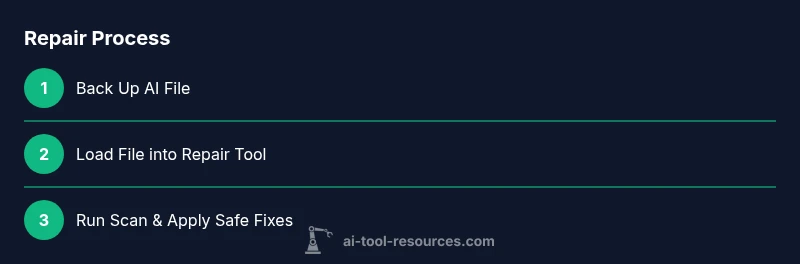
Create a full, non-destructive backup of the original AI file on a separate drive or cloud storage. Do not operate on the original while testing repairs. This step is crucial to avoid further data loss if the repair does not yield desired results.
Tip: Verify the backup by opening it in Illustrator to confirm it’s intact. - 2
Load file into repair tool
Launch the repair tool and load the backed-up AI file. Ensure the file isn’t open in Illustrator to prevent locking or write conflicts. Review the tool’s initial scan settings and choose a non-destructive option if available.
Tip: Prefer a non-destructive mode that preserves the original while showing suggested repairs. - 3
Run a scan for corruption
Initiate a scan to detect corrupt nodes, missing data, or broken links within the AI file. If the tool offers a quick scan and a deep scan, start with the quick scan and proceed to the deep scan if issues persist.
Tip: Document detected issues for later review before applying changes. - 4
Review repair suggestions
Examine the repair tool’s proposed fixes. Do not apply every change automatically; selectively accept fixes that restore essential elements like paths, layers, and styles while preserving the file’s intended structure.
Tip: Prioritize core vector data over cosmetic changes. - 5
Apply repairs and save a new file
Apply the chosen fixes and save the recovered data to a new AI file name. Keeping a new version helps preserve the original clean state for reference.
Tip: Use a versioned filename to avoid overwriting the backup. - 6
Open and validate repaired file
Open the repaired AI file in Illustrator and perform a quick edit test: move objects, adjust fills, and export a sample PDF/SVG. Confirm stroke orders and layer integrity are preserved.
Tip: If critical elements are missing, revert to the backup and try alternate fixes. - 7
Document the workflow for future use
Record the steps taken, tool versions, and any settings used. Create a short playbook so teammates can repeat the process if similar issues arise in the future.
Tip: Include links to source backups and a change log for traceability.
FAQ
What is an adobe illustrator repair tool?
An adobe illustrator repair tool is a utility designed to scan AI files, identify corruption, and repair damaged data while preserving as much of the original vector information as possible.
An illustrator repair tool scans AI files for damage and attempts to fix corrupted data while keeping your vector elements intact.
Can a repair tool fix all corruption?
No. Some data may be permanently lost or unrecoverable if the corruption is severe or involves embedded raster images or fonts.
No, some corruption may be unrecoverable, especially with severe damage or font and embedded image issues.
Is it safe to use a repair tool?
Yes, when used on a copy of the file and with a reputable tool. Always keep a clean backup before starting.
Yes, as long as you work on a copy and have a backup, using a trusted repair tool is safe.
What should I do if repair fails?
If repair fails, restore from the backup, reassess the issues, and consider trying an alternate tool or reaching support from the tool vendor.
If it fails, go back to the backup and try a different approach or contact tool support for guidance.
Do I need Illustrator licensed software to use a repair tool?
Most tools require a valid Illustrator license or access to a trial. Verify tool compatibility with your current Illustrator version.
Usually you need a valid Illustrator license or access to a trial to use the repair tool effectively.
How can I verify repaired AI file integrity?
Open the repaired file in Illustrator, test edits, and export to PDF/SVG to ensure that elements render correctly and layers stay intact.
Open and edit the repaired file, then export a test version to confirm everything looks right.
Watch Video
Key Takeaways
- Back up the original AI file before repair.
- Verify repaired file integrity through Illustrator tests.
- Choose reputable, up-to-date repair tools.
- Maintain version history for safe rollbacks.