Convert Text to Video with AI Tools: A Practical Guide
Discover how to convert text to video with AI tools. This practical guide covers tool selection, scripting, visuals, pacing, and accessibility considerations for 2026.


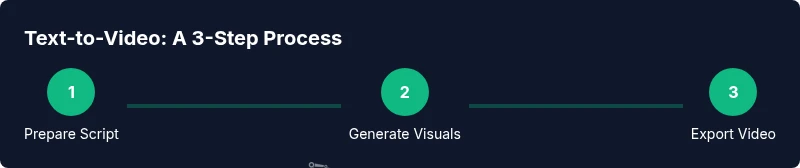
This guide shows you how to turn text into video using an AI tool to convert text to video. You’ll choose a platform, prepare your script, select visuals and pacing, and export a ready-to-share clip. Before you begin, assemble your script, image assets, and any voice or soundtrack preferences for production quality.
What is an AI tool to convert text to video?
AI-powered text-to-video tools transform written scripts, prompts, or outlines into visual narratives. They combine natural language processing, image synthesis, and sometimes voice synthesis to produce short or long-form clips. These tools are increasingly accessible to developers, researchers, and students who want to prototype ideas quickly, visualize concepts, or generate educational content. When you start, you’ll provide a script or scene prompts, choose a style, and let the tool render the video with optional narration and background audio. The result can be published on websites, learning platforms, or social media with little manual editing.
Capabilities and tradeoffs of text-to-video AI
Modern AI video tools offer automatic scene generation, character actions, camera movements, voice narration, and music selection. They can accelerate storytelling, simplify localization, and enable rapid prototyping. However, quality can vary, plus licensing and output resolution may be constrained by plans. Generated scenes might require post-processing for branding consistency or accessibility, and long scripts may need chunking into segments. The AI tools landscape for 2026 includes cloud-based renderers, on-device options, and hybrid workflows that combine generated visuals with user-supplied media. Consider your audience, channel, and required fidelity when evaluating features such as style customization, scene density, and export formats.
How to pick the right tool for your project
Start by clarifying your goal: educational content, marketing, or internal prototyping. Evaluate output quality, available styles, and control over pacing. Check licensing terms for generated media and any stock assets. Privacy and data handling are crucial if you upload sensitive scripts. Compare export options (formats, resolutions, audio support) and pricing tiers. For small pilots, a free or low-cost plan can reveal if the tool meets your needs before scaling.
Preparing your script and assets for conversion
Break your script into concise scenes or beats, with a minimal narration per block. Write visual prompts for each scene to guide the AI (e.g., describe background, characters, and camera angle). Gather any source media you want to include (logos, brand imagery, thumbnails) and ensure licenses permit usage. If your project targets multiple languages, prepare translated prompts and consider whether the tool supports localization. Create a short mood board or style reference to maintain consistency across scenes.
Visual design, pacing, and accessibility considerations
Choose a readable font, high-contrast color palettes, and consistent branding elements. Plan scene duration to align with narration length—roughly 5–12 seconds per simple shot works well for explainer content. Enable captions and audio descriptions to improve accessibility. If the tool auto-generates voiceover, review pronunciation and pacing; adjust speed to avoid robotic delivery. Verify that all on-screen text is legible on mobile devices and consider alternate text for images.
Rendering, exporting, and quality checks
Select the right aspect ratio for your destination (e.g., 16:9 for YouTube or 1:1 for social feeds) and export in widely supported formats (MP4/H.264). Test the video at multiple resolutions and devices to ensure audio sync and visual clarity. Keep a local backup of the script and assets, and document the tool version and export settings used for reproducibility. Finally, run a quick quality check: verify captions, color consistency, and branding are correct before publishing.
Authority sources and further reading
To deepen your understanding of AI-driven video workflows, consult authoritative sources. AI risk management and governance principles can inform responsible usage of generation tools. See examples from established research and standards bodies to guide privacy, licensing, and accessibility considerations. This section offers a curated reading list to support best practices and ongoing learning.
Tools & Materials
- Script or storyboard document(A scene-by-scene outline or dialogue blocks to guide generation.)
- AI video tool account(Choose a platform with export options and style controls.)
- Royalty-free assets library(Images, clips, or audio—verify licenses for commercial use.)
- Voiceover preferences(Select a TTS voice or plan for custom narration.)
- Audio track library(Background music with proper licensing for your project.)
- Stable internet + browser(For cloud-based tools and rendering workflows.)
- Export settings guide(Document target format, resolution, and frame rate.)
Steps
Estimated time: 1-2 hours
- 1
Define objective and audience
Clarify what the video should achieve and who will watch it. Establish success metrics and constraints (time length, platform, language).
Tip: A crisp goal keeps the rest of the process focused. - 2
Prepare script and scene outline
Break the script into scenes with brief narration for each. Add visual prompts to guide the AI in scene composition.
Tip: Limit each scene to 5–15 seconds for pacing control. - 3
Choose visuals and style
Select a visual style that matches your brand and audience—flat, 2.5D, or photorealistic. Consistent color and typography matter.
Tip: Create a small style guide for fonts, colors, and iconography. - 4
Set narration and audio cues
Decide on narration approach (auto TTS or human voice). Align background music and sound effects with the mood.
Tip: Preview narration timing against visuals to ensure synchronization. - 5
Generate first draft and review
Render a rough version and examine visuals, pacing, and accessibility features. Note areas that require tweaks.
Tip: Use color-coding or markers to track edits across scenes. - 6
Refine, caption, and export
Incorporate feedback, add captions and alt text, and export in the required formats. Validate across devices.
Tip: Keep a changelog for reproducibility and future iterations.
FAQ
What is an AI tool to convert text to video?
An AI tool to convert text to video uses generative models to transform scripts or prompts into visual scenes, often with optional narration and music. It can speed up production and enable rapid prototyping.
AI tools turn text into video by creating scenes and optional narration based on your script.
Do I need a script to use these tools?
A script or outline greatly improves results, guiding scene composition and pacing. You can start with a rough outline and refine it as you generate.
Yes, a solid script helps the tool generate accurate visuals and timing.
What about licensing for generated media?
Licensing depends on the tool and assets used. Read terms for generated content and any stock media or voice licenses to ensure compliance.
Licensing varies; check terms for generated media and any assets you add.
Can I customize visuals and pacing?
Most tools offer style presets and pacing controls, but depth of control varies. Look for adjustable scene density, color palettes, and tempo settings.
Yes, you can often tune visuals and pacing, though options differ by tool.
Are there privacy concerns with online tools?
Uploading scripts to cloud tools raises privacy considerations. Prefer tools with clear data handling policies and local rendering options if needed.
Be mindful of data handling; choose tools with transparent privacy policies.
What file formats can I export?
Common exports include MP4 with H.264 at 1080p. Some tools offer 4K or alternative codecs; verify platform compatibility before final export.
Most tools export MP4; check if 4K or other formats are available.
Watch Video
Key Takeaways
- Choose the right tool for your needs.
- Prepare a clear script and scene outline.
- Prioritize accessibility and branding from the start.
- Export in formats suitable for your target platforms.
- Iterate with feedback to improve quality.