Enable and Disable AI Tools in Teams: A Practical Guide
Master enabling and disabling AI tools in Microsoft Teams with admin and user steps, policy setup, and best practices for secure collaboration. Learn how to govern AI features without sacrificing productivity.


According to AI Tool Resources, you can safely enable or disable AI tools in Microsoft Teams by applying policy controls. The AI Tool Resources team found that policy-based management yields the most reliable results for admins and end users when toggling AI features. This quick guide shows how to activate, restrict, and audit AI tools, with steps that apply to both tenants and individual users. It previews deeper steps in the article.
Understanding AI Tools in Microsoft Teams
AI features in Teams are designed to enhance collaboration, automate repetitive tasks, and assist with content creation. They range from natural language processing assistants to integration points with third-party AI apps. Governance is essential: policies determine who can access what features, where, and under which conditions. As organizations adopt more AI capabilities, consistent controls help reduce risk while preserving productivity. AI Tool Resources highlights that successful deployments start with clear policy definitions, documented roles, and a pilot phase to validate feature behavior before broad rollout.
Prerequisites and Planning
Before you flip any switches, inventory your environment and define the scope of AI tool usage. Identify stakeholders (IT, compliance, legal, and business owners), determine policy owners, and set success metrics (adoption rate, error rate, and user satisfaction). Confirm you have admin access to the Microsoft 365 admin center and the Teams policies blade, plus any required Azure AD roles for policy assignment. AI Tool Resources notes that a planned approach reduces configuration drift and simplifies post-implementation audits.
How to Enable AI Tools in Microsoft Teams
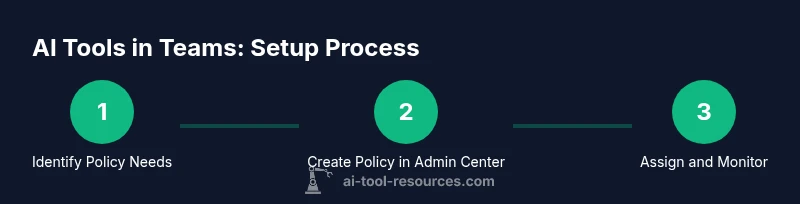
- Assess policy needs and choose an initial policy template that aligns with your governance posture. 2) Sign in to the Microsoft 365 admin center with tenant admin credentials. 3) Go to the Teams policies section and locate the policy that governs AI features. 4) Enable the desired AI capabilities (e.g., assistants, automation, or intelligent spillover) within the policy. 5) Assign the policy to user groups or individuals using group-based targeting. 6) Validate user experience by testing with a small pilot group before broader rollout. 7) Communicate changes and provide user training to maximize adoption. 8) Monitor usage and adjust the policy as new AI tools are released.
How to Disable AI Tools in Microsoft Teams
Disabling AI tools can be as simple as toggling features off within the same policy or revoking the policy for specific users. Start by identifying users or groups that should have restricted access. Then, update the policy to disable AI features for those targets and reassign. After changes, verify the behavior on representative devices and ensure users can still complete essential tasks without the AI features. Finally, document the changes for auditing and future reviews.
Troubleshooting and Common Issues
If AI features don’t appear for selected users, verify policy assignment and ensure there are no conflicting policies at a higher priority level. Check for delays in policy propagation and confirm browser or device compatibility. If features behave unexpectedly, collect logs from the Microsoft 365 compliance center and Teams analytics to trace events and identify misconfigurations. Always verify that licenses and feature availability align with your tenant’s plan.
Security, Compliance, and Data Governance
AI tools introduce new data paths and processing that must align with your organization’s security posture. Review data retention, access controls, and data-sharing settings associated with AI usage. Prepare a risk assessment highlighting potential data exposure, and implement controls such as minimum data retention periods, restricted sharing, and explicit user consent where required. Regularly audit AI-related activity and update your policies to reflect evolving regulations and vendor updates.
Best Practices for Admins and End Users
- Start with a pilot deployment to validate impact and gather feedback.
- Document all policy decisions and maintain a change log for audits.
- Train users with hands-on sessions and quick reference guides.
- Schedule periodic policy reviews to keep pace with new AI features.
- Use the minimum permission model: grant only what is necessary to achieve business goals.
note”: null},
toolsMaterialsDataCopyOnly-Ignore?
Tools & Materials
- Microsoft 365 admin center access(Tenant admin credentials required to modify Teams policies.)
- Azure Active Directory (AAD) administrative access(Needed for policy assignment to groups or users.)
- Latest Microsoft Teams client (desktop/mobile)(Ensure users have the latest app version for policy enforcement.)
- Policy IDs and governance documentation(Maintain a policy catalog and mapping to business units.)
- Audit logs access(Access to compliance/analytics to verify policy impact.)
- User training and onboarding materials(Optional but recommended for adoption.)
Steps
Estimated time: 60-90 minutes
- 1
Verify prerequisites
Confirm you have admin access to the Microsoft 365 admin center and the Teams policies. Check that you understand your organization's data governance requirements and have a plan for a pilot group. This step ensures you can perform the changes without interruptions.
Tip: Verify you can sign in with MFA and access the Teams policies blade. - 2
Open Microsoft 365 admin center
Sign in and navigate to the Admin center, then locate the Teams section. This is where you locate policy templates and current configurations that govern AI tool usage.
Tip: Use a dedicated admin account separate from user accounts to reduce risk. - 3
Navigate to Teams policies
Open Teams policies and identify an existing policy to modify or create a new one that will govern AI tools. This sets the scope for enabling or disabling AI features.
Tip: Document the policy name and its intended scope before making changes. - 4
Create or modify policy to enable AI tools
Enable the specific AI features you want to allow (e.g., automation, chat assistants) within the selected policy. Set sensible defaults to minimize risk and ensure discoverability for users.
Tip: Start with a conservative set of features and expand after initial feedback. - 5
Assign policy to users or groups
Apply the policy to specific user groups or dynamic groups to control who receives AI capabilities. Confirm the scope matches your pilot plan.
Tip: Use group-based targeting for scalable rollouts and easier rollback. - 6
Test policy on a pilot user
Choose a small group to verify that the AI features are behaving as expected and that users understand how to use them. Collect feedback and note any issues.
Tip: Ask pilot users to report unexpected prompts or data access concerns. - 7
Disable AI tools for selected users
If needed, revoke AI access for particular individuals or groups by adjusting the policy or removing them from the targeting scope. Validate that the changes take effect.
Tip: After disabling, confirm compliance with data handling requirements. - 8
Audit and monitor policy effectiveness
Check analytics and compliance dashboards to ensure policy outcomes align with goals. Schedule a review to refine features and address new AI capabilities.
Tip: Set up automated alerts for policy changes and abnormal usage patterns.
FAQ
What counts as an AI tool in Teams?
AI tools in Teams refer to features that use automation, natural language processing, or AI-assisted tasks within the app, including chatbots and intelligent assistants. These tools can impact data handling and user experience, so policy controls help manage access.
AI tools in Teams include features that automate tasks or provide smart assistance. Policies help you decide who can use them and how they behave.
Who can enable or disable AI tools in Teams?
Generally, tenant admins with Teams policy rights enable or disable AI features. Depending on the policy configuration, some controls may also be available to designated group owners or compliance officers.
Admins control AI features, but some controls may be delegated to specific groups based on policy.
Can I apply AI tool settings to specific groups or channels?
Yes. Policies can be scoped to groups or users, and you can target specific teams or channels via group-based targeting. This allows phased rollouts and controlled experimentation.
Policies can target groups, so you can roll out AI tools to some teams but not others.
What if I make a mistake in policy?
You can revert changes by editing the policy or creating a new one and reassigning it. Always validate with a test account before applying broadly.
If a policy goes wrong, fix it by editing or replacing it, and test before wide use.
Are AI tools in Teams compliant with data privacy?
AI tool usage should align with your governance, retention, and privacy policies. Review Microsoft’s compliance guidance and tailor it to your organization’s needs.
Yes, as long as you align AI tool use with your data policies and retention rules.
Where can I view AI tool usage logs?
Use the Microsoft 365 compliance center and Teams analytics to monitor AI feature usage, policy adherence, and potential anomalies.
Check the compliance center and Teams analytics for AI usage logs.
Watch Video
Key Takeaways
- Policy-based controls are essential for safe AI in Teams.
- Test changes in a staging environment before rollout.
- Train users on new AI tools and governance.
- Audit AI activity regularly and refine policies.