Troubleshooting AI Detection Tools That Don’t Work
Learn urgent, practical steps to diagnose why ai detection tools don't work and how to fix them quickly, with a guidance flow, checks, and expert tips.


Most AI detection tools don't work primarily due to outdated models, misconfigured inputs, or mismatched data distributions. Start with a quick reset: update to the latest model, verify your input format, and run a known-true sample to gauge baseline accuracy. If results still fail, check data quality, environment constraints, and coverage gaps before seeking support.
Why ai detection tools don't work in practice
ai detection tools don't work as reliably in production as they do in controlled research. The gap often comes from drift between training data and real-world inputs, limited coverage of edge cases, and the constant evolution of prompts designed to bypass detectors. When you deploy a detector, you’re measuring performance under specific conditions, not the messy variability of real projects. That mismatch is the root cause behind many failed scans, false negatives on novel content, and surprising false positives on legitimate text. To close the gap, you must treat detection as a living system: monitor, retrain, and validate against a representative, up-to-date benchmark. In practice, you’ll need to align data distributions, refresh models, and verify that the tool’s configuration matches your use case. Remember that even the best detector will struggle if inputs aren’t prepared consistently or if evaluation metrics don’t reflect practical goals. By embracing a continuous improvement mindset, you can systematically reduce errors and improve trust in AI-generated content assessments.
Common failure modes and symptoms
Common failure modes include false positives where benign text is misclassified as AI-generated, and false negatives where AI-written content slips through as human-generated. You’ll often see drift over time as data changes, or issues stemming from inconsistent formatting, unusual encodings, or language variants that the detector wasn’t trained to handle. If prompts are short or heavily paraphrased, many detectors also struggle. Version mismatches between the detector and data pipelines can exacerbate all problems. Start with the simplest checks: confirm the detector is current, ensure input encoding matches expectations, and compare results against a curated test set that reflects your use case. A structured review of logs and metrics helps distinguish data issues from model problems quickly.
Quick checks you can perform in minutes
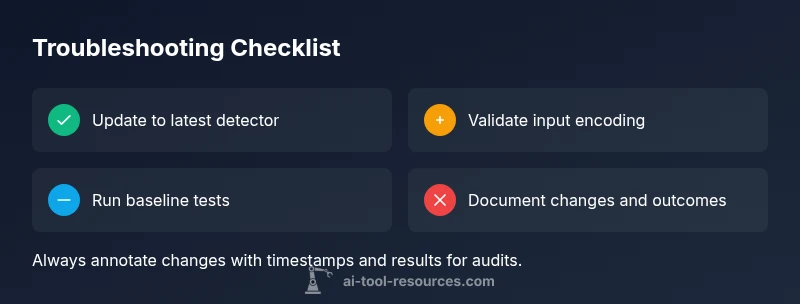
- Confirm you are using the latest detector version and dependencies.
- Run a baseline test with a curated ground-truth dataset to establish current performance.
- Inspect input formatting, encoding, language variants, and any preprocessing steps that alter text content.
- Check environment variables such as RAM limits and CPU constraints that could throttle processing speed or accuracy.
- Review the evaluation metrics (precision, recall, F1) to ensure they align with practical goals.
- Try a controlled test with synthetic samples to isolate specific failure modes (e.g., short prompts, mixed languages).
- Document results and timestamped changes to enable fast rollbacks if needed.
Diagnostic flow overview
This diagnostic guide maps symptoms to likely causes and practical fixes. Start with the most common issues—outdated models and input mismatch—and work toward more nuanced problems like data drift and environment constraints. For each symptom, use the provided fixes in the next section, and verify improvements with controlled tests. If nothing changes, escalate to vendor support with your baseline results and configuration snapshots. A clean checklist makes it easy to reproduce results and compare across versions.
Step-by-step: fixes for the most common cause
- Verify prerequisites and baseline metrics
- title: Confirm prerequisites and gather baselines
- description: Ensure you have the latest detector version, a known-good baseline dataset, and clear success criteria. Run the baseline test to establish a reference point before making changes.
- tip: Maintain a changelog of detector versions and baseline scores for traceability.
- Update detector model and dependencies
- title: Update to the latest model and dependencies
- description: Install the latest detector release and compatible dependencies from the official repository. Run the baseline test again to verify that the update improves core metrics.
- tip: Read the release notes to anticipate any breaking changes that could affect your pipeline.
- Validate inputs and preprocessing
- title: Validate input data and preprocessing
- description: Inspect encoding, language variants, punctuation handling, and any normalization steps. Ensure inputs feed the detector in the exact format it expects.
- tip: Create a small suite of controlled inputs that represent common edge cases.
- Check environment and resource limits
- title: Audit runtime environment
- description: Review memory, CPU, and I/O constraints; ensure no throttling or sandboxing limits distort results. Re-run tests with increased resources if needed.
- tip: Monitor resource usage during test runs to spot bottlenecks.
- Reproduce with a controlled test set
- title: Reproduce with control samples
- description: Use a fixed, known-true dataset and a matched control group to isolate whether failures are data- or model-related. Compare results against the baseline.
- tip: Keep the control set small but representative for rapid iteration.
- Escalate if issues persist
- title: Escalate to support with evidence
- description: If failures persist after all fixes, collect logs, configuration snapshots, and baseline scores. Contact vendor support with a concise summary of symptoms and attempted fixes.
- tip: Have a rollback plan ready if a new version underperforms.
estimatedTime":"60-120 minutes"},
tipsList":{"tips":[{"type":"warning","text":"Safety: never expose sensitive data to non-secure detectors during testing."},{"type":"pro_tip","text":"Document every change and outcome to build a transparent audit trail."},{"type":"note","text":"Don’t rely on a single metric; use a balanced set of precision, recall, and F1 for evaluation."}]},
keyTakeaways4
keyTakeawaysP
Steps
Estimated time: 60-120 minutes
- 1
Confirm prerequisites and gather baselines
Ensure you have the latest detector version, a known-good baseline dataset, and clear success criteria. Run the baseline test to establish a reference point before making changes.
Tip: Maintain a changelog of detector versions and baseline scores for traceability. - 2
Update detector model and dependencies
Install the latest detector release and compatible dependencies from the official repository. Run the baseline test again to verify that the update improves core metrics.
Tip: Read the release notes to anticipate breaking changes. - 3
Validate input data and preprocessing
Inspect encoding, language variants, punctuation handling, and normalization steps. Ensure inputs feed the detector in the exact format it expects.
Tip: Create a small suite of controlled inputs representing edge cases. - 4
Audit runtime environment
Review memory, CPU, and I/O constraints; ensure no throttling or sandboxing limits distort results. Re-run tests with increased resources if needed.
Tip: Monitor resource usage during tests to spot bottlenecks. - 5
Reproduce with control samples
Use fixed, known-true data and a matched control group to isolate whether failures are data- or model-related. Compare results to baseline.
Tip: Keep the control set representative but manageable. - 6
Escalate with evidence
If failures persist after fixes, collect logs, configurations, and scores. Contact vendor support with a concise summary of symptoms and attempted fixes.
Tip: Have a rollback plan if a new version underperforms.
Diagnosis: Detector output inconsistent with expectations
Possible Causes
- highOutdated model
- highInput data mismatch or encoding issues
- mediumData drift or distribution shift
- mediumEnvironment/resource constraints
Fixes
- easyUpdate detector to latest version and ensure dependencies are current
- easyValidate input formatting and preprocessing to the exact detector requirements
- mediumTest with a curated baseline dataset to measure drift and retrain if necessary
- mediumCheck runtime environment (RAM/CPU/VPN) to rule out performance bottlenecks
- easyEscalate to vendor support with logs and baseline results if issues persist
FAQ
Why do ai detection tools don’t work on my dataset?
This usually happens when the detector is outdated, the input data format changes, or there is data drift. Start with updating the model, validating input formatting, and testing against a controlled baseline.
Most failures come from outdated models, mismatched inputs, or data drift. Update, validate, and test against a known baseline to diagnose.
How can I tell if the issue is data drift or a model problem?
Compare detector outputs on a fresh, labeled test set with historical baselines. If the new data scores drift widely while the model behavior remains stable, data drift is likely the culprit.
If new data scores drift but the model behavior is unchanged, you’re likely seeing data drift.
Should I contact vendor support if updates don’t help?
Yes. Gather logs, configuration dumps, and before/after metrics from your tests, and share them with the vendor for targeted guidance.
If updates don’t fix it, reach out to support with your test results and configurations.
Are there safety concerns when troubleshooting AI detectors?
Yes. Avoid processing sensitive data, ensure privacy, and do not rely on detectors for critical decision-making without human oversight.
Be careful with data privacy and don’t rely solely on detectors for important decisions.
When is professional help needed?
If problems persist after all validated fixes, or if the detector impacts compliance or user safety, consult professionals with documented evidence.
If you’re stuck after fixes and it affects compliance or safety, seek expert help.
Watch Video
Key Takeaways
- Update models first and verify inputs.
- Use baseline tests to detect drift.
- Align data and evaluation metrics with real use cases.
- Escalate with evidence if problems persist.