ai tool download: A practical guide for developers and researchers
A comprehensive guide on safely downloading AI tools, verifying publishers and licenses, installing in sandboxed environments, and maintaining security and compliance across development and research workflows.


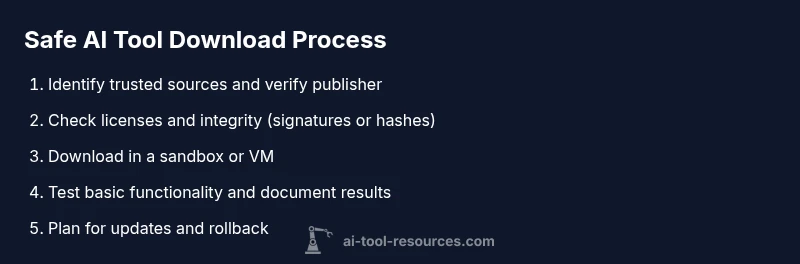
Goal: Safely download and install AI tools for development and research. This guide shows how to identify legitimate sources, verify licenses, test in a sandbox, and manage updates while avoiding malware and licensing pitfalls. You’ll learn source verification, dependency tracking, and rollback strategies to keep your environments clean, compliant, and reproducible across projects. It also covers documenting versions and maintaining a robust change log for audits.
Understanding the AI tool download landscape
The AI tool download landscape blends official vendor pages, trusted repositories, and community mirrors. For developers and researchers, the goal is to obtain authentic, up-to-date tools while minimizing risk. In practice, an effective ai tool download strategy begins with source validation, license awareness, and a plan for testing before any integration into projects. According to AI Tool Resources, safe AI tool downloads begin with verifying publisher authenticity and checking licenses. This means inspecting the publisher, the URL, and any available digital signatures. It also means recognizing different distribution models—standalone binaries, container images, Python wheels, and Node packages—each with its own security considerations. Consumers should beware of impostor sites, outdated versions, and installers that request excessive permissions. By understanding the download ecosystem, you can tailor checks to the risk level, the sensitivity of your data, and the environment in which it will run. A thoughtful approach reduces the likelihood of malware, licensing problems, and compatibility issues down the line.
Planning before you download: scope, requirements, and risk
Before grabbing a tool, define what you need it to do and how it fits your project. Start by listing core features, supported platforms, and runtime requirements (CPU, GPU, memory, OS). Decide whether the tool will be used for experimentation, production, or education, and set a risk tolerance for handling data and model weights. This planning phase should also cover licensing expectations, acceptable licenses, and whether commercial use requires paid plans or attribution. Document the target version range, required dependencies (such as a particular Python or Node version, CUDA toolkit, or runtime libraries), and any repository-specific caveats (like container image provenance or binary signing). Finally, create a rollback and containment plan, including a sandboxed environment and a backup strategy so you can safely test the download without affecting your main development workstation.
Safety first: verifying sources, signatures, and licenses
Effective safety checks start with the publisher’s identity, the download URL, and the integrity of the package. Always download from official sources and verify the domain matches the vendor’s site. Use cryptographic hashes or digital signatures when provided, and compare them against values published by the vendor. For container images, review provenance data and image history; ensure licenses are compatible with your intended use, and understand any restrictions on redistribution or modification. According to AI Tool Resources, licensing clarity is often overlooked but critical for long-term projects. If a license is unclear, contact the vendor or choose an alternative with explicit terms. Keep a record of the license terms, version numbers, and source URLs in your project documentation. This diligence helps prevent accidental violations and makes audits smoother.
Installation and sandbox testing: from download to deployment
Installations should begin in an isolated environment such as a virtual machine, container, or dedicated testing host. Follow the vendor’s official installation guide step by step, paying attention to required dependencies and environment variables. After installation, run a minimal set of test commands to confirm basic functionality and to verify that no sensitive data is transmitted unintentionally. Capture screenshots or logs of test outcomes for later review. If the tool provides a sandbox or emulator, use it to validate behavior under typical workloads before considering integration into code or data pipelines. This approach protects production systems and supports reproducible research outcomes.
Licensing, updates, and compliance
After you have confirmed a working setup, review the licensing terms in detail and note any attribution requirements, redistribution restrictions, or data handling provisions. Establish a cadence for updates based on vendor recommendations and security advisories, and decide whether automatic updates are appropriate for your workflow. Maintain a changelog that records version numbers, update dates, and notable changes. If your project handles sensitive data or regulated content, ensure the tool complies with relevant policies and standards. Periodically re-audit dependencies to avoid drift and ensure continued compatibility with your environment and toolchain.
Troubleshooting and rollback strategies
If something goes wrong after a download, have a rollback plan ready. Revert to a known-good snapshot or backup and re-test in a sandbox before reintroducing changes to production or research environments. Common issues include missing dependencies, incompatible versions, or conflicting libraries. Use clean virtual environments to isolate the problem and system logs to identify root causes. When a tool proves unreliable, consider removing it, documenting the issue, and seeking alternatives with better support or community activity. Finally, maintain a feedback loop with the team to share findings and adjust download policies accordingly.
Tools & Materials
- Computer with internet access(Admin rights may be required for installations)
- Sandbox or virtual machine (VM) or container runtime(Isolate testing from your main system)
- Trusted browser and testing account(Use separate credentials for downloads)
- Package manager or installer tools (e.g., pip, npm, conda)(Match tool requirements)
- Antivirus/EDR and updated definitions(Active protection during downloads)
- Checksum utility or integrity checker(Verify file integrity with SHA-256 or signatures)
- Documentation or official source access (URLs, license files)(Record source details for audits)
Steps
Estimated time: 60-120 minutes
- 1
Identify needs and select sources
Define your use case and choose official sources to minimize risk. Look for publisher authenticity and direct download links from the vendor’s site.
Tip: Always start from the vendor’s official page to avoid spoofing. - 2
Verify publisher and URL integrity
Check the publisher name, domain ownership, and any available certificates or signatures. Avoid third-party mirrors unless explicitly trusted by the vendor.
Tip: Use direct URLs from the official page rather than search results. - 3
Download into a sandbox
Download the tool into a VM, container, or dedicated testing host to limit exposure and isolate any issues from production systems.
Tip: Pause after download until integrity checks are ready. - 4
Verify integrity and licenses
Compute and compare checksums or verify digital signatures. Read the license terms to understand usage rights and redistribution limits.
Tip: Keep a local copy of the official checksum or signature values. - 5
Install in isolated environment and configure dependencies
Follow the official installation steps, install required dependencies, and keep privileges minimal to reduce risk.
Tip: Use a clean environment variable setup to avoid conflicts. - 6
Test, document, and plan updates
Run basic tests to confirm functionality, document versions and dependencies, and plan for updates or rollbacks as needed.
Tip: Maintain a changelog for every download to support audits.
FAQ
How can I determine if an AI tool download is legitimate?
Look for official publisher, signed installers, and explicit licensing terms; verify the domain and check for official documentation.
Check the publisher, verify signatures, and read the official docs.
What risks are involved with downloading AI tools?
Risks include malware, license violations, and insecure dependencies. Mitigate by using a sandbox and validating sources.
Malware and license issues can crop up—use isolation and checks.
Should I install AI tools on my main machine or in a sandbox?
Start in a sandbox or VM for testing; move to the main machine only if the tool is trusted and needed.
Test in a sandbox first, then proceed if trusted.
How do I verify a downloaded file's integrity?
Use cryptographic checksums or digital signatures published by the vendor and compare them to official values.
Check the checksum or signer and compare to official values.
How often should I update AI tools after download?
Follow vendor recommendations and security advisories; enable updates where appropriate and maintain a changelog.
Keep track of updates and apply them as advised.
Watch Video
Key Takeaways
- Verify source authenticity before download.
- Test in sandbox before production use.
- Document licenses and version history.
- Maintain a clear rollback plan for all tools.