How to Install AI Tools: A Practical Step-by-Step Guide
A comprehensive guide for developers, researchers, and students on installing AI tools. Covers prerequisites, environment setup, step-by-step installation, validation, security, and maintenance for local, cloud, and hybrid setups.


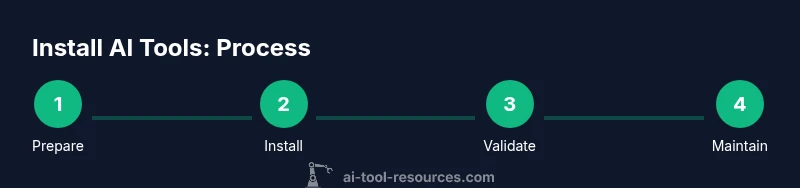
Install AI tools by setting up a reproducible environment, then step through prerequisites, install core software, configure paths, and verify the setup with a test run. This guide covers local, cloud, and hybrid options, plus security, compliance, and ongoing maintenance tips to keep tools reliable and up to date. Expect longer setup at first, then shorter iterations once standards are in place.
Why Install AI Tools Now
Installing AI tools is not a one-off task; it is the foundation for reliable experimentation and scalable deployment. This section explains why a deliberate, repeatable process matters for developers, researchers, and students who rely on AI toolchains to iterate quickly and safely. According to AI Tool Resources, a structured install plan reduces misconfigurations and speeds onboarding for new team members. In practice, installing AI tools isn't simply copying commands; it's about designing a repeatable workflow that works across machines, projects, and data domains. The modern AI tool landscape includes varying runtimes, hardware accelerators, and data governance requirements, so you need a plan that balances flexibility with consistency. We'll explore decision criteria, environments (local, cloud, or hybrid), and how to design a baseline architecture that scales from a notebook to a production pipeline. Expect trade-offs among performance, cost, and security; the goal is to create a robust foundation you can reuse with confidence. This framing helps ensure your team can move fast without breaking things.
Prerequisites and Planning
Before you start installing AI tools, take time to define objectives, data types, and success metrics. Gather stakeholder requirements, licensing constraints, and data governance policies. Confirm you have access rights on the host machine and network configuration to reach external registries. AI Tool Resources Analysis, 2026 emphasizes documenting requirements and constraints up front, which reduces backtracking and surprise failures during installation. Create a simple diagram of the tool stack, including cores libraries, runtimes, and runtimes for experimentation, model serving, and data processing. By planning upfront, you can select compatible versions, reuse scripts, and shorten the setup for future projects. Finally, establish a baseline environment that can be version-controlled and reproduced across developers and machines. This reduces drift and helps teams verify results consistently.
Choosing the Right Install Path
Choosing where to install AI tools—locally on a workstation, in the cloud, or in a hybrid setup—defines performance, cost, and security profiles. Local installs are ideal for learning, prototyping, and offline experimentation. Cloud-based environments provide scalable compute, managed services, and centralized governance, while hybrid approaches combine local data with cloud compute for sensitive workloads. The optimal choice often combines modes: local development with cloud-backed training and a shared, versioned base image. When evaluating options, consider data locality, model size, dependency complexity, licensing terms, and team collaboration needs. In many teams, start with a local environment to minimize upfront costs and risk, then progressively migrate pipelines to cloud or hybrid environments as requirements mature. A well-documented install path prevents team fragmentation and ensures consistent results across projects.
Tooling and Environment Setup
Set the foundation by selecting consistent tooling across machines: the same Python version, the same package manager, and the same environment isolation approach. Decide whether to use virtual environments (venv, conda) or containerized workflows (Docker). Align tool versions with your target AI frameworks to avoid compatibility headaches. This section outlines recommended defaults for most research and development work: Python 3.8–3.11, pip or conda as the package manager, and a lightweight virtual environment for isolation. We'll also discuss code editors, linters, and reproducibility hooks such as dependency lock files and environment export files. The aim is to minimize drift between machines and enable straightforward reproducibility for teammates, instructors, and auditors.
Step 1: Prepare the System
Begin by clearing unnecessary software, updating system packages, and ensuring you have administrative access for installation tasks. If you're on macOS or Linux, use the built-in package managers to update core components and install Python if needed. On Windows, enable developer mode and install Windows Subsystem for Linux (WSL) to run Linux-based tools more smoothly. Create a clean user account for development work to avoid accidental privilege escalation. This step reduces the chance of conflicts with preinstalled software and sets a predictable baseline for all further steps.
Step 2: Install Core Libraries and Package Managers
Install Python and a robust package manager, such as pip or conda, then install essential build tools and dependencies common to AI workflows. Establish a plan for upgrading packages safely, referencing compatibility matrices from the tool vendors. Use isolated commands to verify that each library can be imported and executed in a small test script. If you rely on GPUs, install CUDA toolkit and cuDNN where appropriate and confirm the hardware drivers match the toolkit versions. This step lays the groundwork for reliable, repeatable software stacks across projects.
Step 3: Create and Activate Virtual Environments
Virtual environments prevent dependency conflicts and make it easy to reproduce environments across machines. Create a dedicated environment for AI work, install core libraries inside it, and pin exact versions in a requirements.txt or environment.yml file. Activate the environment in your shell or IDE so subsequent commands apply only to that stack. Regularly export the environment to remind all teammates of the exact state; this becomes your fallback in case of breakages or when onboarding new members. This step is critical for stability and collaboration.
Step 4: Install AI Frameworks and Tools
Install the primary AI frameworks (for example, PyTorch and TensorFlow) and supporting utilities such as data processing libraries, evaluation tools, and experiment-tracking software. Keep a master list of tools and their versions to avoid drift and conflicts. Validate each installation with a minimal script that runs a tiny model forward pass or a tiny data transformation. If you expect cross-platform use, test on multiple OSs and CPU/GPU configurations. This step enables practical experimentation with minimal friction.
Step 5: Configure Paths and Registries
Make sure your PATH, LD_LIBRARY_PATH, and other environment variables point to the installed tools. Configure registry mirrors, caches, and private indices if you operate behind a firewall or with restricted internet access. Create consistent directory structures for datasets, models, and experiments, and document where artifacts will be stored. Consider adding a script to regenerate environment files, logs, and metadata so you can reproduce experiments later. Proper configuration saves time during daily work and reduces the chance of silent failures.
Step 6: Validate the Installation with Demos
Run a couple of small, representative demos to confirm the installation works end-to-end. A basic data loading and preprocessing pipeline, followed by a tiny training loop, serves as a practical sanity check. Measure resource usage and execution times to confirm the tooling performs as expected on your hardware. If any step fails, capture the error, record the configuration, and adapt the install plan accordingly. This step ensures you can trust the stack before diving into larger projects.
Step 7: Security, Compliance, and Documentation
Apply security best practices: limit admin access, sanitize credentials, and use secrets management for API keys. Maintain compliance by auditing dependencies for licenses and vulnerabilities; consider containerization to isolate workloads. Document every decision, version, and configuration so your team can reproduce results later. Use changelogs and version control to track changes over time; this makes audits easier and supports disaster recovery. A well-documented stack reduces risk and improves collaboration.
Step 8: Automation, Maintenance, and Future Readiness
Automate repetitive setup tasks with scripts, configuration management, and CI pipelines so new projects can bootstrap quickly. Schedule periodic reviews of dependencies and frameworks to keep the stack current; retire unused tools to reduce attack surface. Implement a rollback plan and test restore processes to minimize downtime if something breaks. Finally, invest in lightweight monitoring and telemetry to alert you when updates or security advisories are released. With an automated, well-documented stack, you can adapt to new AI capabilities without redoing the whole setup each time.
Tools & Materials
- Admin access on the host machine(Ensure you have sudo/root privileges for installation and configuration tasks)
- Python 3.8–3.11(Check compatibility with your chosen AI tools)
- Package managers: pip or conda(Have the latest stable version)
- Git(For cloning repositories and versioning scripts)
- Docker (optional but recommended)(Containerize workloads to simplify distribution)
- CUDA toolkit and cuDNN (GPU only)(Install if you plan to train on GPUs; verify driver compatibility)
- Network access to registries(Allowlist required if behind a firewall)
- Virtual environment tools (venv, conda)(Isolate dependencies per project)
- Editor/IDE (e.g., VS Code)(Helpful for development and debugging)
- Dependency documentation files (requirements.txt / environment.yml)(Pin exact versions for reproducibility)
Steps
Estimated time: 90-150 minutes
- 1
Prepare the system
Clear unused software, update system packages, and verify you have administrative rights. This minimizes conflicts and provides a clean baseline for subsequent steps.
Tip: Run a non-destructive audit of installed packages to avoid accidental removal of critical tools. - 2
Install core runtimes and package managers
Install Python and a robust package manager (pip or conda). Set up build essentials and verify that basic imports succeed with a small test script.
Tip: Lock minimum viable versions and test incremental upgrades to prevent breakages. - 3
Create and activate virtual environments
Create a dedicated environment for AI work, install core libraries inside it, and pin exact versions in a requirements.txt or environment.yml.
Tip: Keep a single source of truth for environment state and share it with teammates. - 4
Install AI frameworks and libraries
Install PyTorch, TensorFlow, and supporting data tools. Validate compatibility with your hardware and operating system.
Tip: Test a tiny model or data pipeline to confirm end-to-end operability. - 5
Configure paths and environment variables
Ensure PATH and library paths point to the correct locations; configure caches and private registries if needed.
Tip: Document all changes to environment variables for future audits. - 6
Run a simple validation demo
Execute a minimal data workflow and model run to verify that the stack is functioning as intended.
Tip: Capture logs and error traces to guide future debugging. - 7
Optional: containerize the setup
Create a base image with the installed stack to ensure reproducibility across machines and teams.
Tip: Use a lightweight image to reduce build and pull times. - 8
Document, version, and automate
Commit configuration files, create automation scripts, and establish a maintenance cadence for updates.
Tip: Automate new project bootstrap to accelerate onboarding.
FAQ
What is the first step to install AI tools?
Define your use case and prerequisites, then prepare the environment with essential runtimes and package managers. A clear goal prevents drift during installation.
Start by defining your use case and prerequisites to guide the installation.
Should I install AI tools locally or in the cloud?
Begin locally for learning and prototyping; move to cloud for scalable training and production workloads with governance.
Start locally, then scale to the cloud as needed.
How long does installation typically take?
Time varies by scope and hardware. Planning and scripted installations help speed setup and reduce surprises.
Timing varies, but scripting can speed things up.
What are common security considerations?
Limit admin access, manage secrets securely, and regularly audit dependencies and licenses.
Limit access, manage secrets, and audit dependencies.
Can I revert changes if something goes wrong?
Yes. Use version-controlled configurations and rollback plans to restore a known-good state.
Yes—keep versioned configurations and test rollbacks.
Watch Video
Key Takeaways
- Define goals and prerequisites before installing.
- Choose the right environment (local, cloud, or hybrid).
- Isolate dependencies with virtual environments.
- Document, version, and automate for reproducibility.
- Validate with real demos before scaling.